
Create Account With Melp
Step-by-step guide to sign up and get started with Melp.
To unlock everything Melp has to offer, you'll need to create an account. It's quick, easy, and your first step toward smarter communication, seamless collaboration, and next-level productivity — all in one place.
When you sign up, Melp automatically recognizes what kind of user you are, so you get the experience that fits you best.
Business vs Individual User
Business User
Signing up with your company domain (like you@yourcompany.com)? You'll be automatically connected to your organization's workspace, or a new one will be created for your team.
Business accounts make it easy to connect with co-workers and promote real-time collaboration. Easily schedule meetings, brainstorm ideas — all in one shared space.
Individual User
Signing up with a personal email like Gmail or Yahoo? You're all set to explore Melp for personal use.
Individual users can build their professional network, connect with people who share similar skills. Whether you're teaming up on projects, exchanging ideas, or expanding your expertise — Melp gives you the tools to stand out and stay connected.
How to Sign Up
Visit the Website
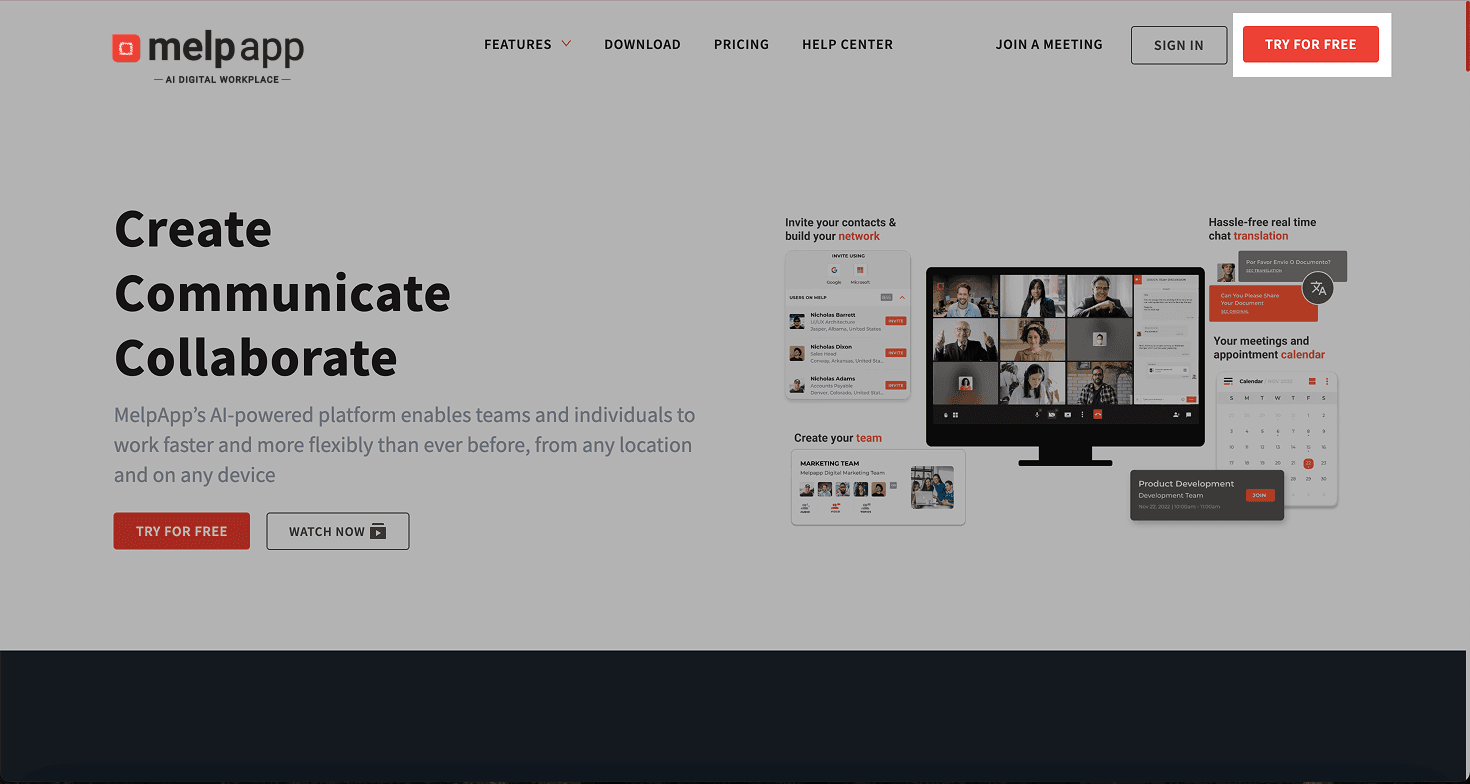
Go to www.melp.us and click "Try For Free" to begin the sign-up process.
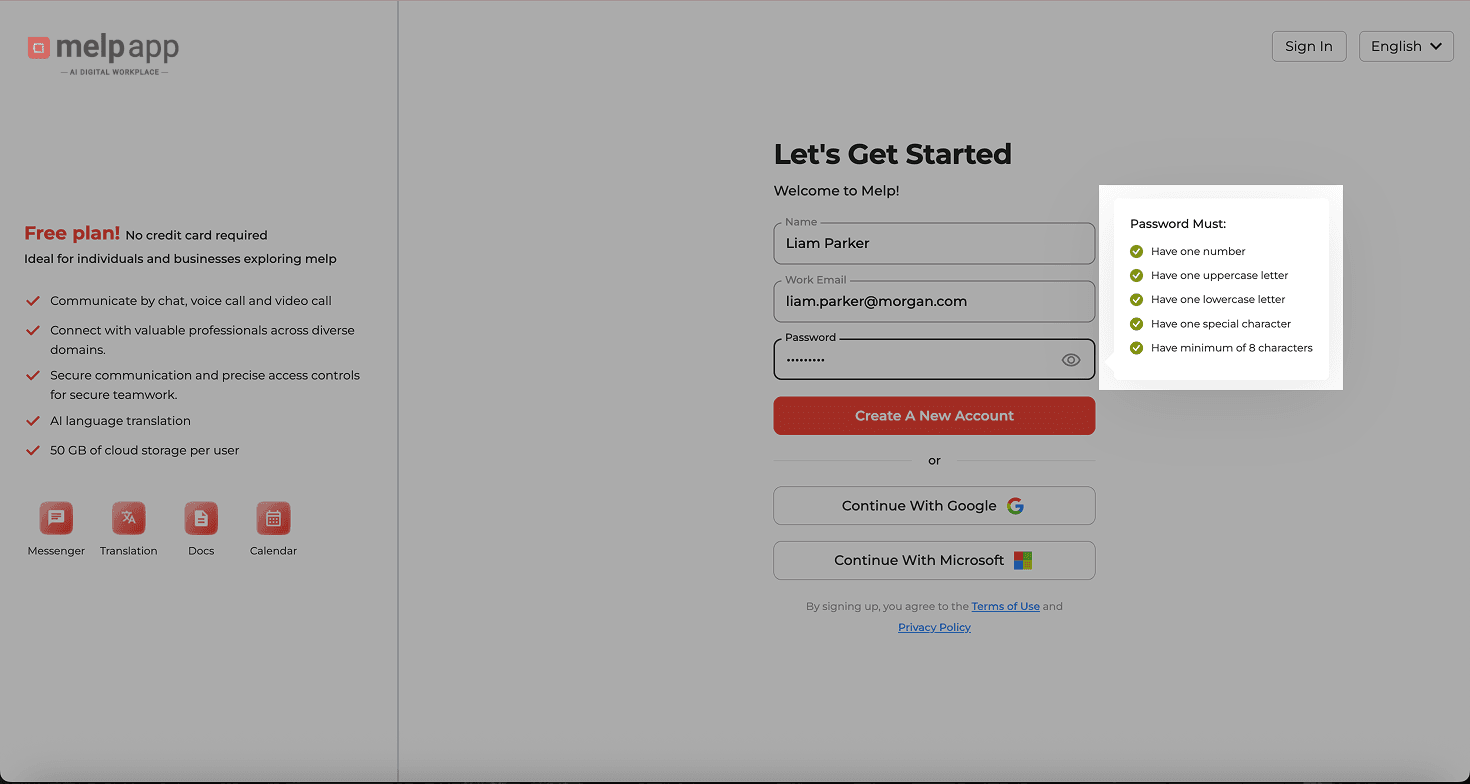
Enter Your Details
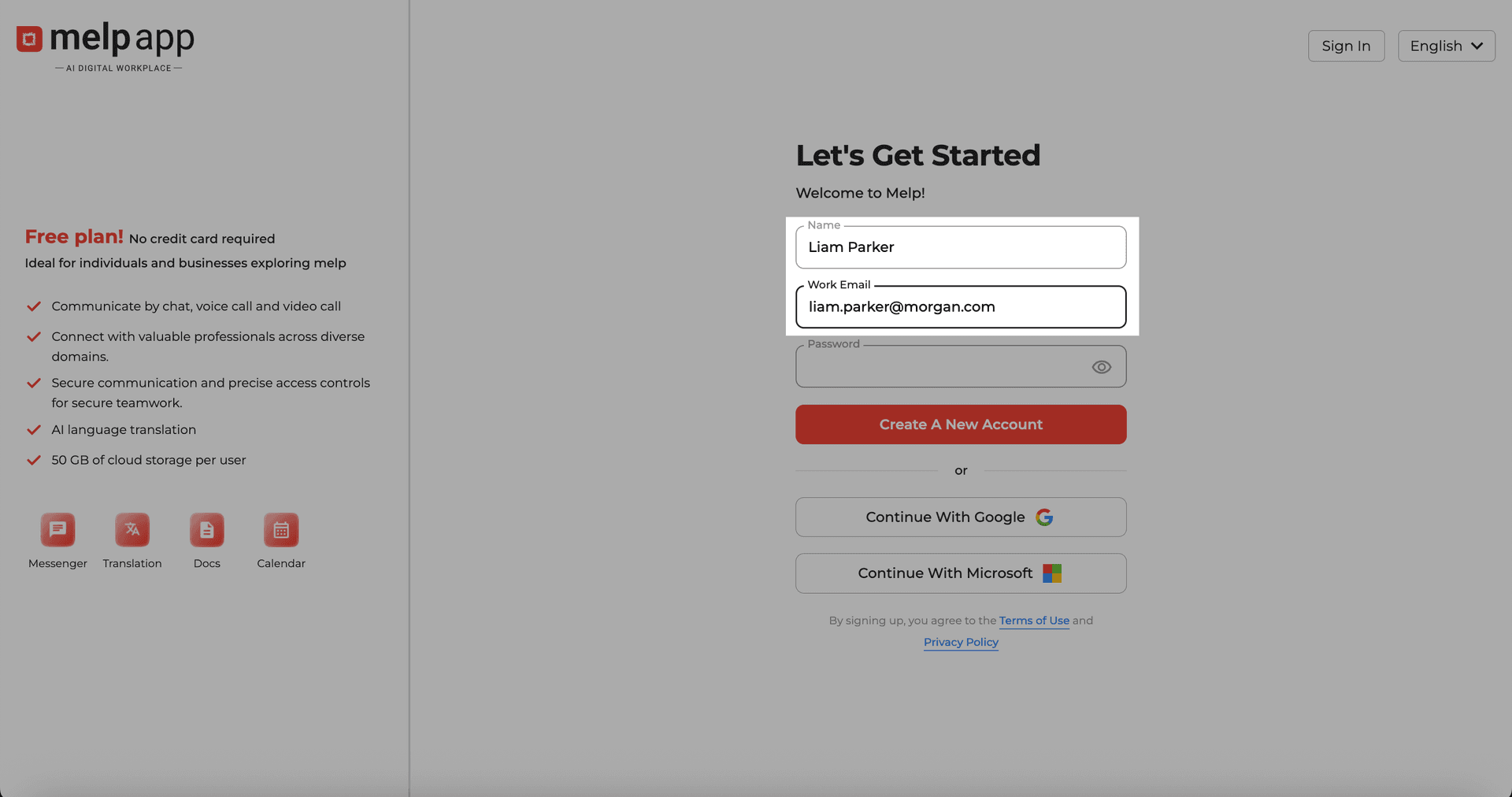
Type in your Full Name and your Work or Personal Email Address (Gmail, Yahoo, or company domain).
Set Your Password
Set a strong password to keep your account safe.
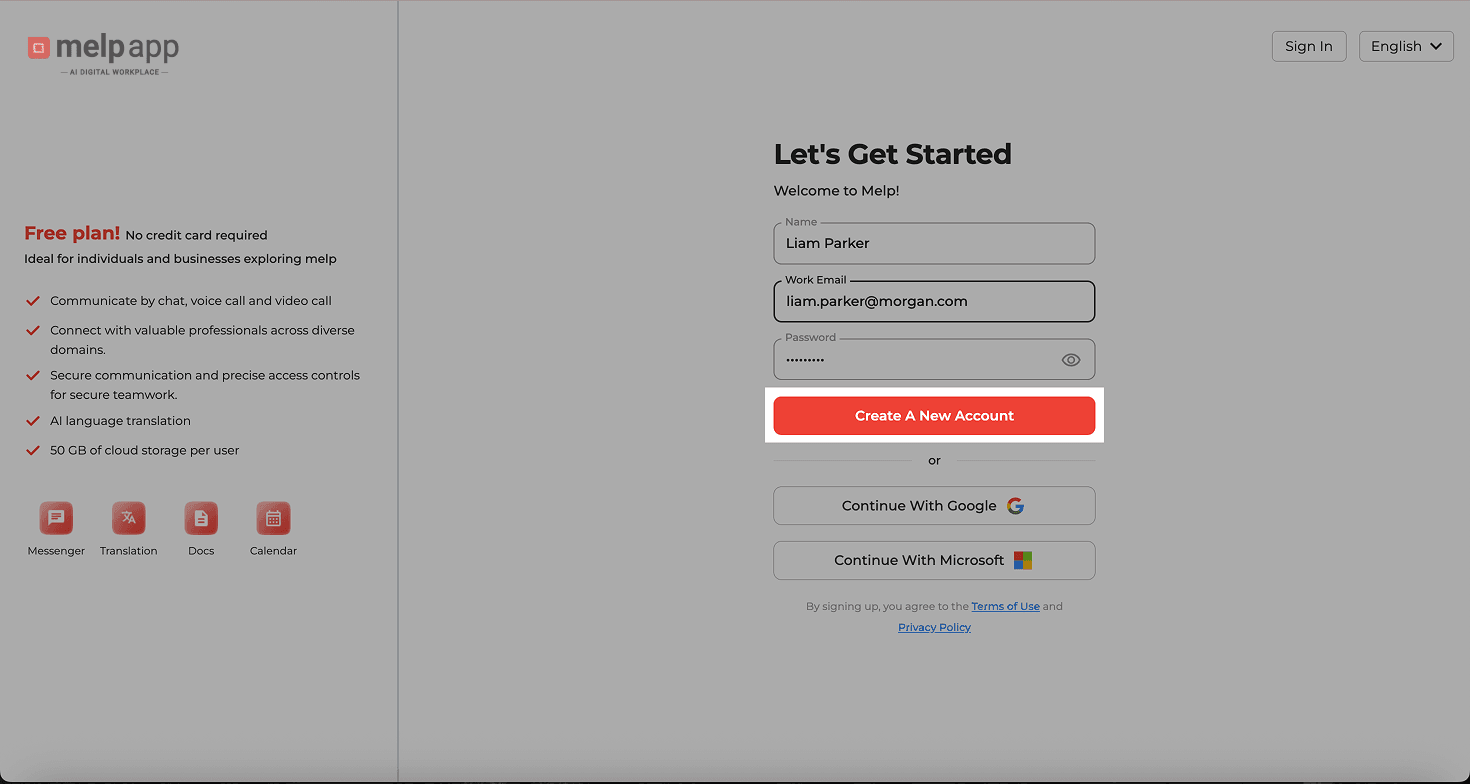
Create Account
Click on CREATE ACCOUNT to proceed.
Verify Your Email
Check your inbox for a verification email from Melp. Click the link inside to verify your account.
.png&w=1920&q=75)
Complete Your Profile & Start Connecting
Once you're signed in, it's time to set up your workspace and start making connections. The profile setup differs based on your account type.
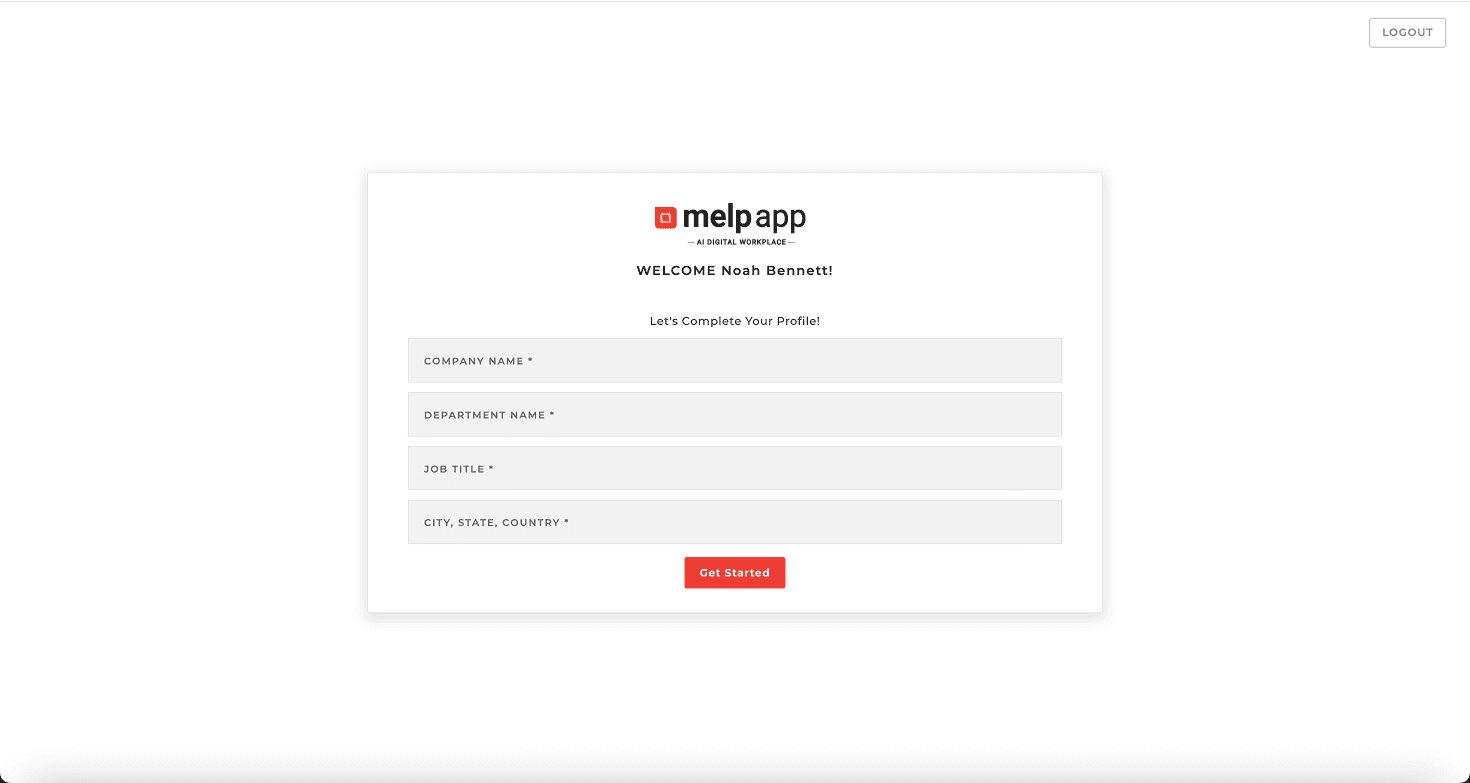
Add Your Business Info
Add your Company Name, Department, Job Title, and Work Location to personalize your experience and get better networking suggestions.
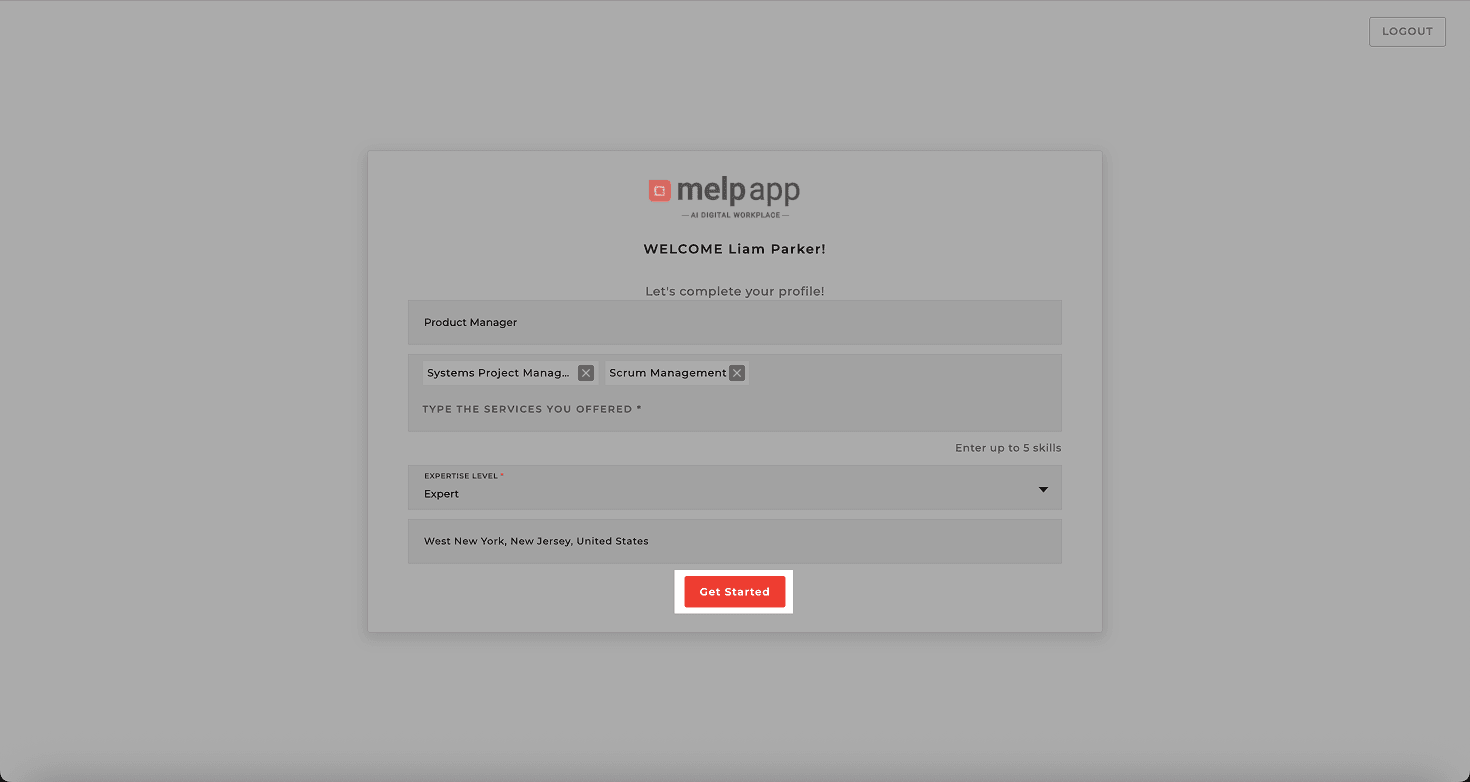
Get Started
Once your info is filled in, hit the "Get Started" button to move ahead.
Connect with Professionals
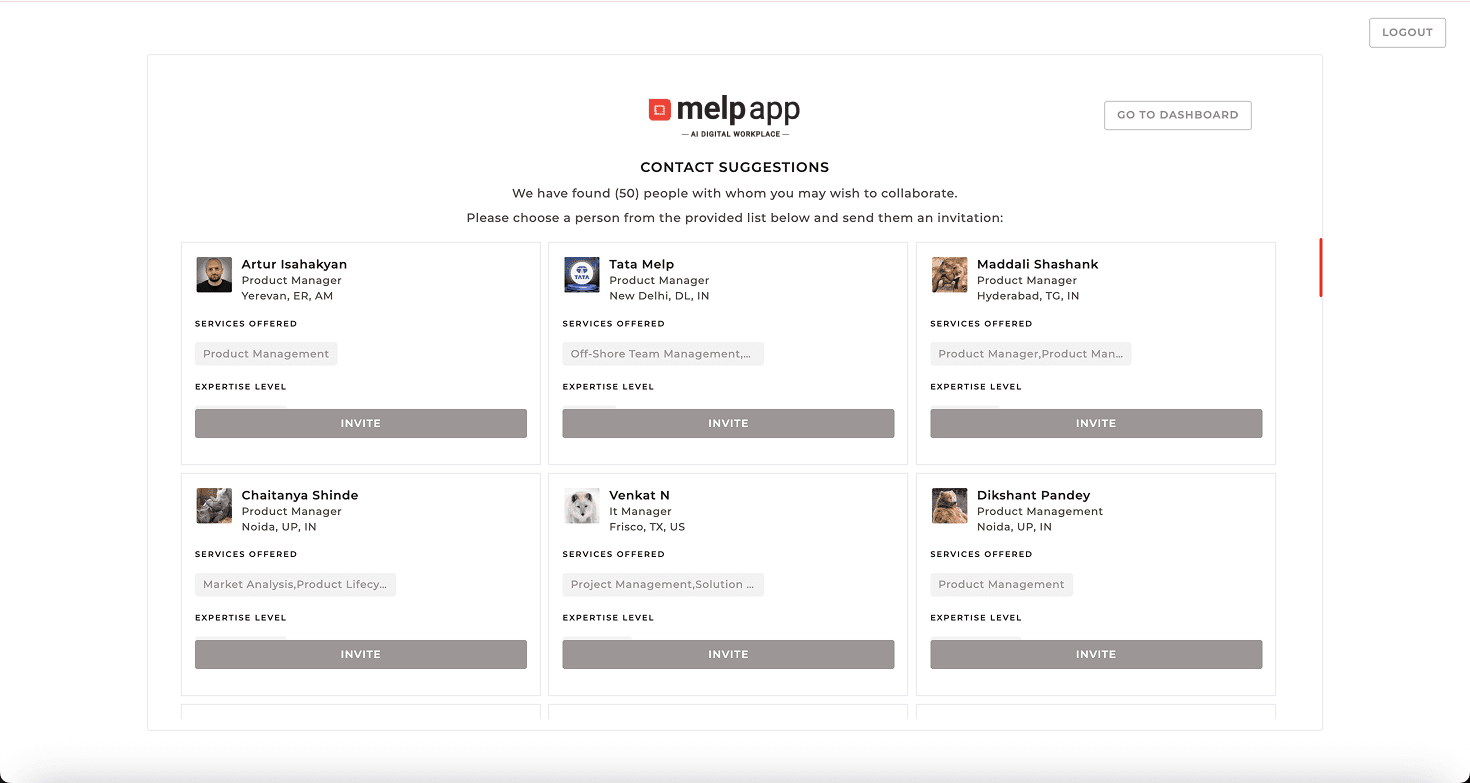
You'll see contact suggestions based on your job title, location, skills, expertise, or services offered. Easily connect with professionals who match your interests and start growing your network from day one.