
Customize Your Calendar Link
Personalize your booking page.
Your calendar link is your personal booking gateway—make it short, simple, and memorable. By customizing it, you can reflect your name, brand, or style so it's easy for others to remember and share.
How to Customize Your Link
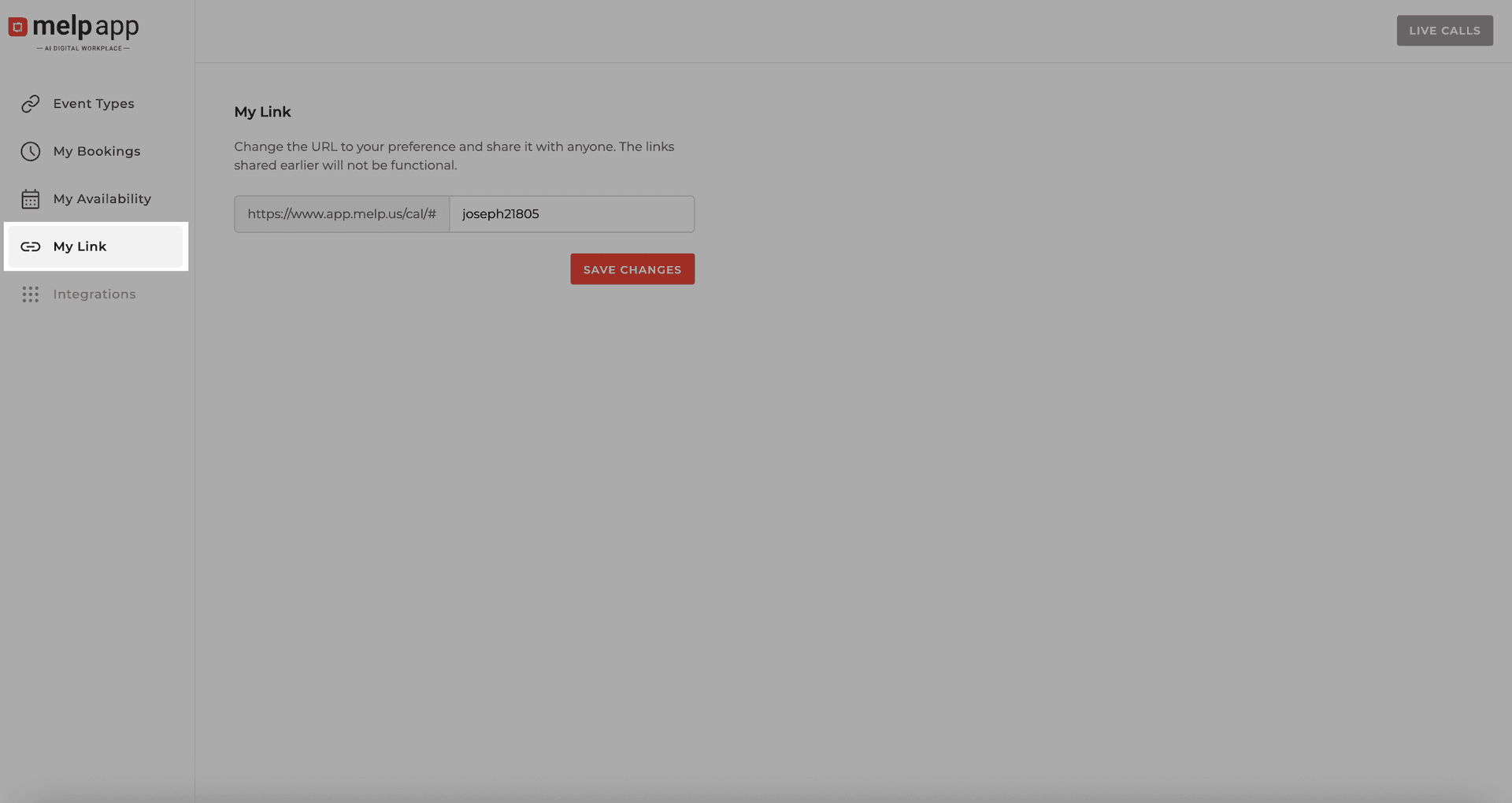
Open My Link
From the sidebar, click My Link.
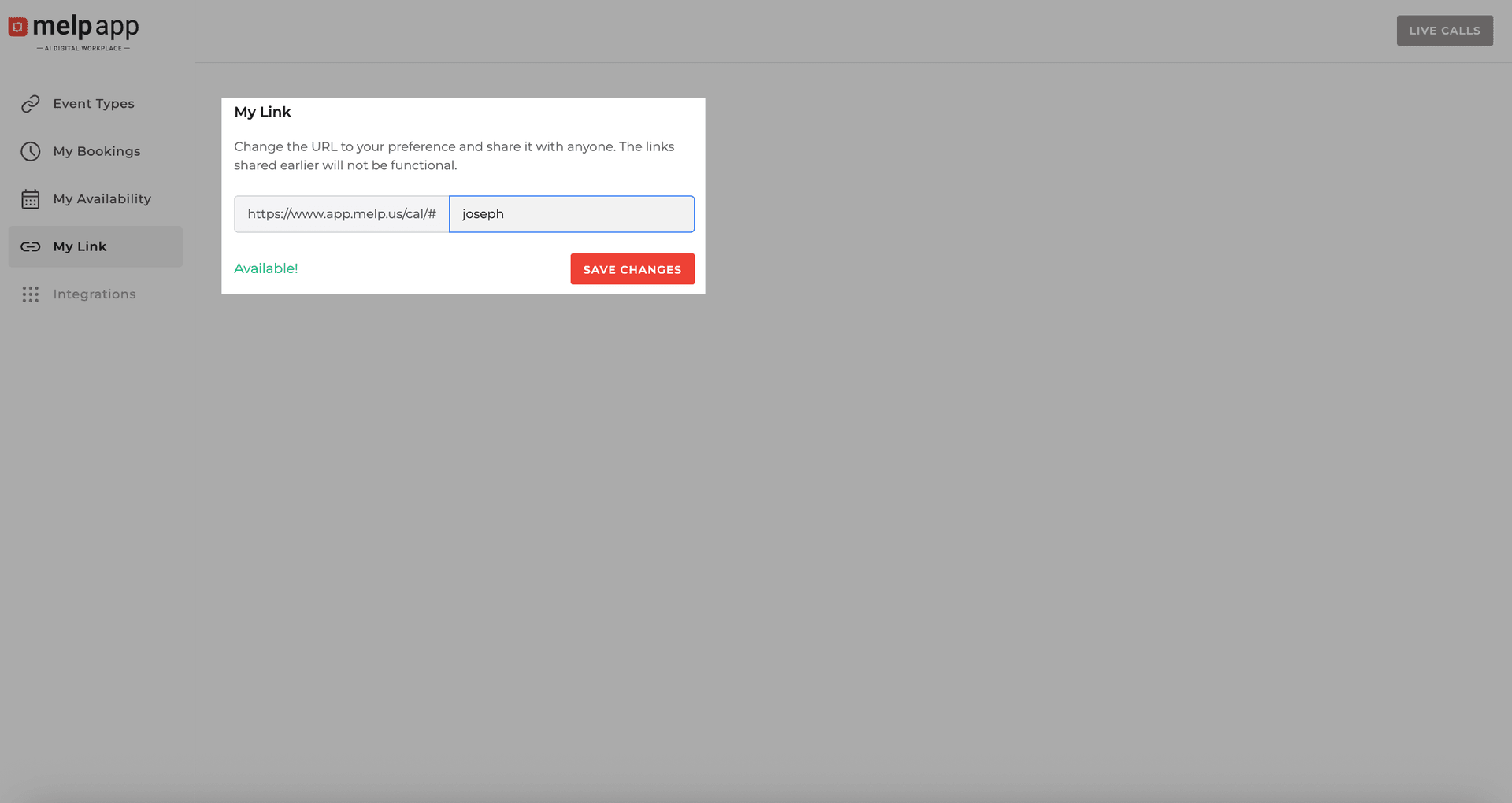
Customize & Save
Enter your custom text to make your link short, personal, and easy to remember. Click Save Changes — your link updates instantly.
Sharing Your Calendar Link
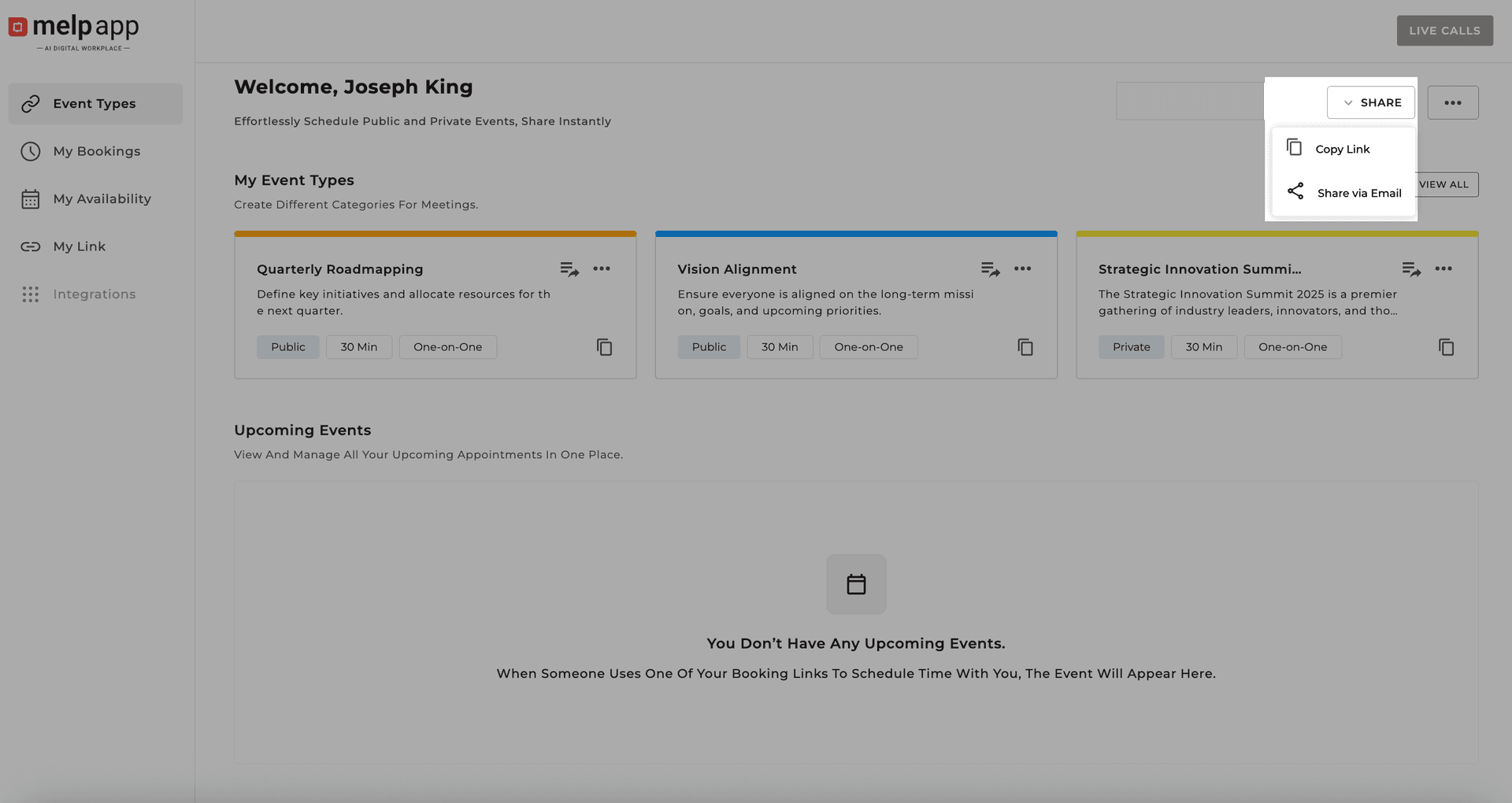
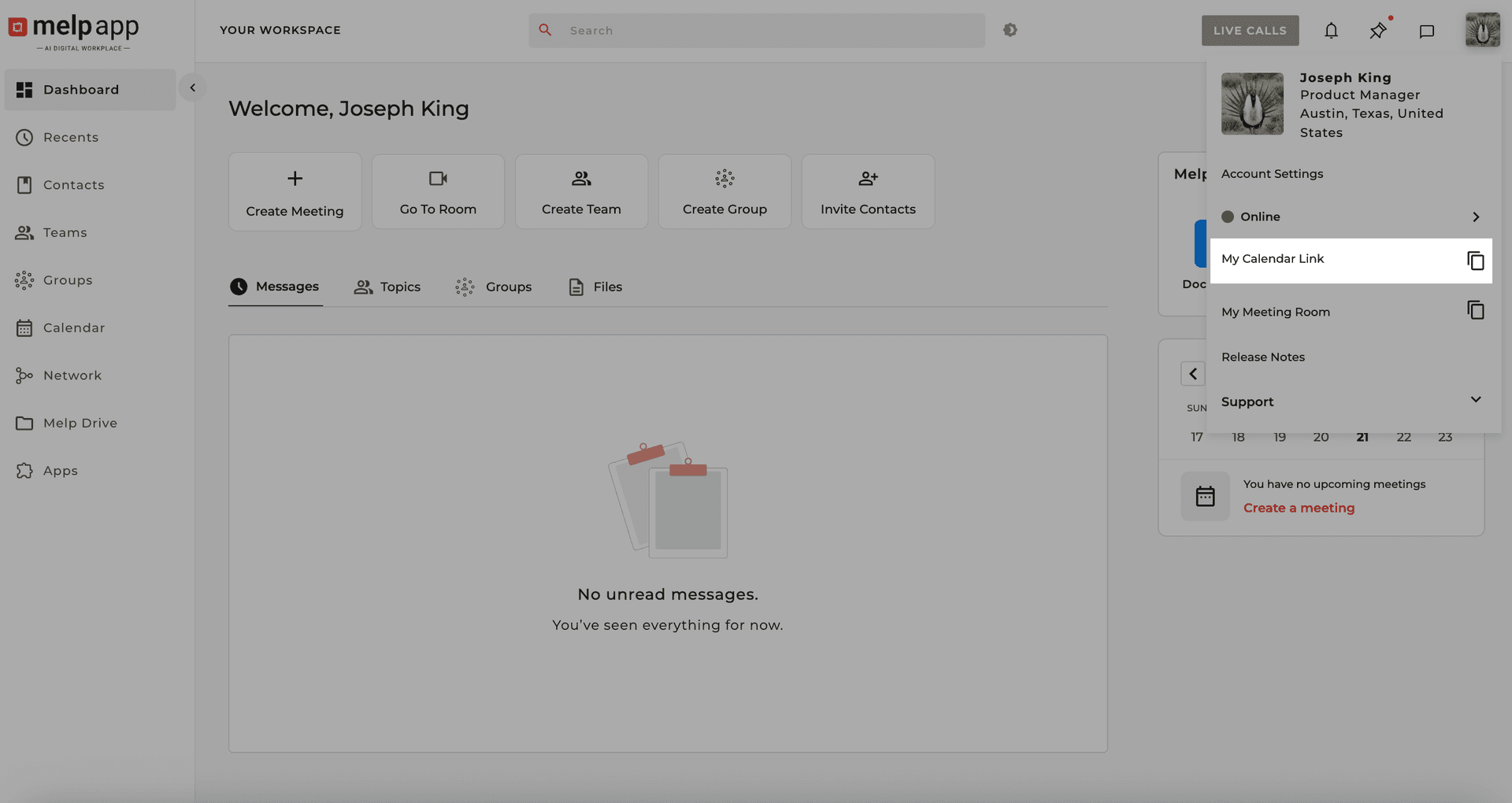
When someone clicks your link, all your public events will be visible.
What You Can Do After a Booking
Go to My Bookings from the sidebar to manage incoming requests:
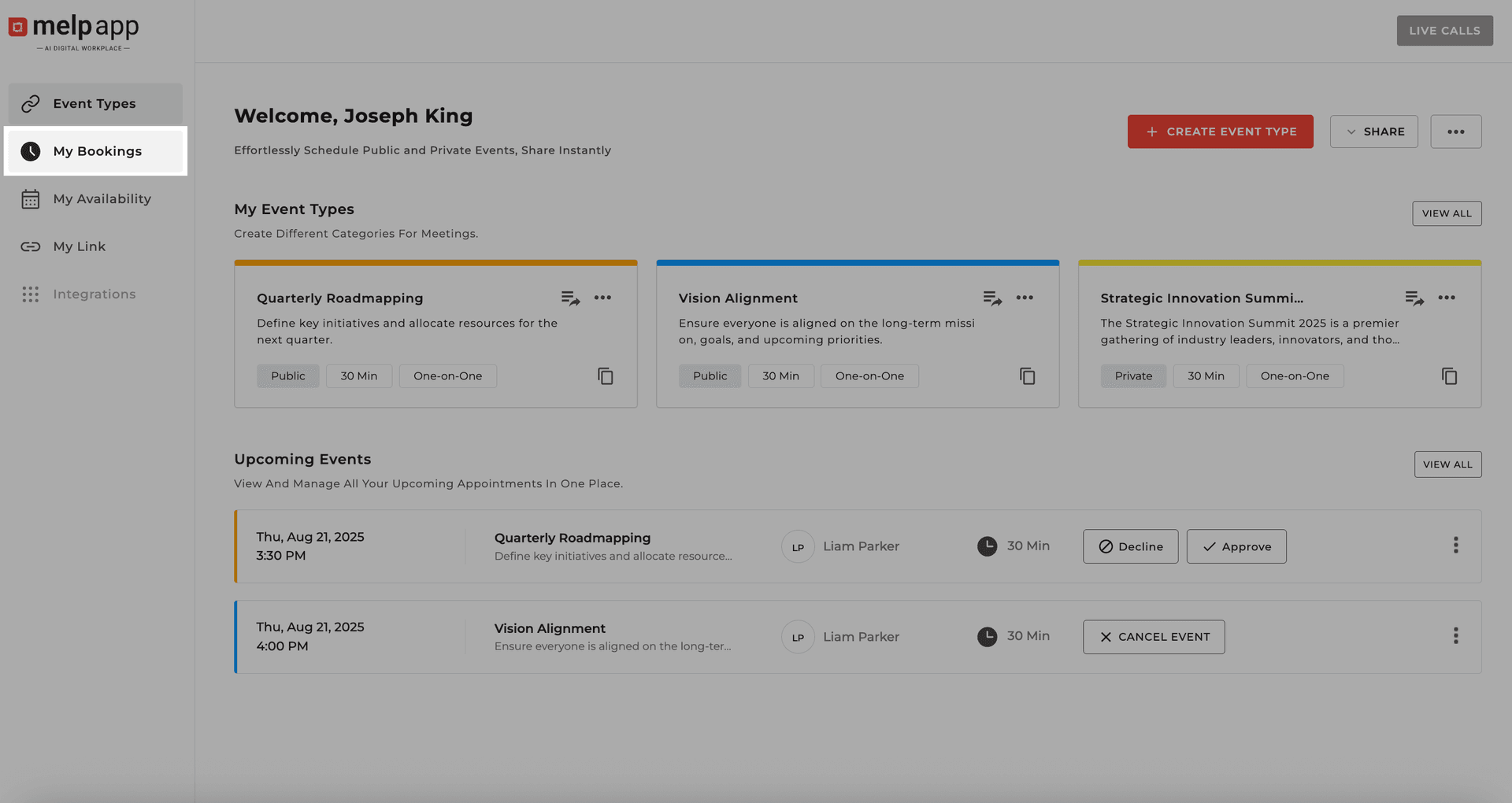
Accept, Decline, or Cancel
Manage bookings by approving, rejecting, or canceling them, with automatic attendee notifications.
Confirm the booking.
Reject the request.
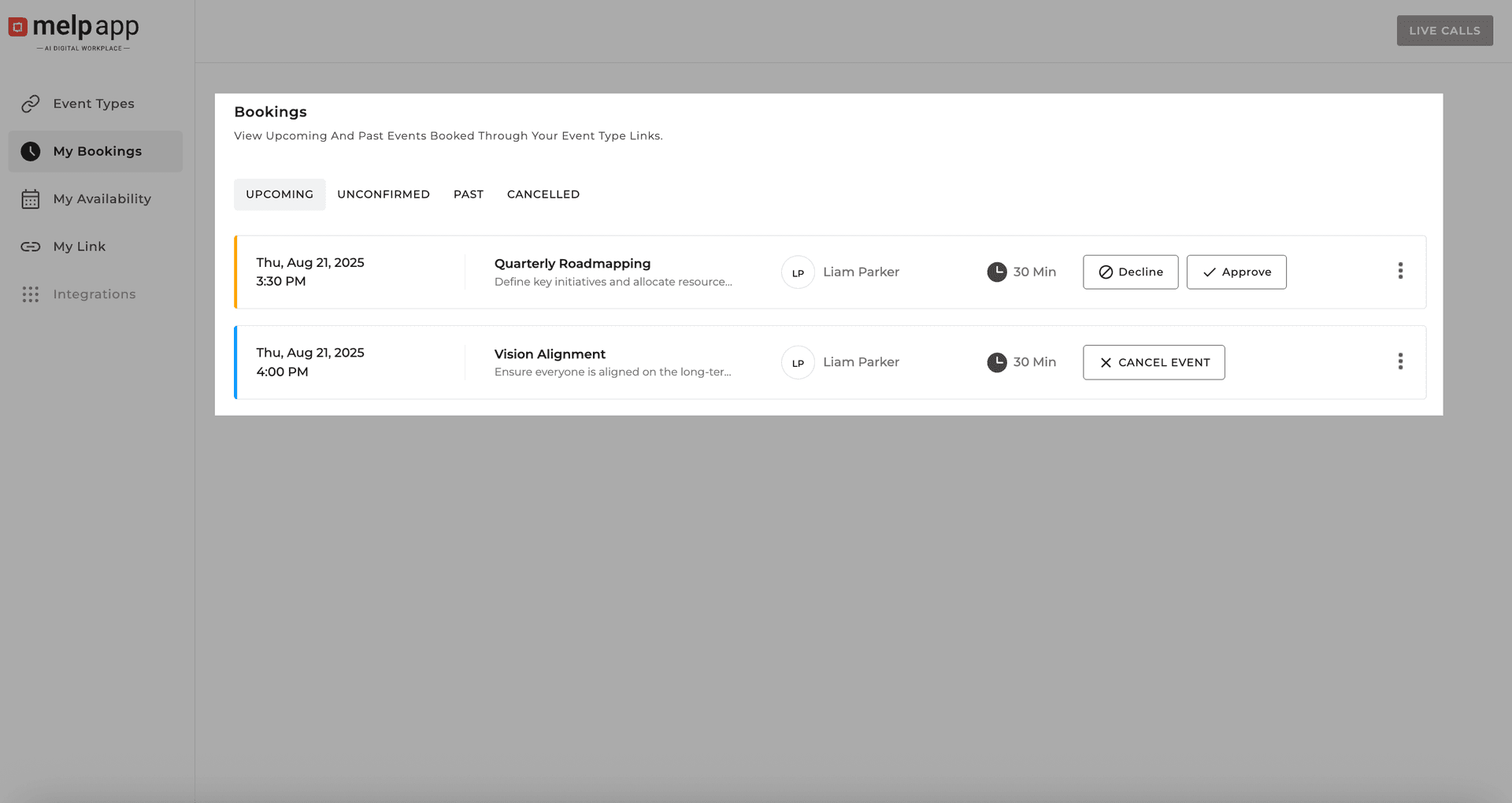
More Options
From the More Options menu in any booking, you can:
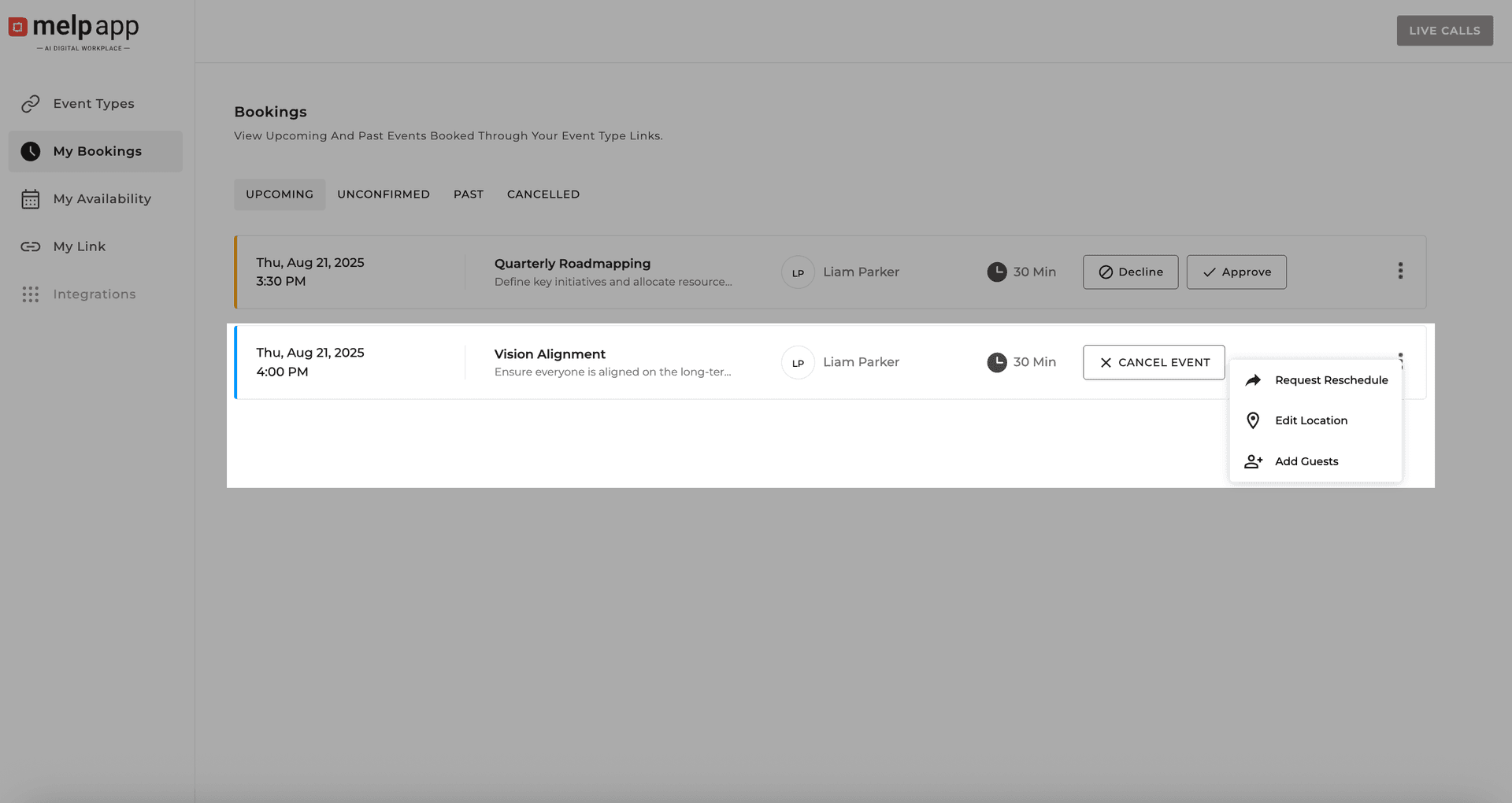
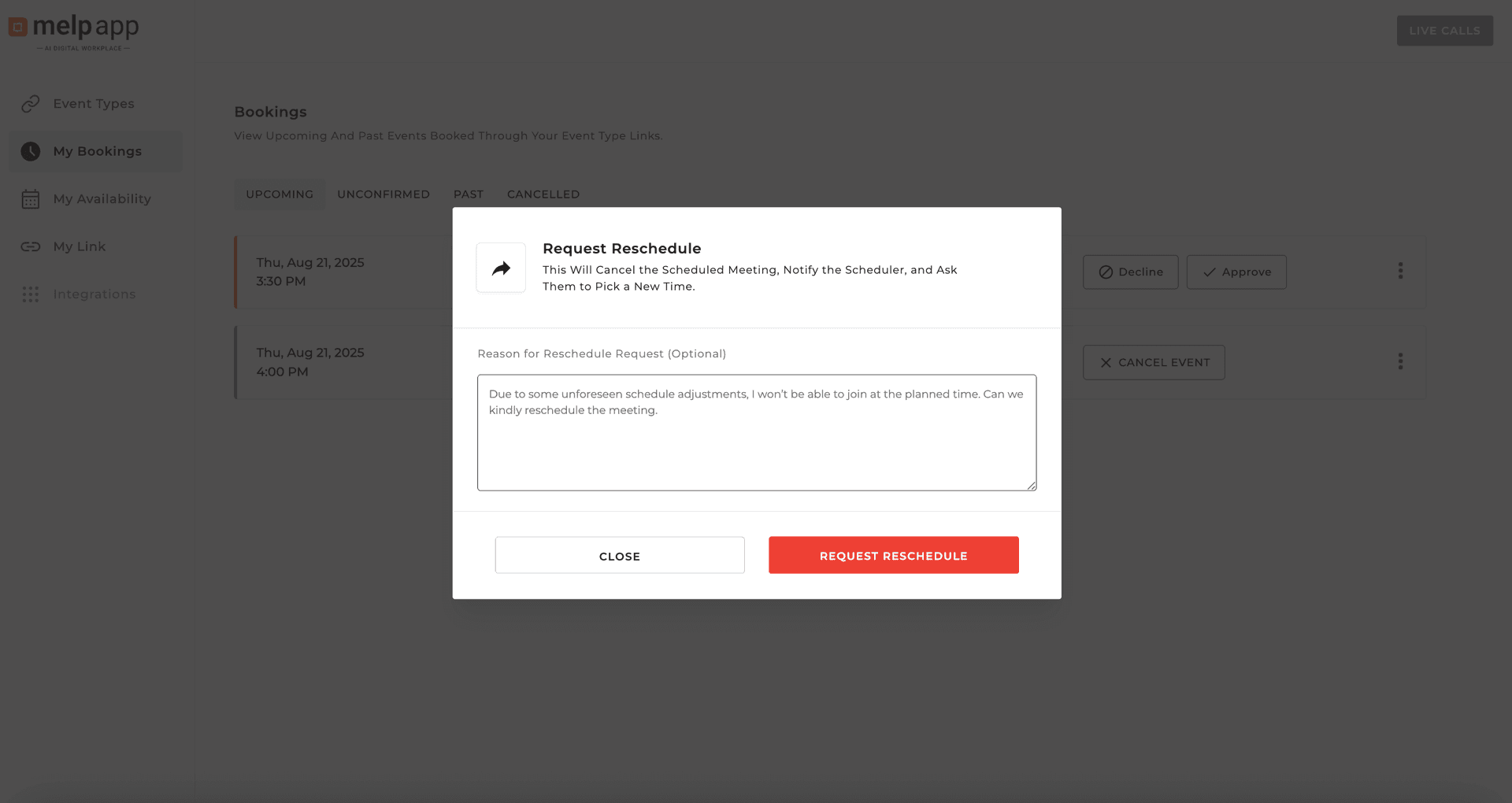
Request a Reschedule
Suggest a new time.
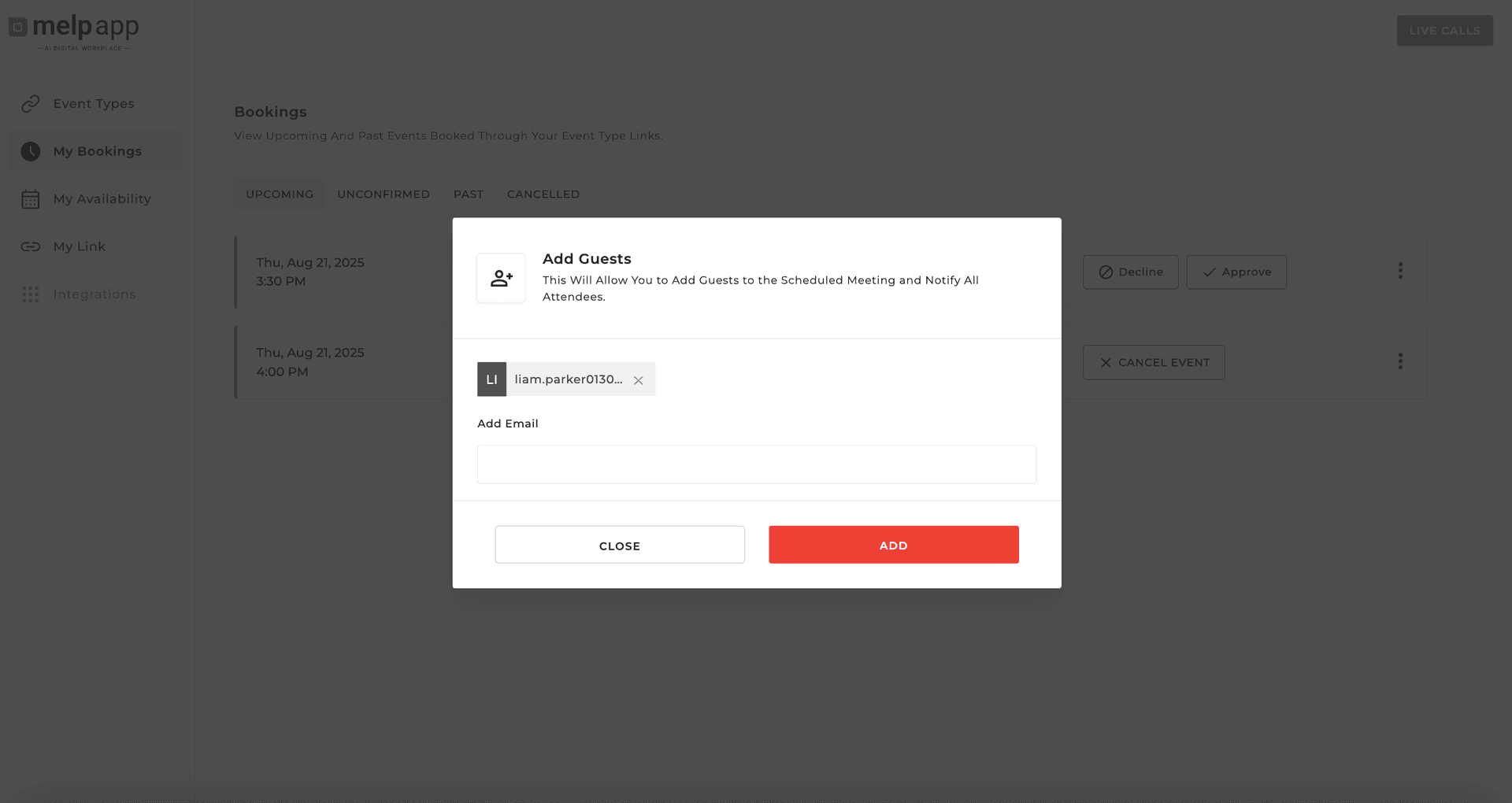
Add Guests
Invite additional participants.
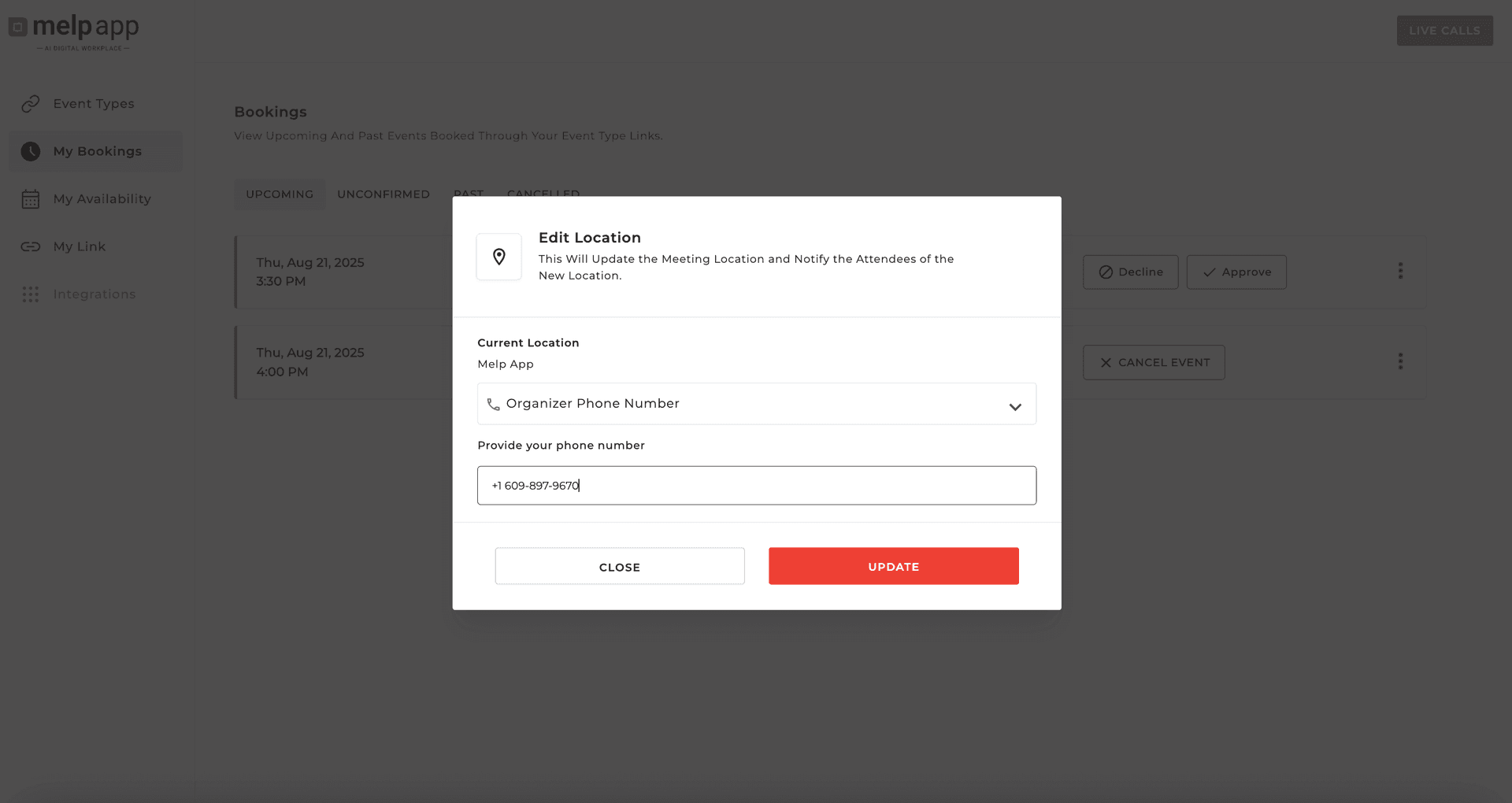
Edit Location
Update the venue or meeting link.
Pro Tips
- Use clear event titles and descriptions so attendees know exactly what to expect.
- Mark events as Private for sensitive or high-priority meetings.
- Limit booking slots on public events to keep your schedule manageable.