

How to Create a Team
Collaborate smarter, faster, and more organized.
Melp gives you multiple easy ways to create a team.
Method 1: From the Dashboard
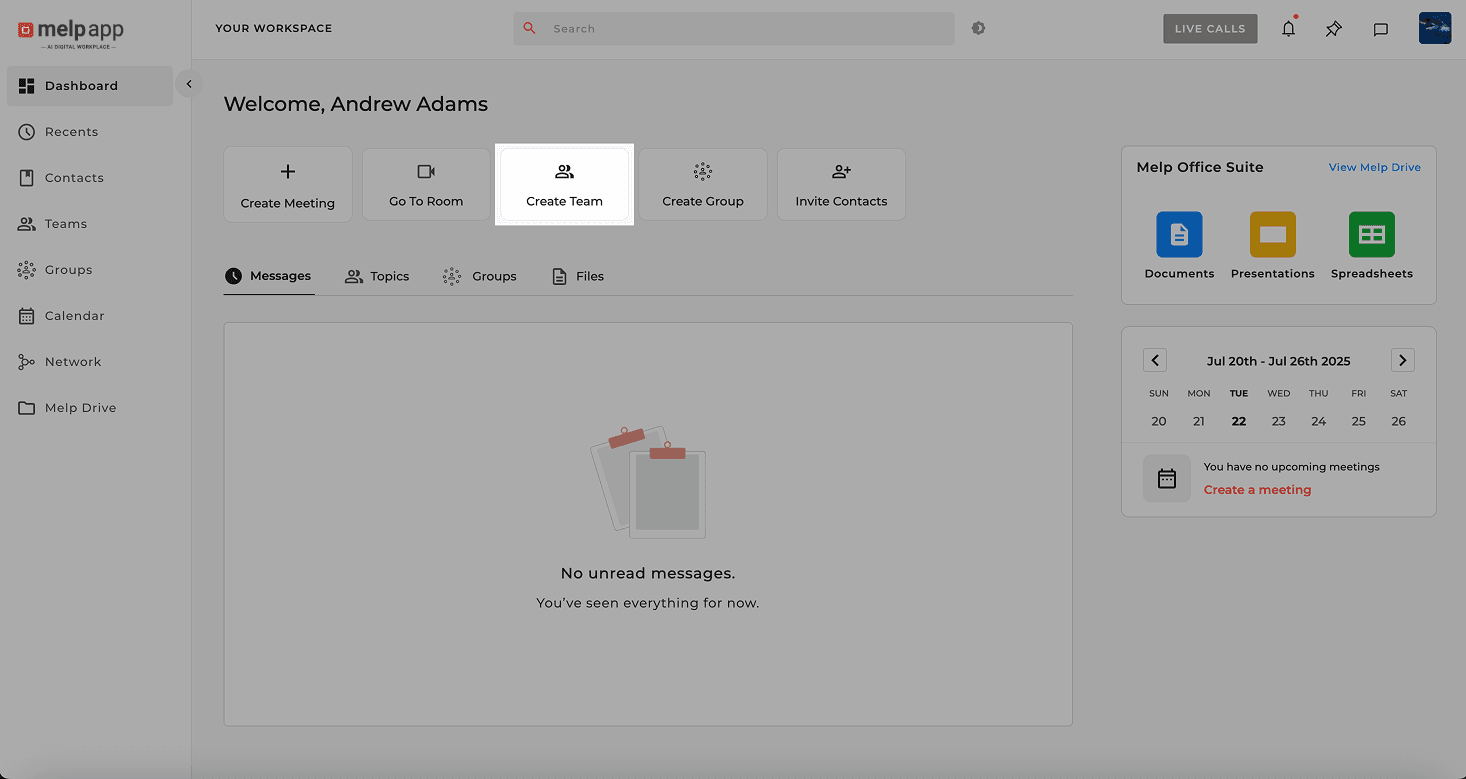
Click Create Team
From your Dashboard, click Create Team.
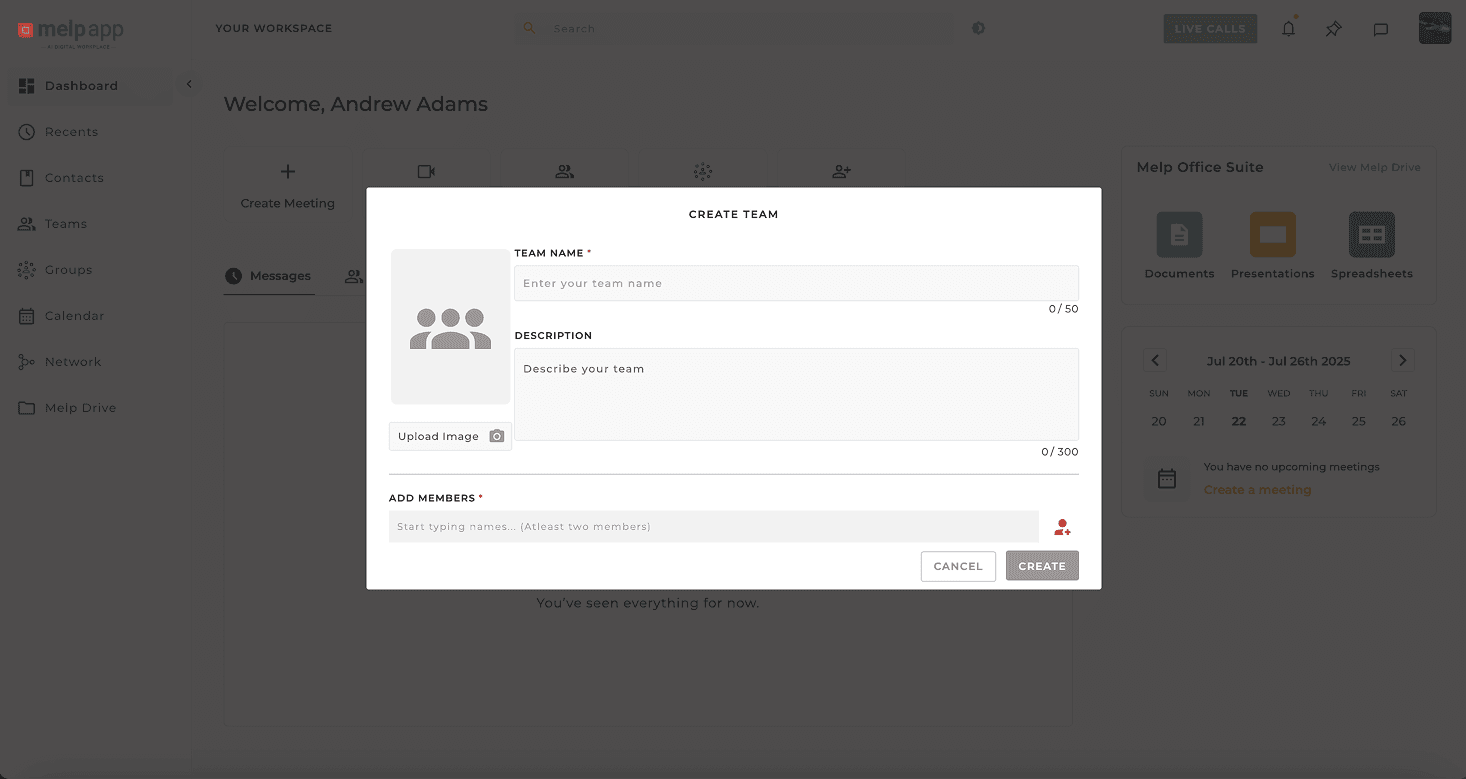
Enter Team Details
Enter a Team Name and add a description (optional), profile picture to personalize your team.
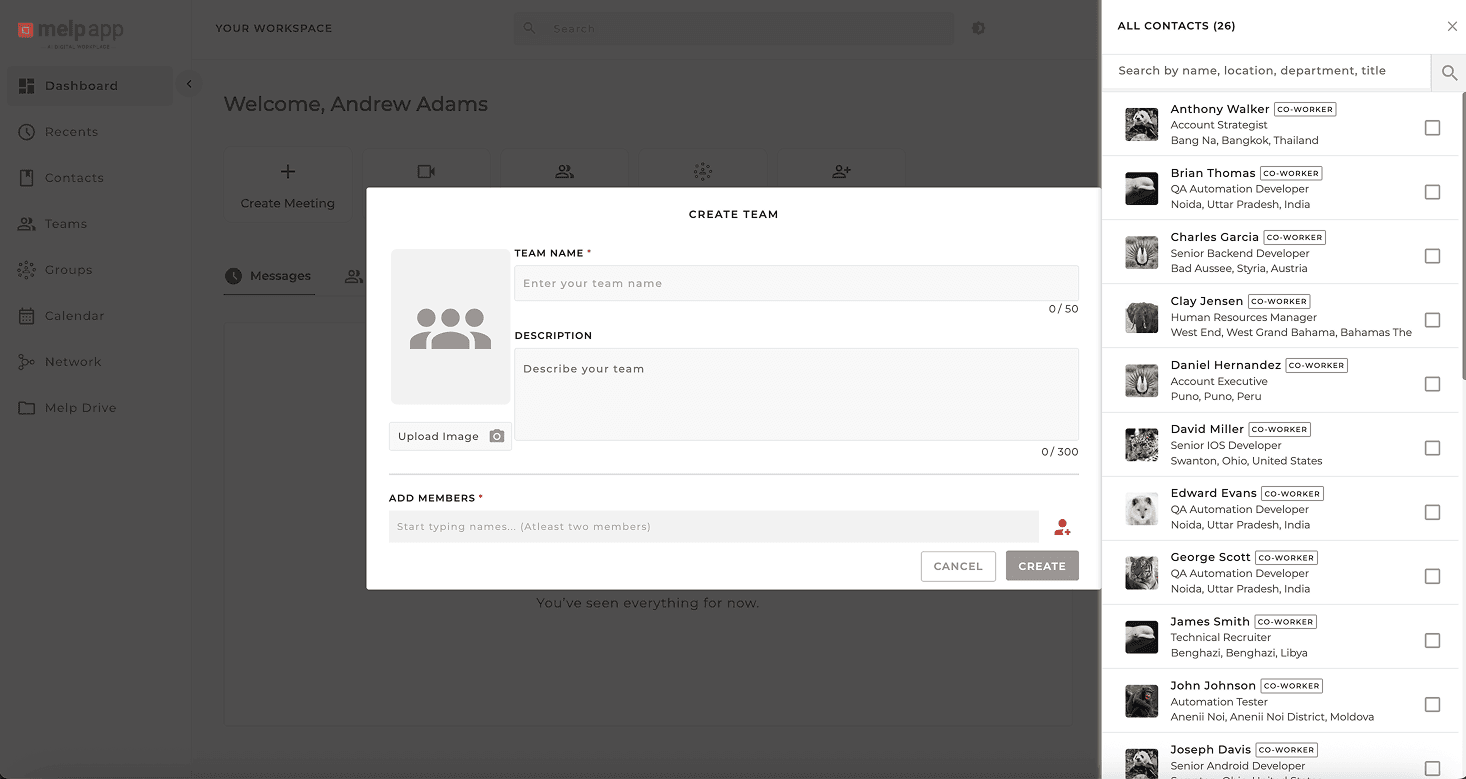
Add Teammates
Start adding teammates! Type their name or email address, or select them from the suggested list.
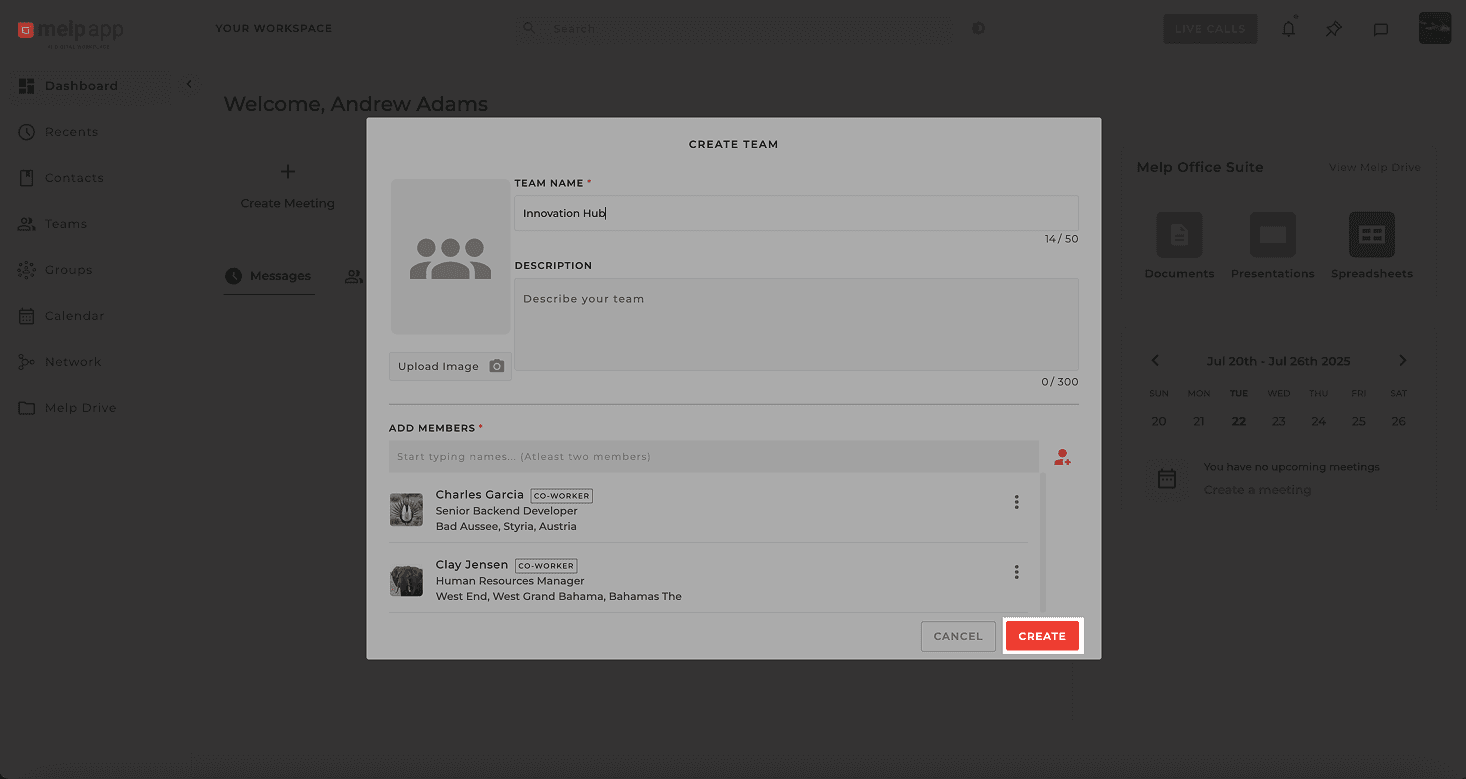
Create Your Team
Click Create—and boom! Your team is ready to go.
Method 2: From the Team Tab
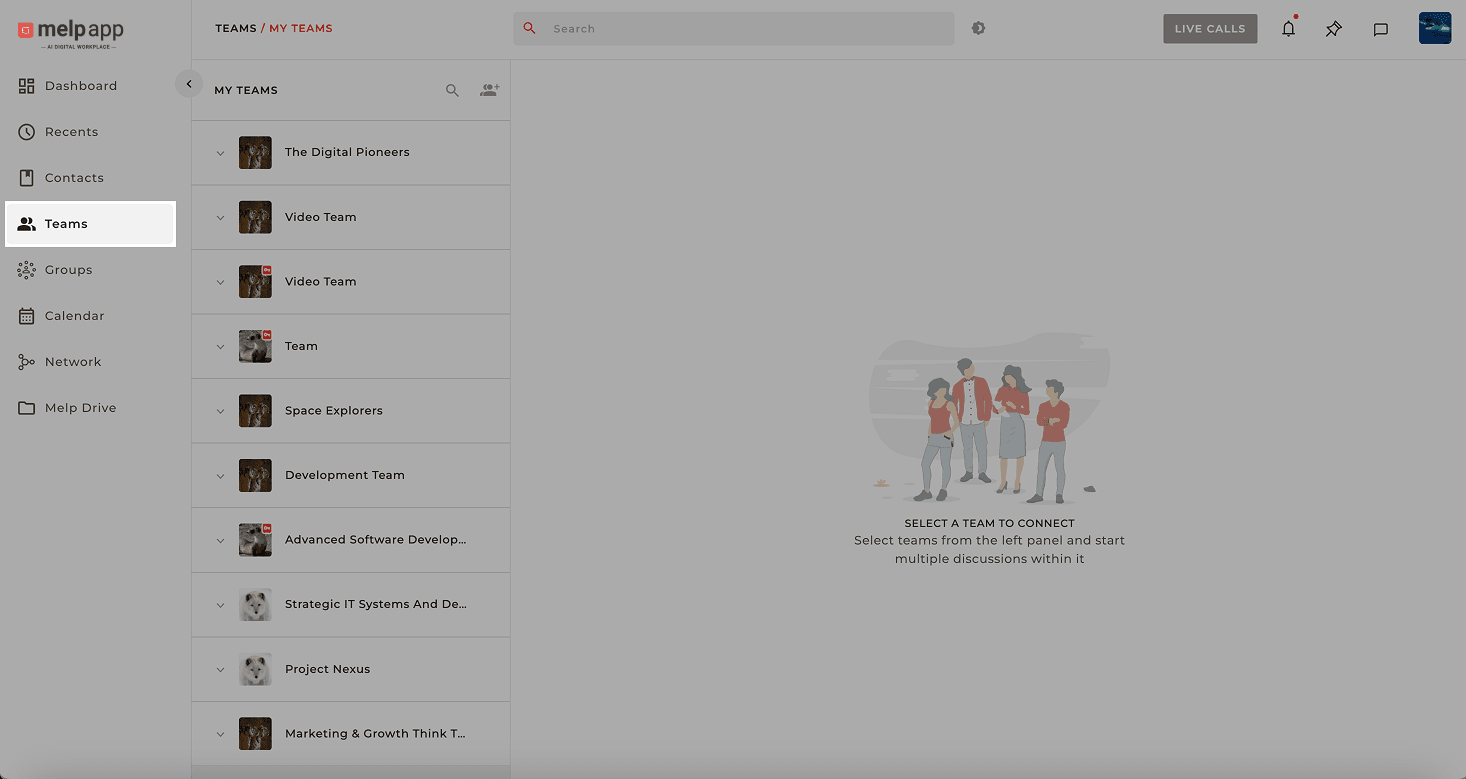
Open Team Tab
Head to the left sidebar and click on the Team tab.
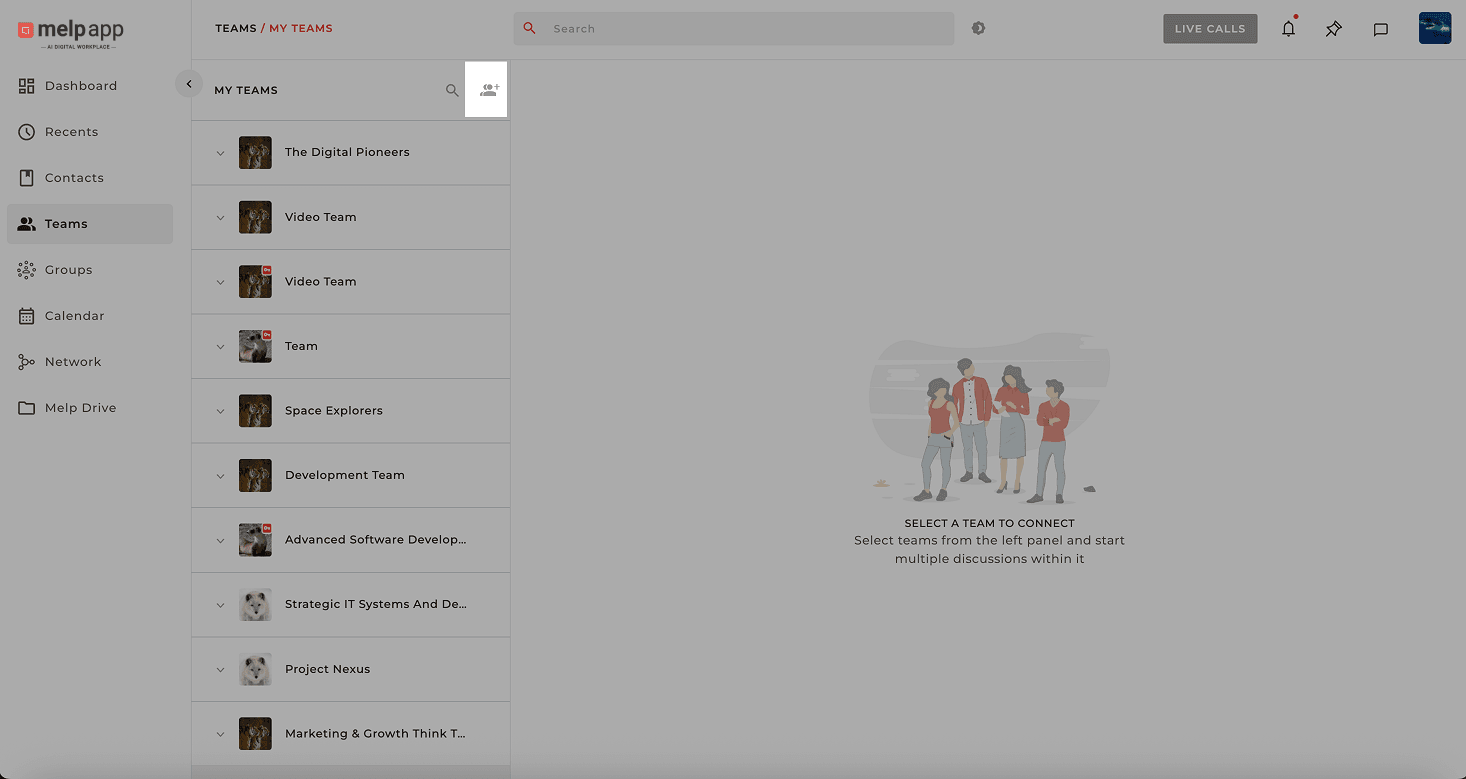
Click Create Team
Click the "+ Create Team" icon.
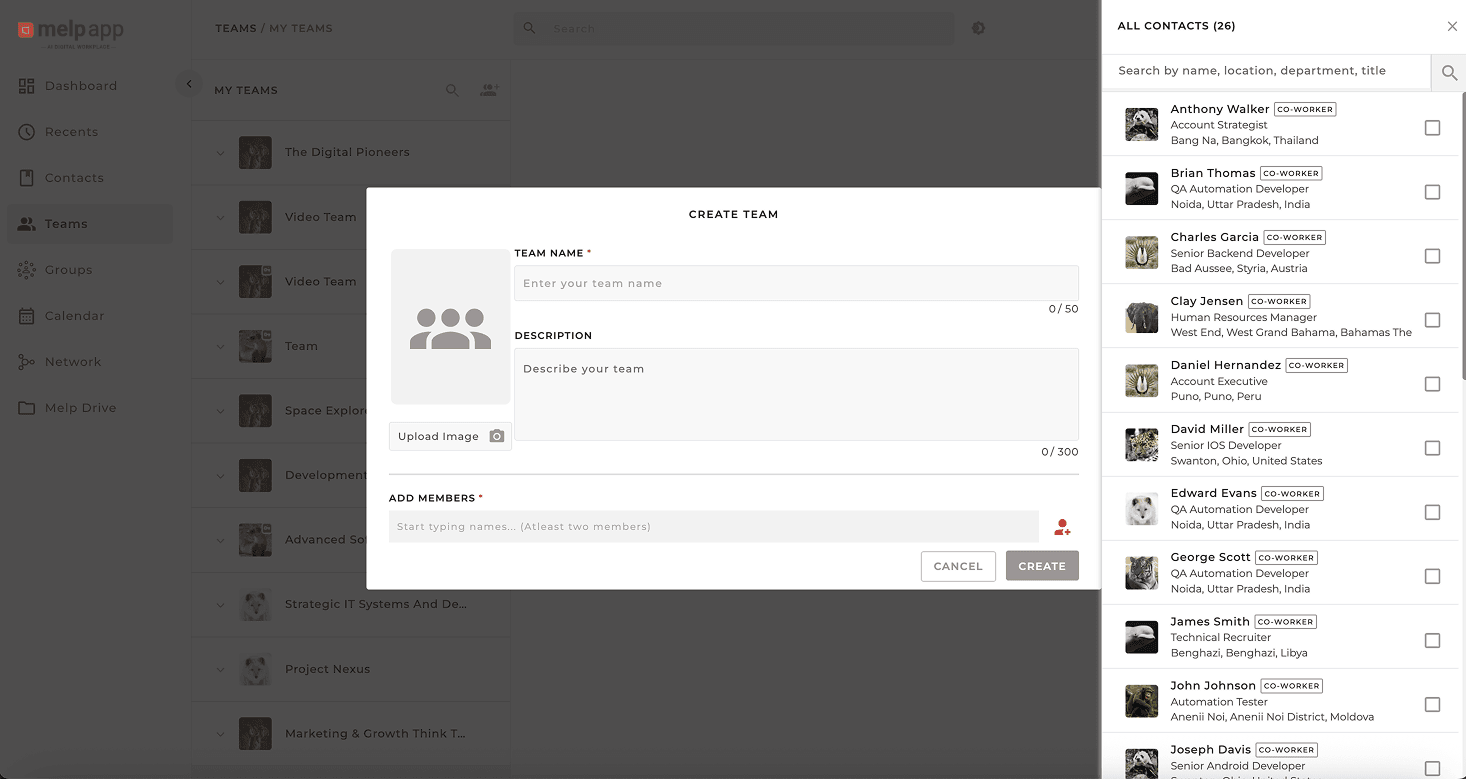
Fill in Details
Fill in the team name, (optional) description/photo, and add your teammates.
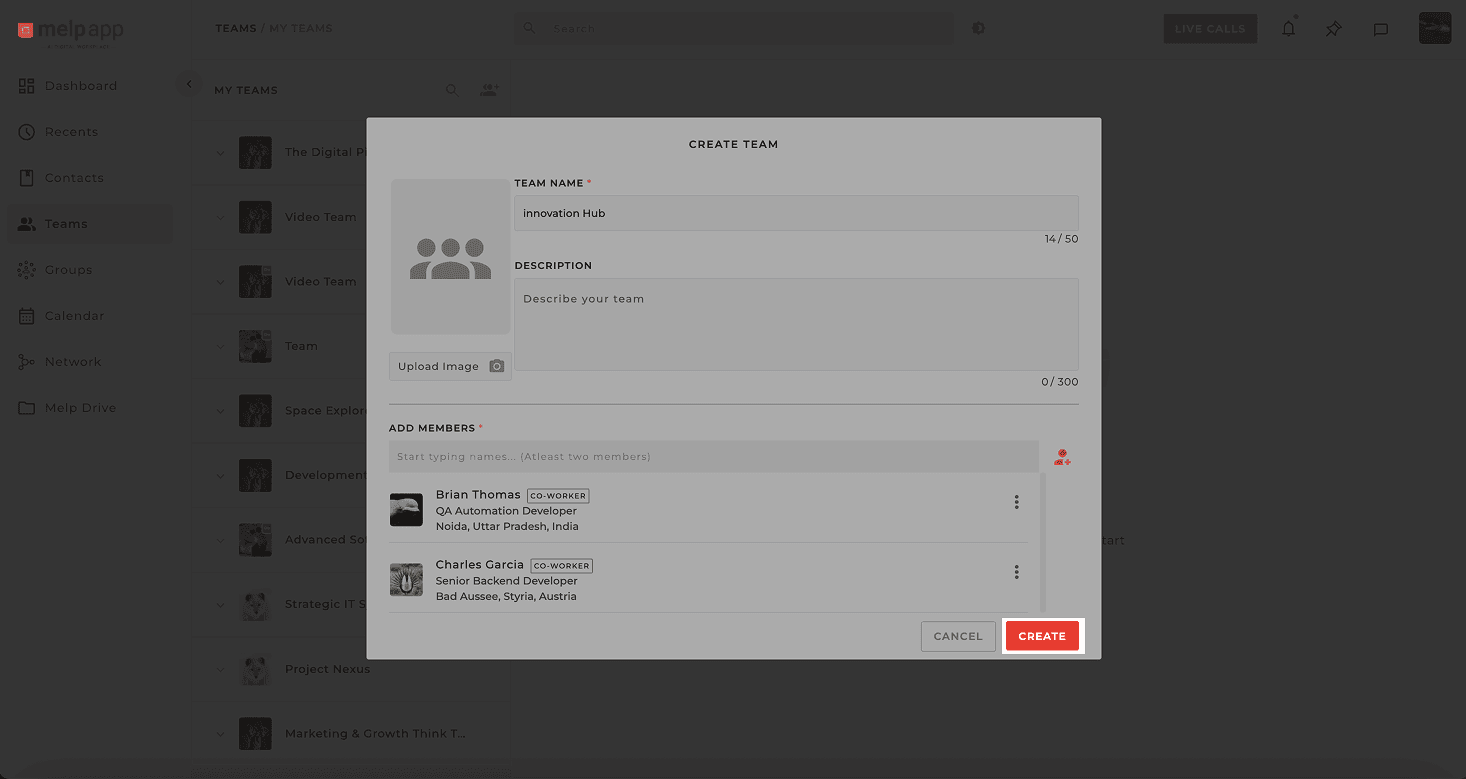
Launch Your Team
Hit Create to launch your team.
Method 3: From Contacts (Super Quick!)
This is perfect when you already know who you want in your team:
Open Contacts Tab
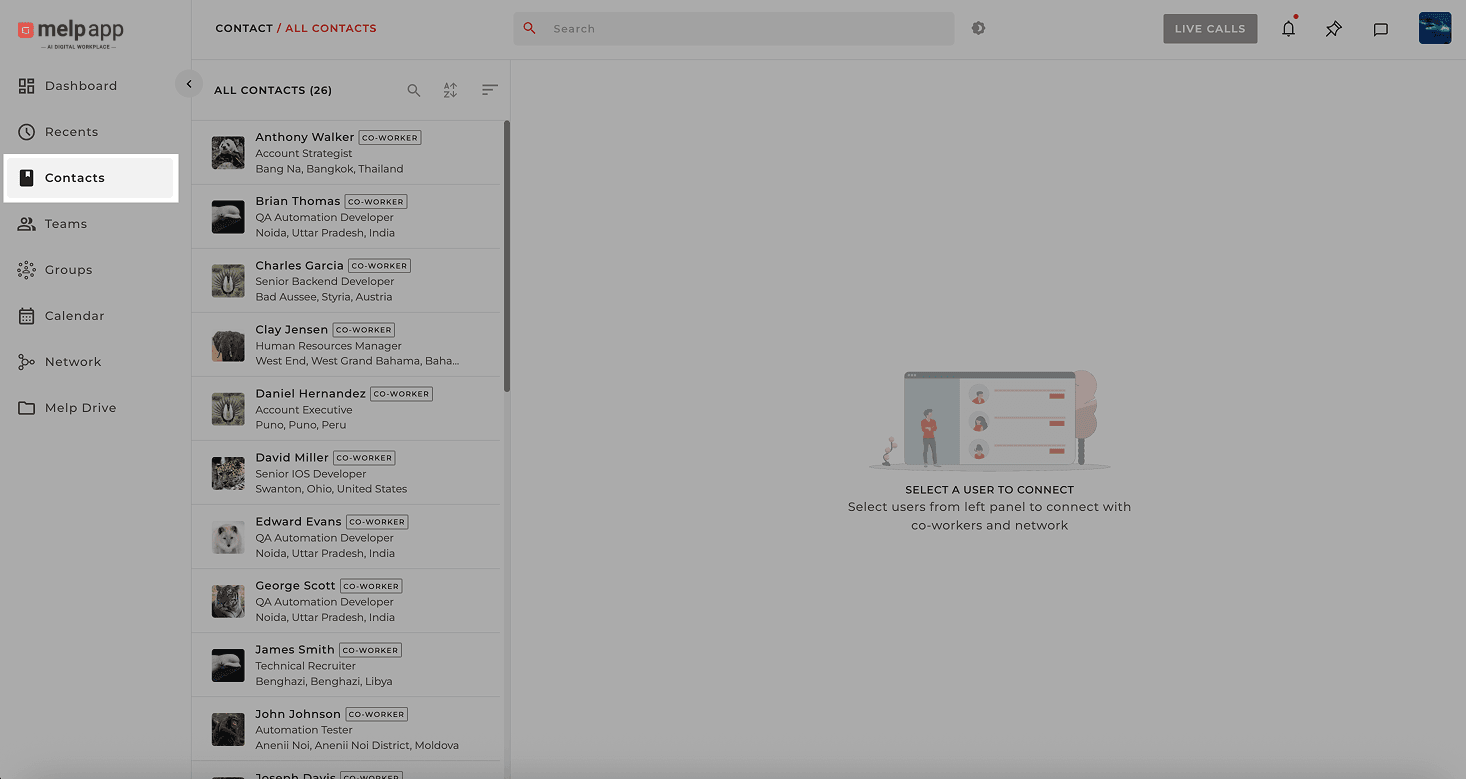
Head to the left sidebar and click on Contacts tab.
Select Contacts
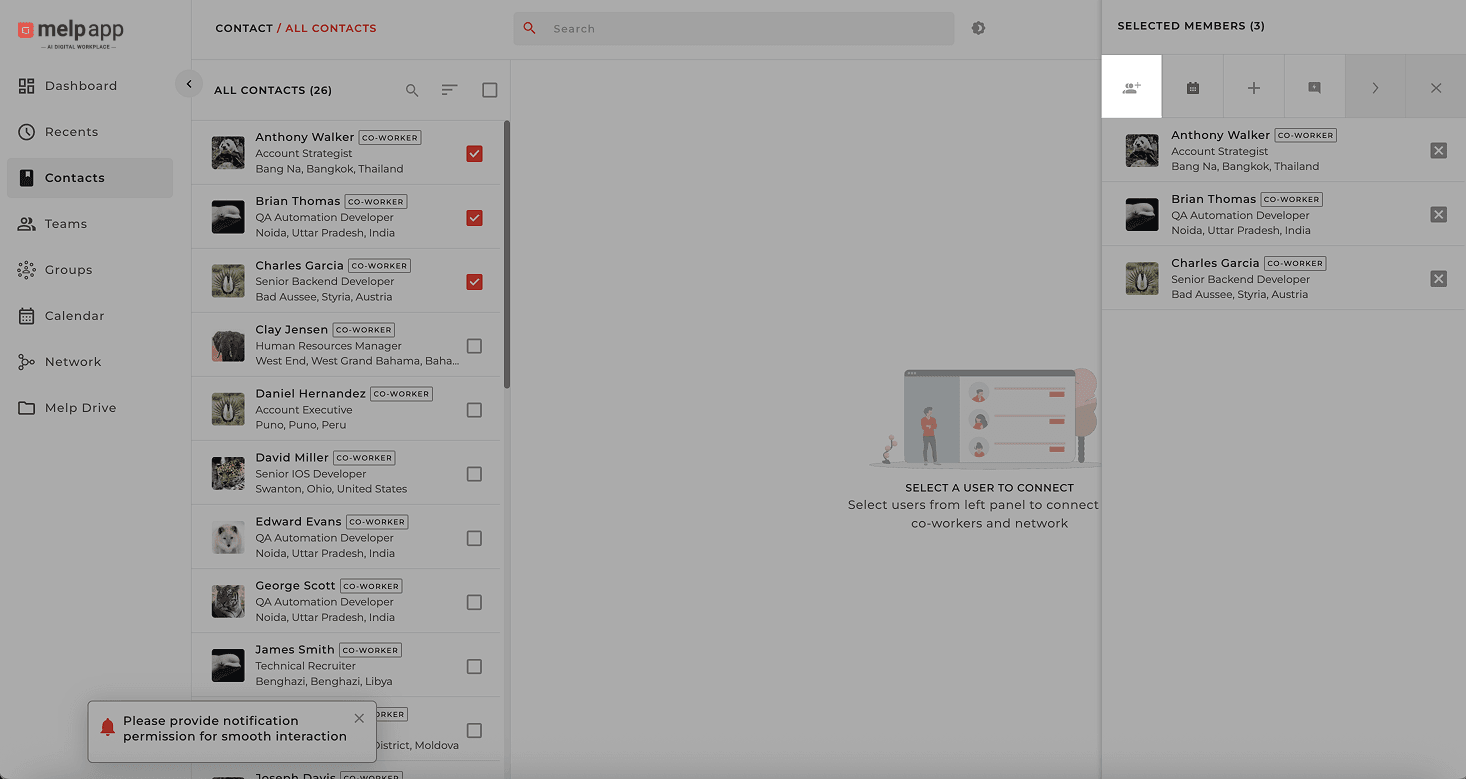
Select more than one user from your contact list (your selections will show up on the right side). Then hit the Create Team button that appears.
Enter Team Details
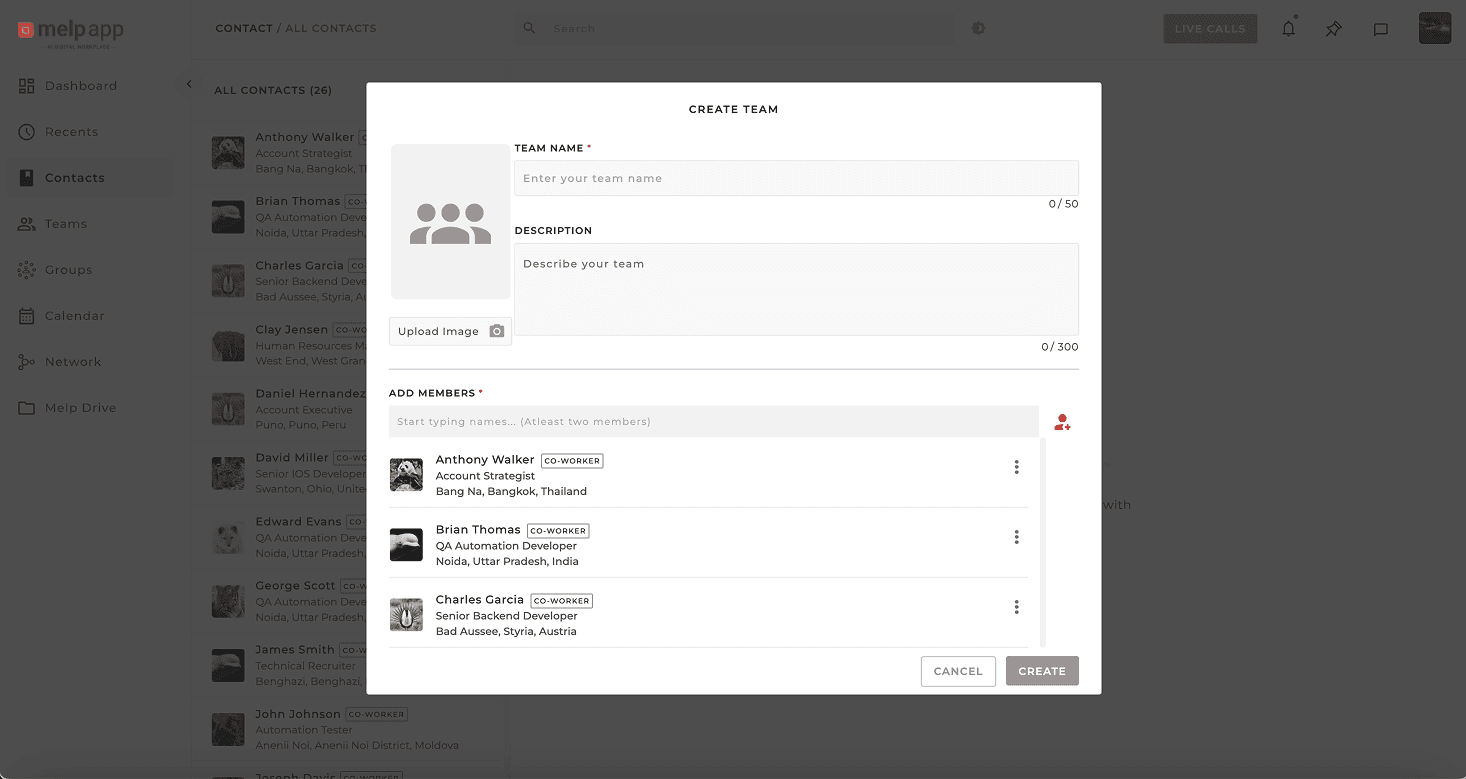
Enter a Team Name and add a description (optional), profile picture to personalize your team.
Create Your Team
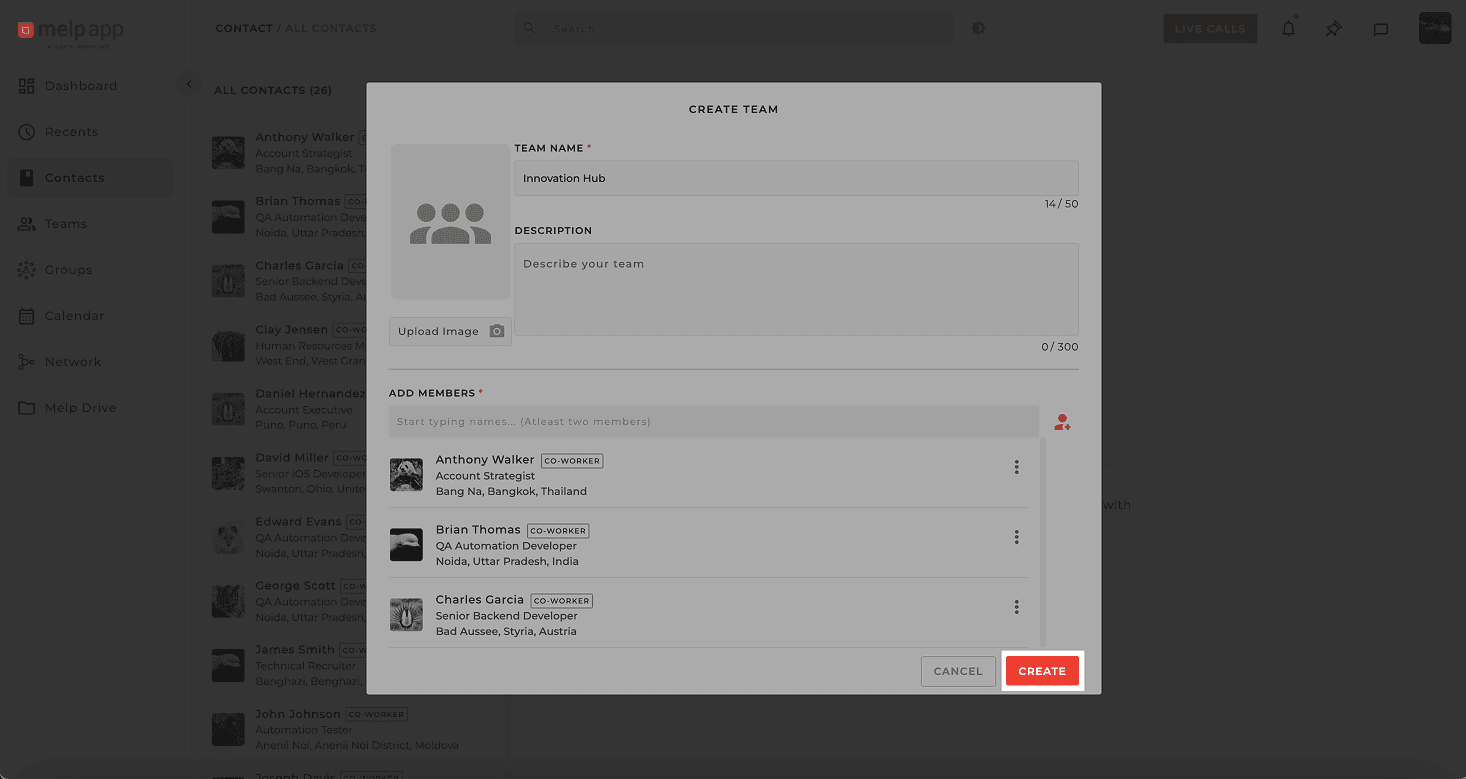
Hit Create—you're good to go!
Pro Tips
- • You can always go back and edit your team name, picture, or members later (if you're an admin).
- • Every team must have at least one Topic—you'll be prompted to add one after team creation.
- • Want to invite people outside your company? Yep, Melp supports that too!