

Voice & Video Calling
Stay connected anytime, anywhere — with just one click.
3 min read
Whether you're catching up with a teammate or jumping into a group brainstorm, Melp makes voice and video calling effortless.
1
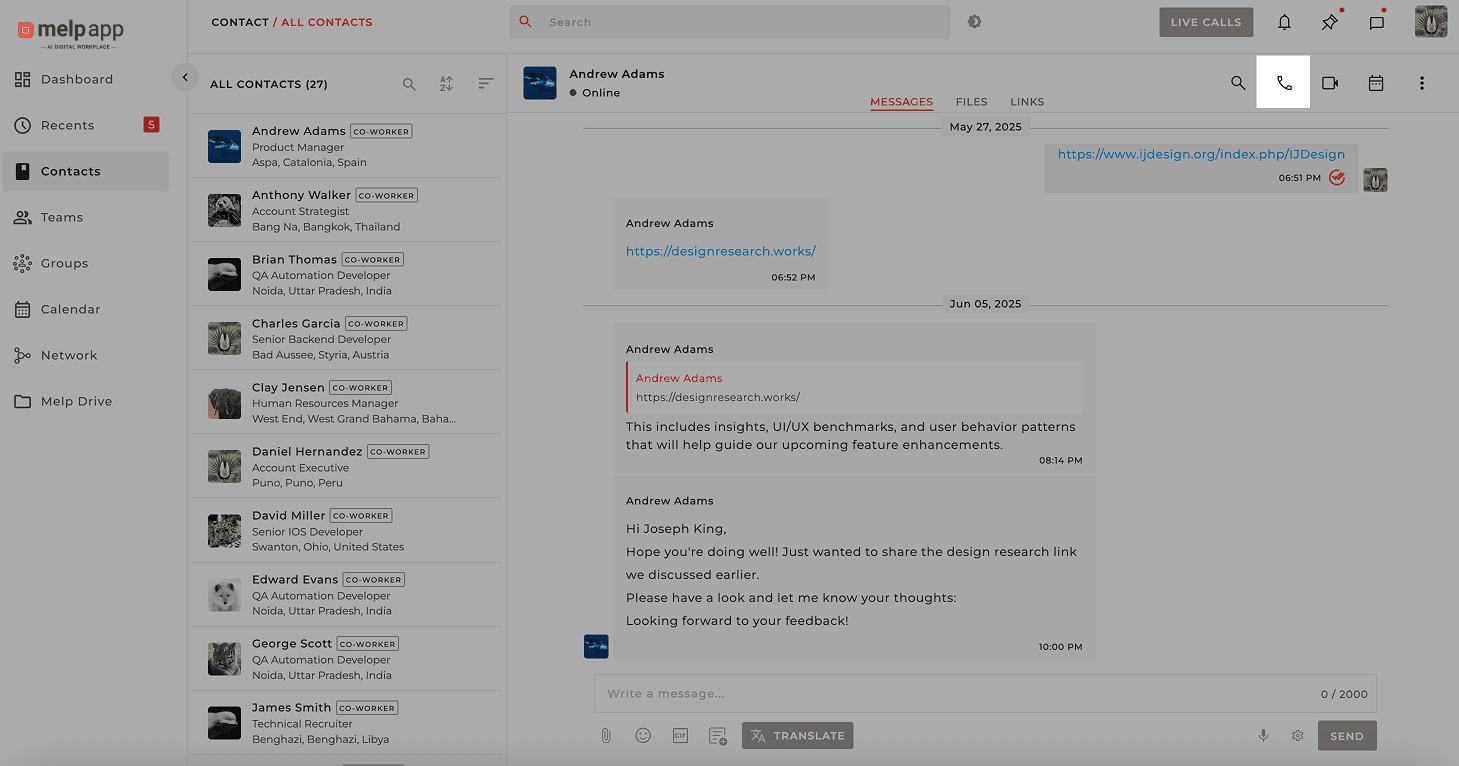
Start a Voice Call
Open the MelpApp and head to the contact you want to call. Tap the Voice Call icon in the top-right corner.
2
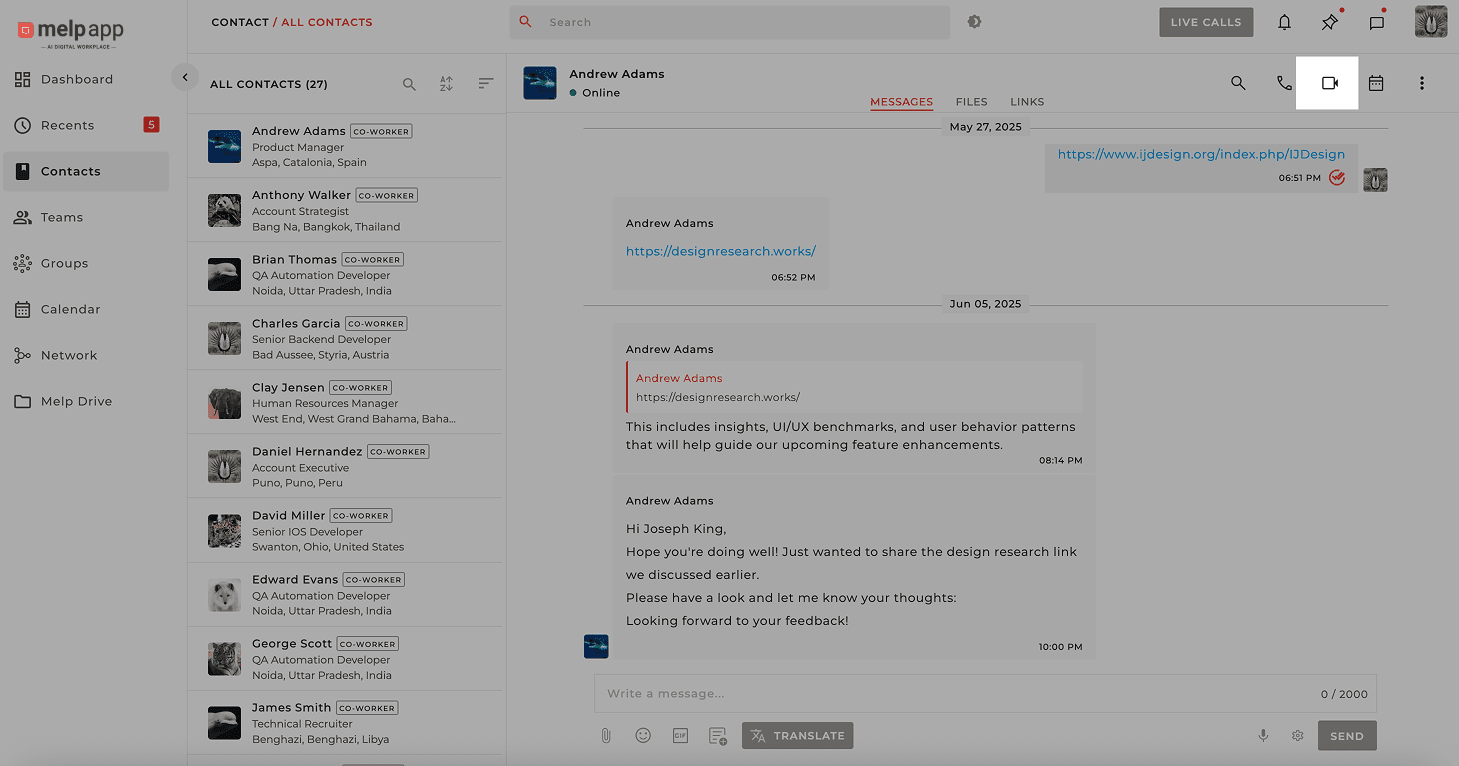
Start a Video Call
Open Melp and go to the conversation with the person or group. Hit the Video Call icon in the top-right corner.
Works for Any Call Type
One-on-One Calls
Connect directly with any teammate for quick discussions.
Group Calls
Bring multiple people together in a single conversation.
Team Calls
Host meetings with your entire team in one tap.
Pro Tip
For the best experience, make sure you've granted Melp permission to access your microphone and camera in your device settings.
Updated 21 Jan 2026
Did this page help you?