
Customize Your Preferences
Tailor Melp to your work style and manage notifications.
Your preferences let you tailor Melp to your work style—whether it's managing time zones, muting distractions, or controlling how others connect with you.
Set Your Location
Easily share where you're based so meetings and collaborations reflect your region.
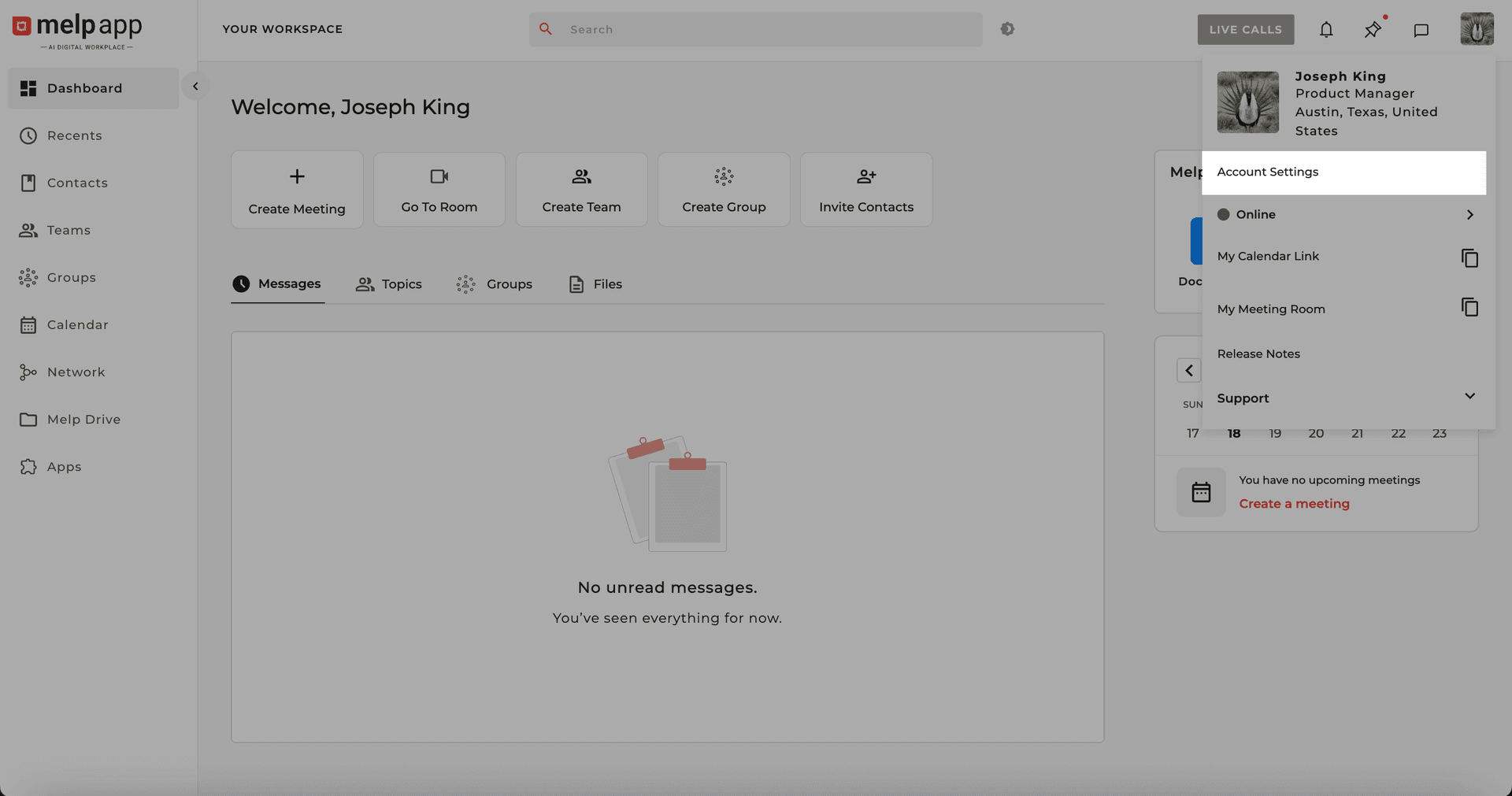
Go to Account Settings
Navigate to your Account Settings from the menu.
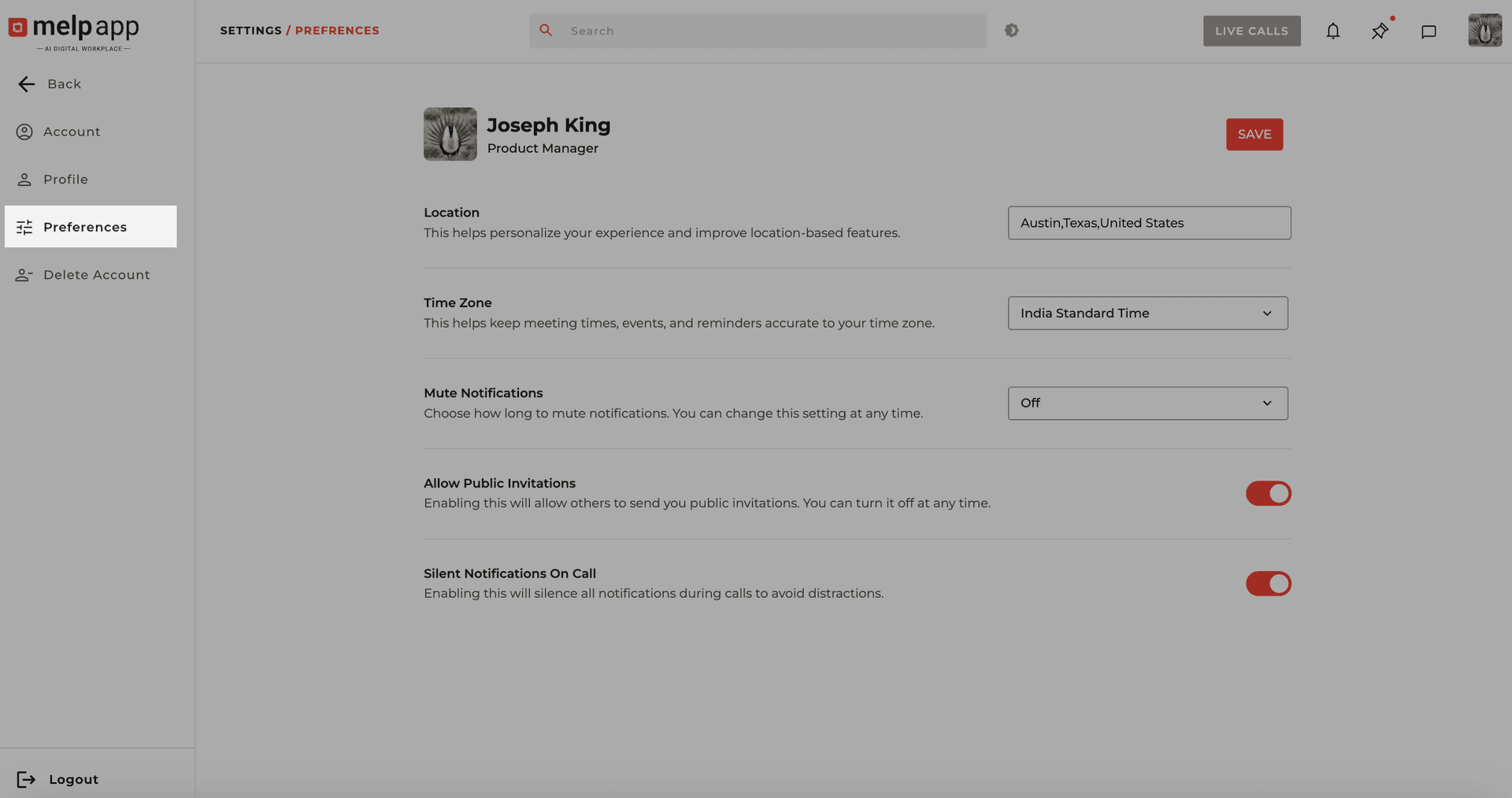
Open Preferences Tab
Click on the Preferences tab.
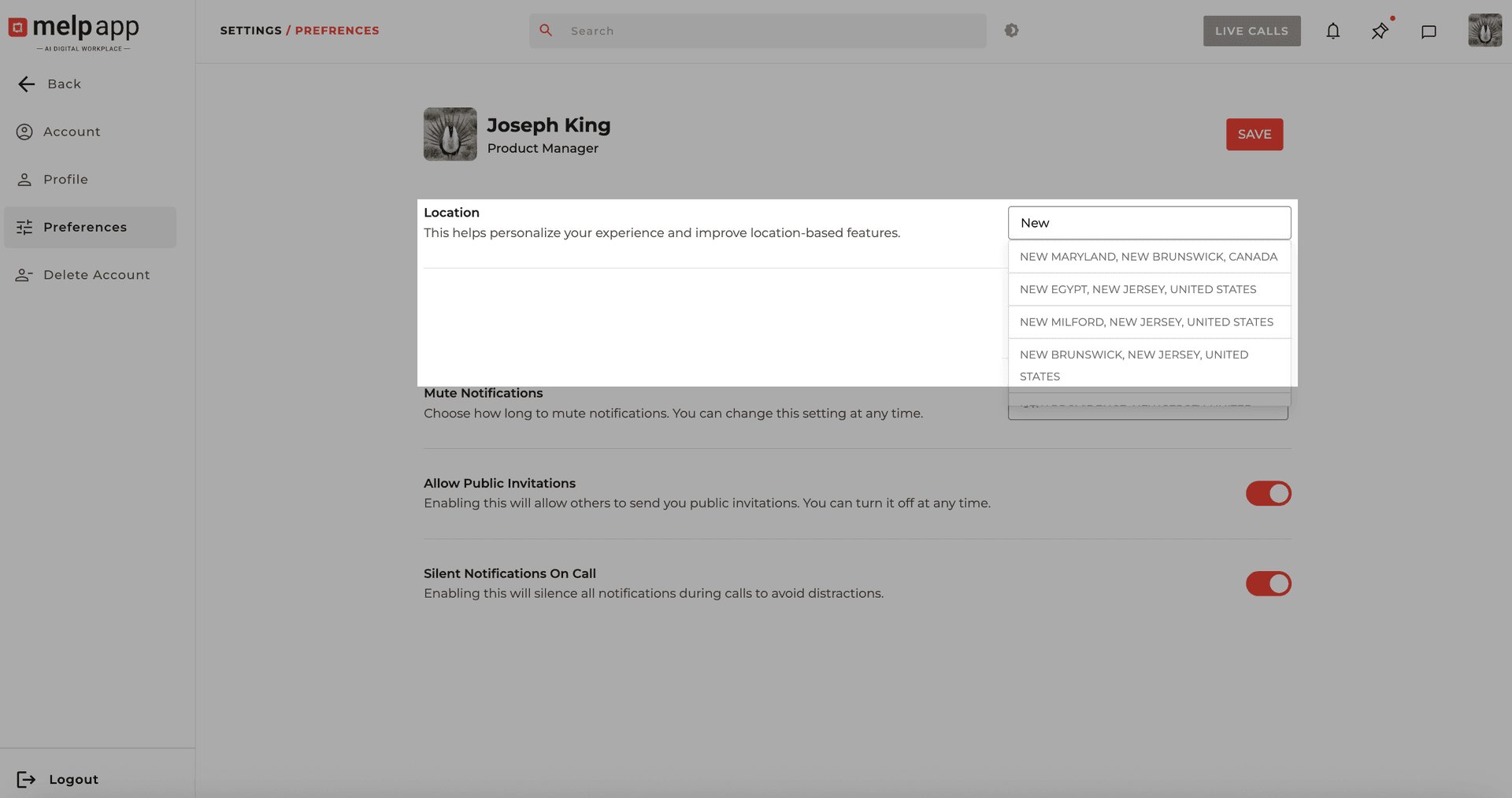
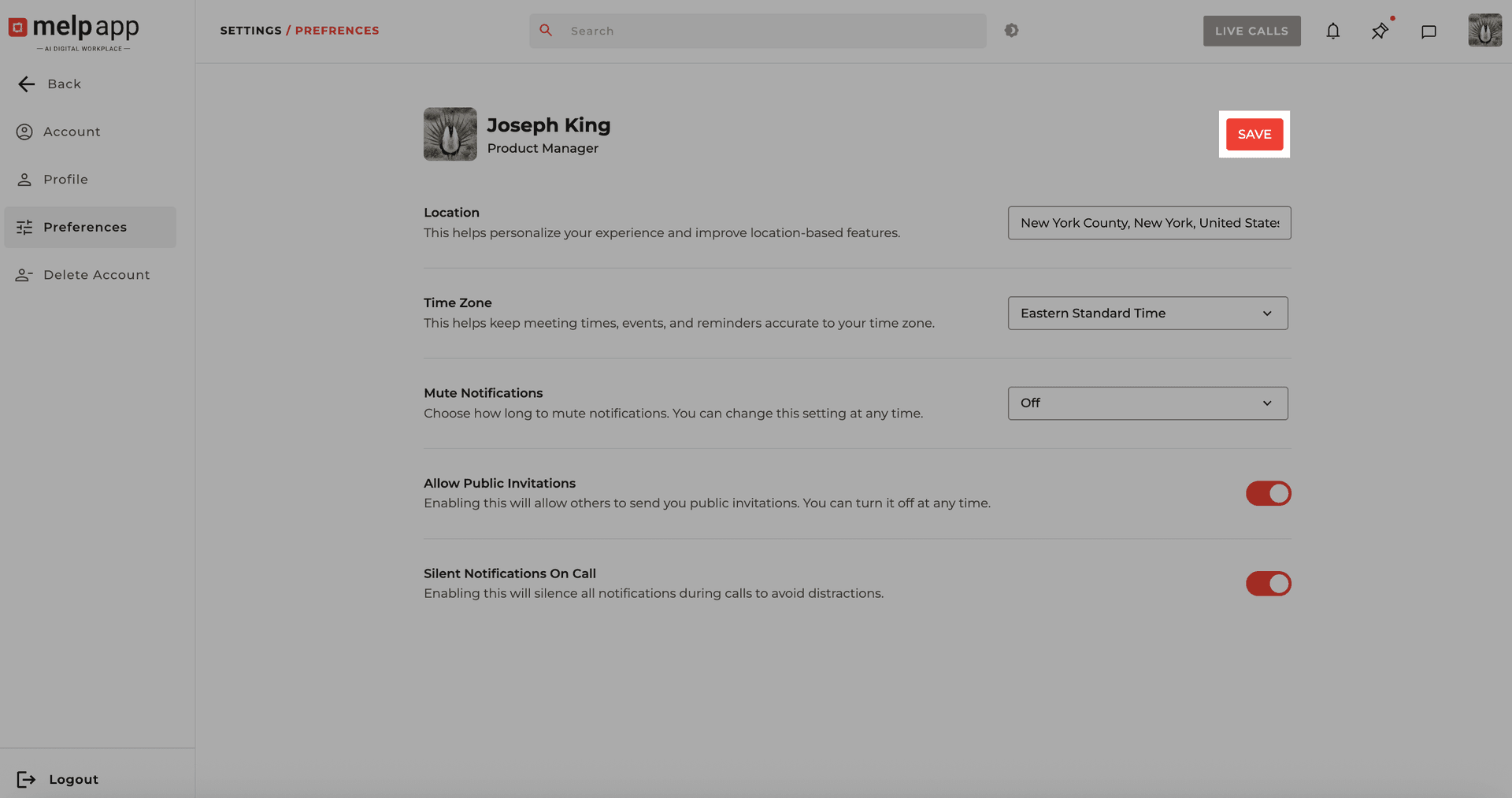
Search Location
In Location, search your city or region and select from the list.
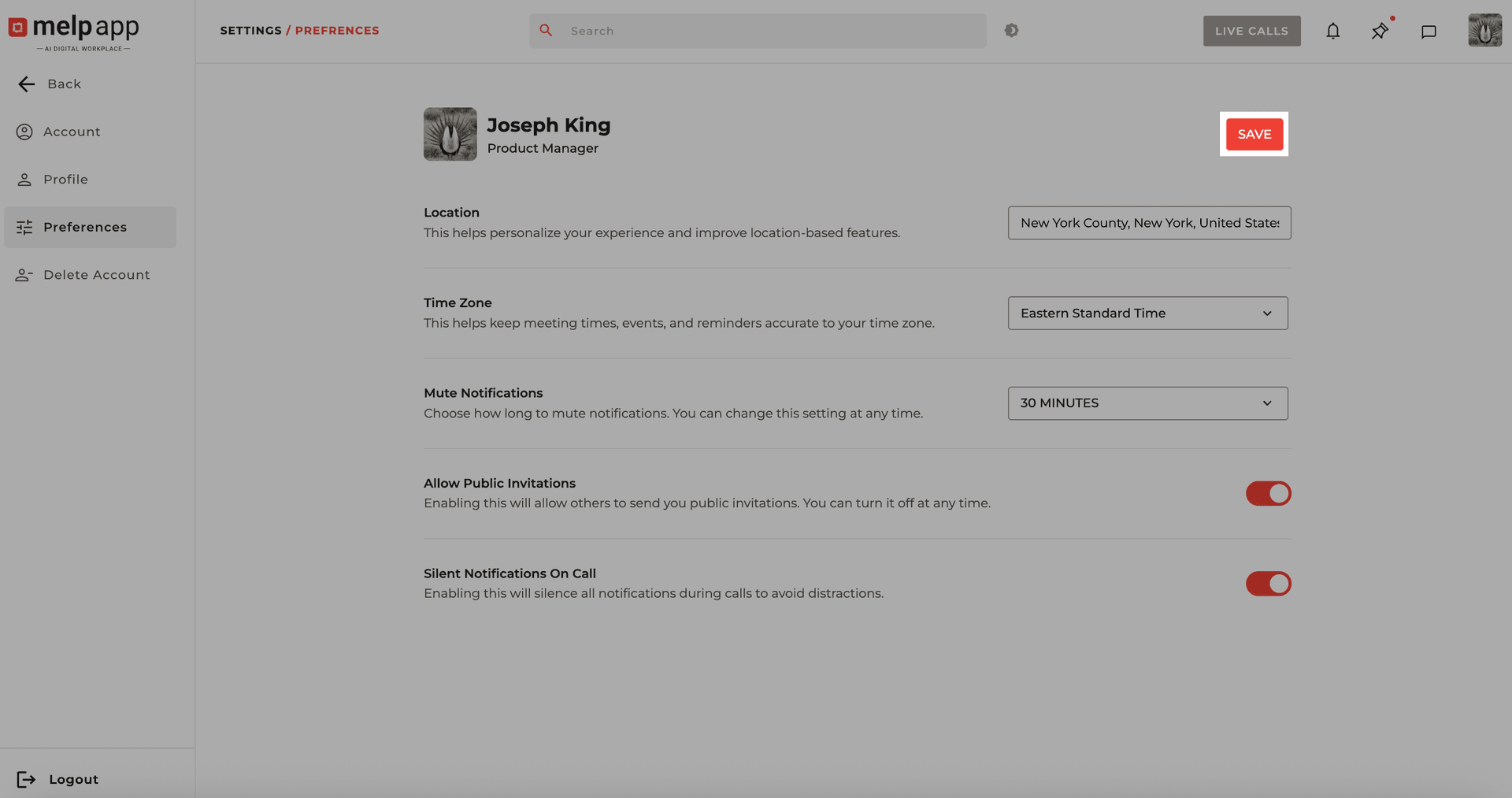
Save Changes
Click Save to update.
Set Your Time Zone
Keep your calendar and reminders accurate across meetings and events.
Go to Account Settings
Navigate to your Account Settings from the menu.
Open Preferences Tab
Click on the Preferences tab.
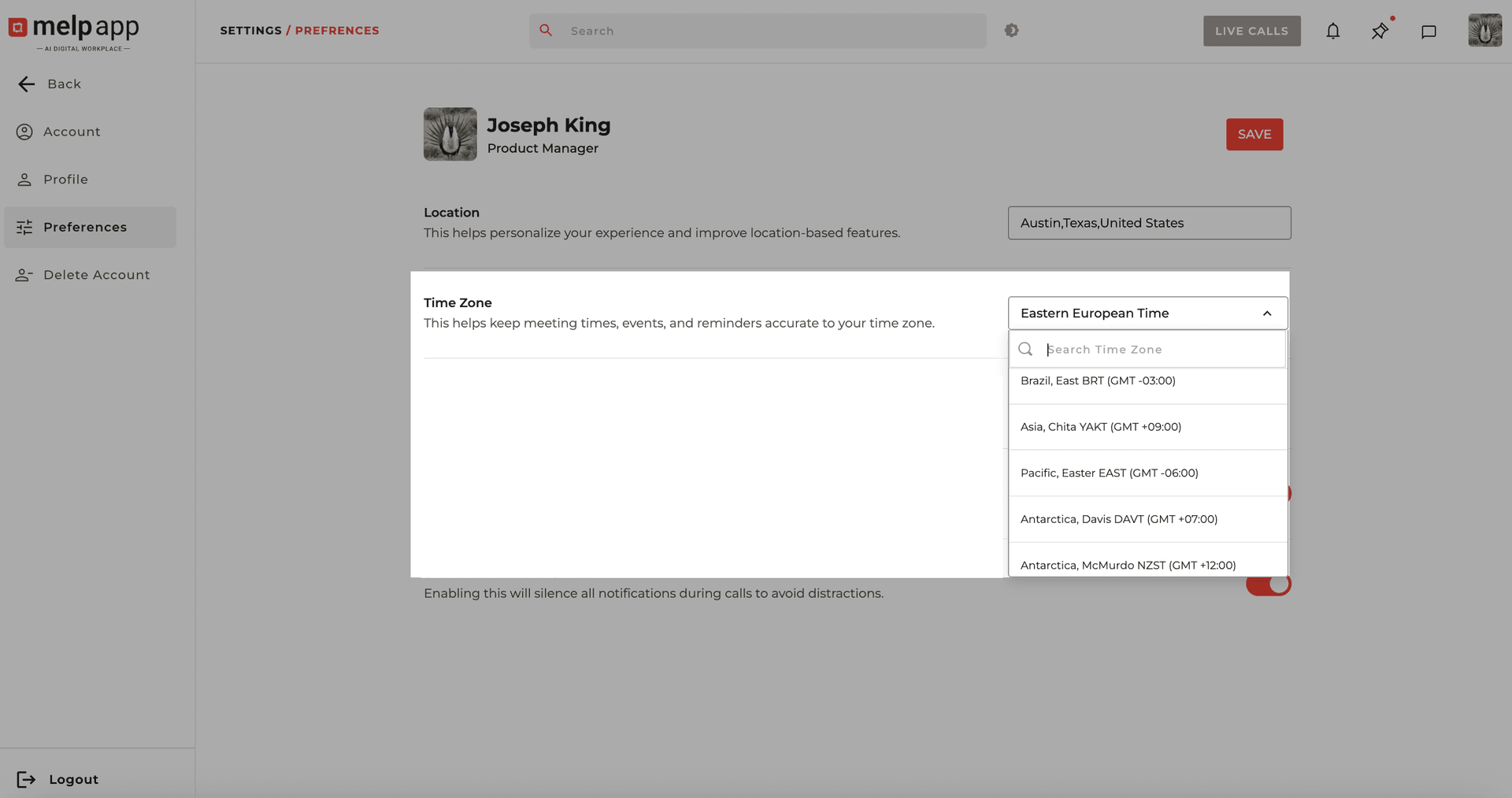
Select Time Zone
In Time Zone, select the correct time zone from the dropdown.
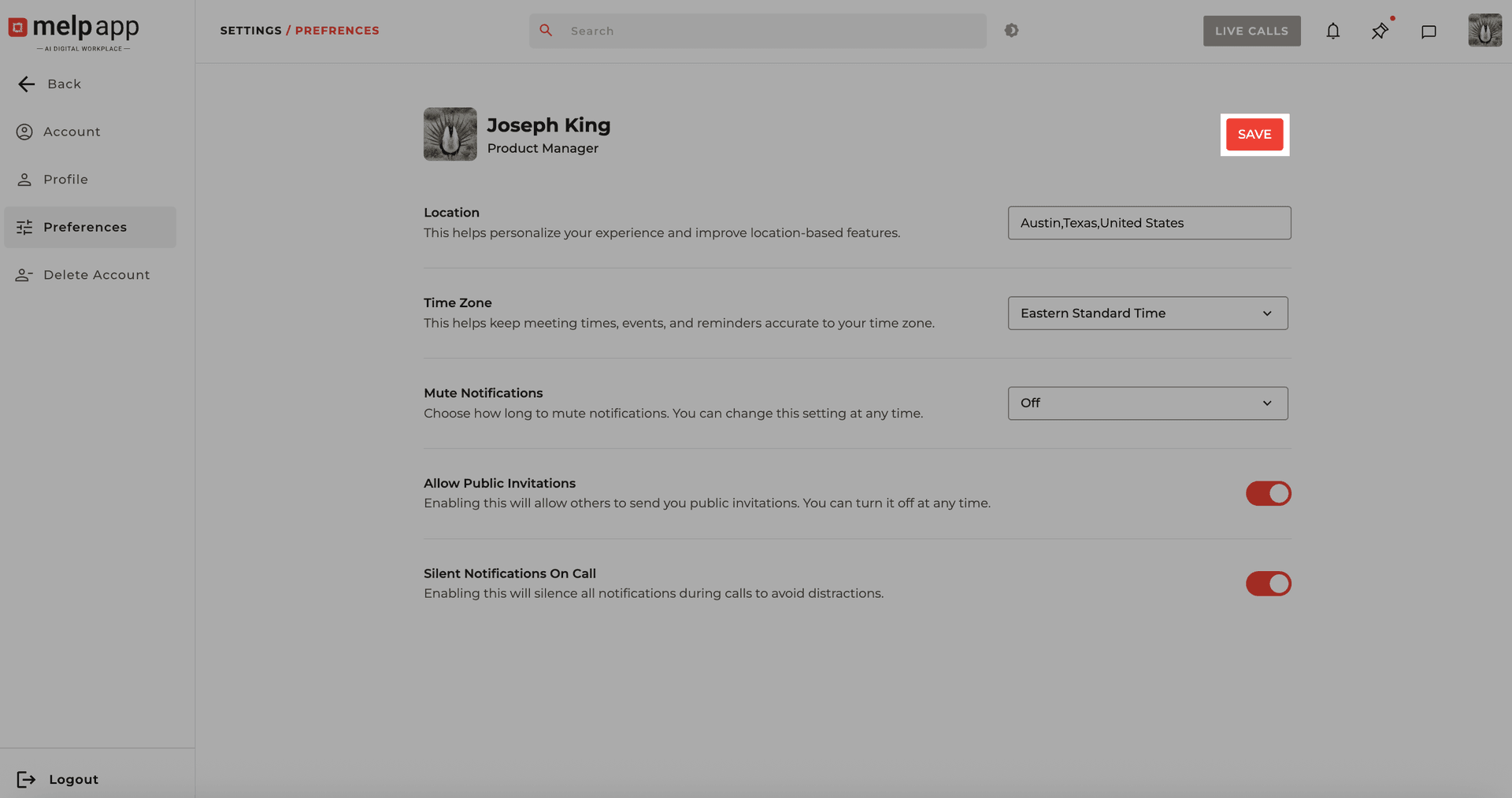
Save Changes
Click Save to confirm.
Mute Notifications
Take control of your focus by pausing alerts when you need uninterrupted time.
Go to Account Settings
Navigate to your Account Settings from the menu.
Open Preferences Tab
Click on the Preferences tab.
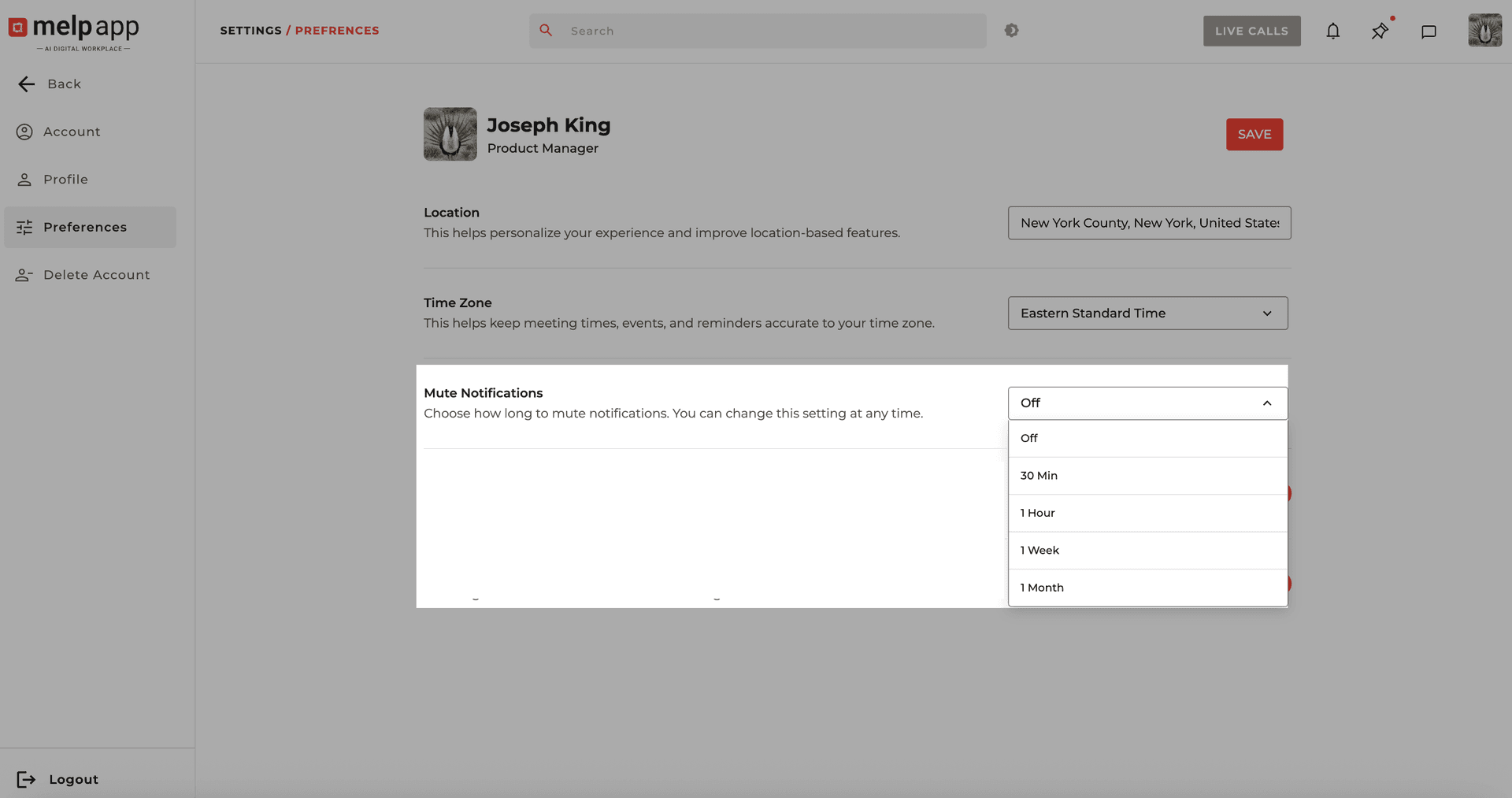
Set Mute Duration
In Mute Notifications, choose how long to mute (e.g., Off, or set a duration).
Save Changes
Click Save to apply changes.
Allow Public Invitations
Decide whether others can send you public meeting invites.
Go to Account Settings
Navigate to your Account Settings from the menu.
Open Preferences Tab
Click on the Preferences tab.
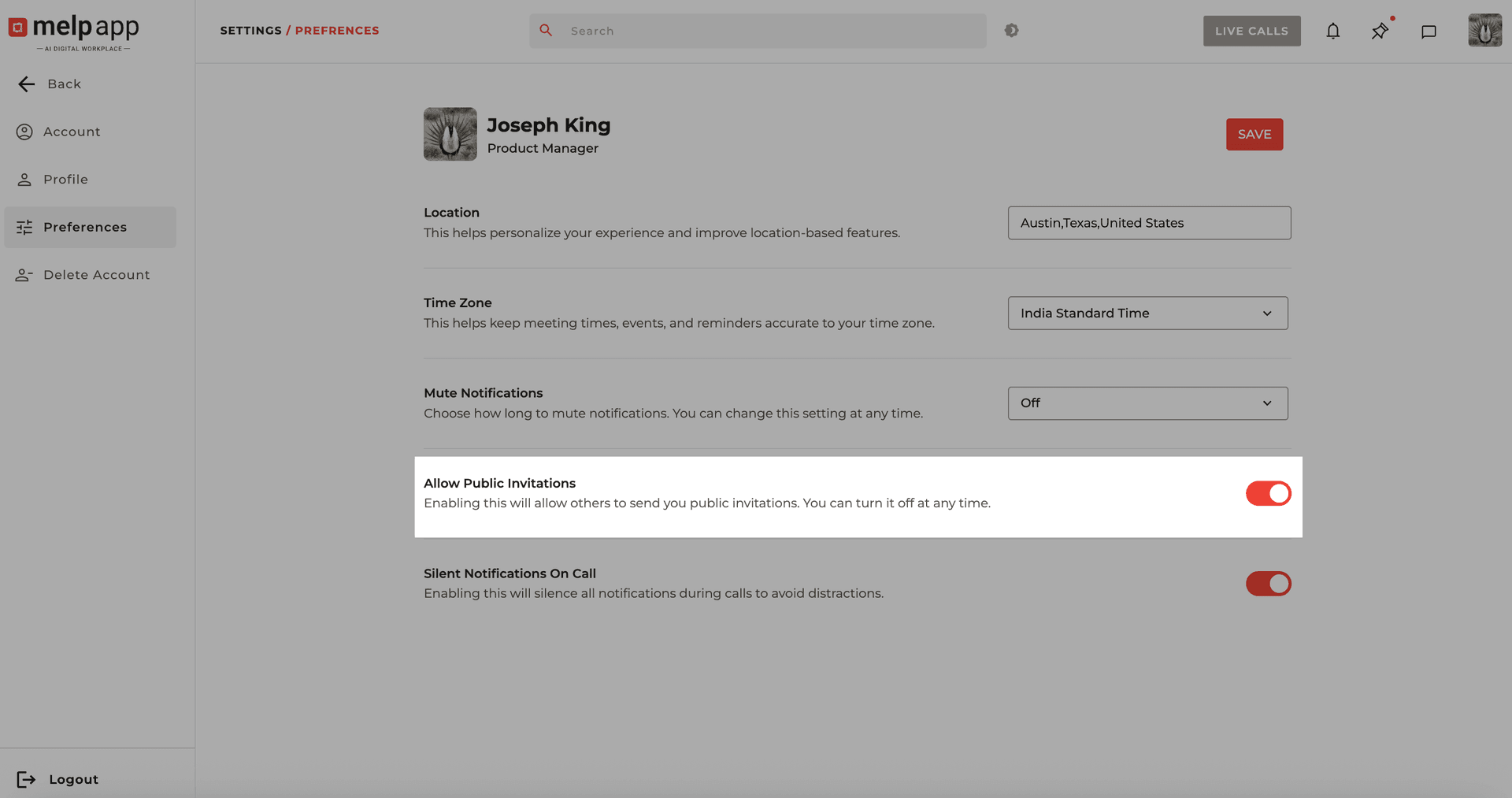
Toggle Setting
Toggle Allow Public Invitations Onif you'd like to receive them (you can switch it off anytime).
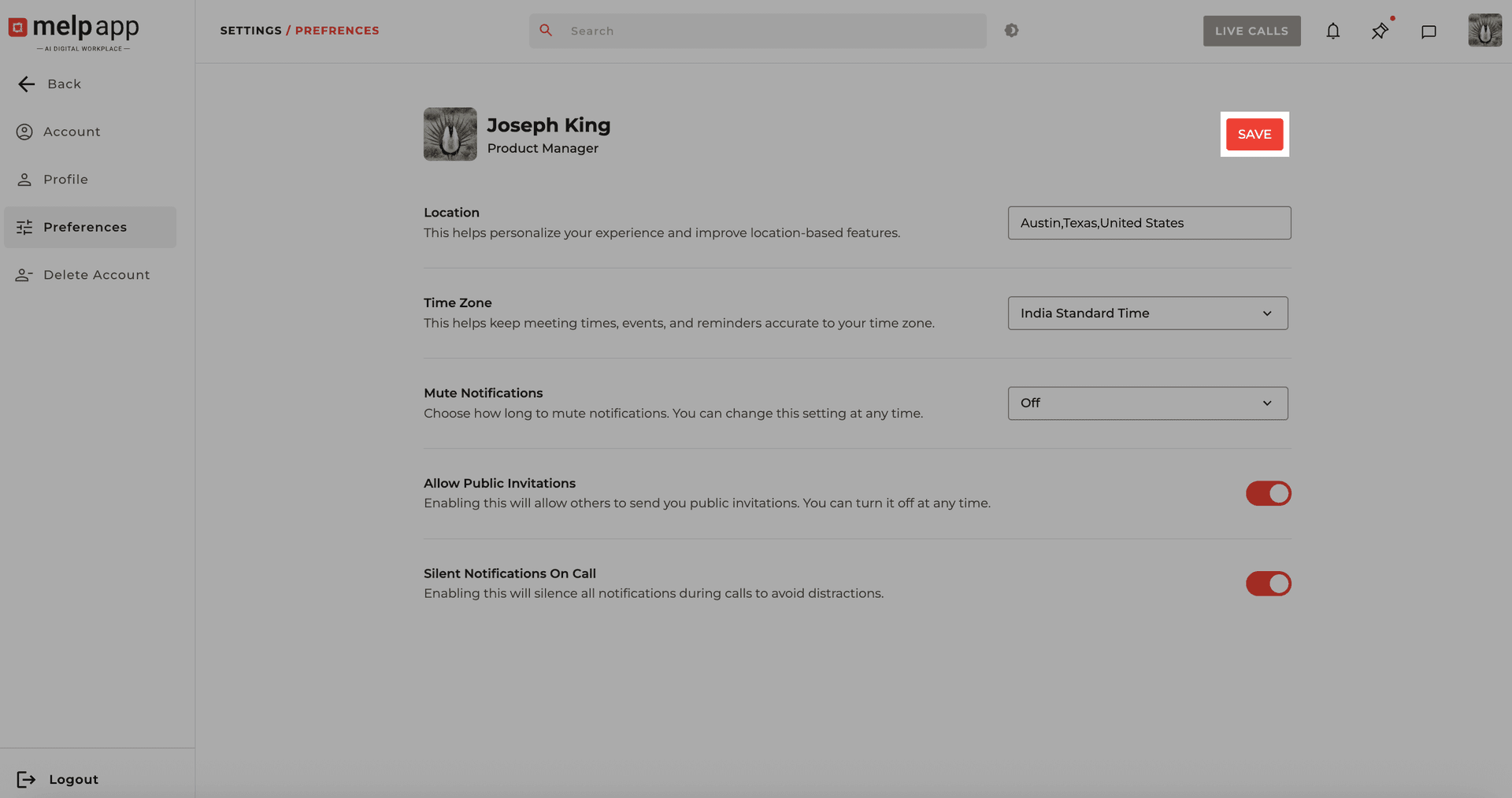
Save Changes
Click Save to confirm.
Silent Notifications on Call
Stay distraction-free while you're on a call.
Go to Account Settings
Navigate to your Account Settings from the menu.
Open Preferences Tab
Click on the Preferences tab.
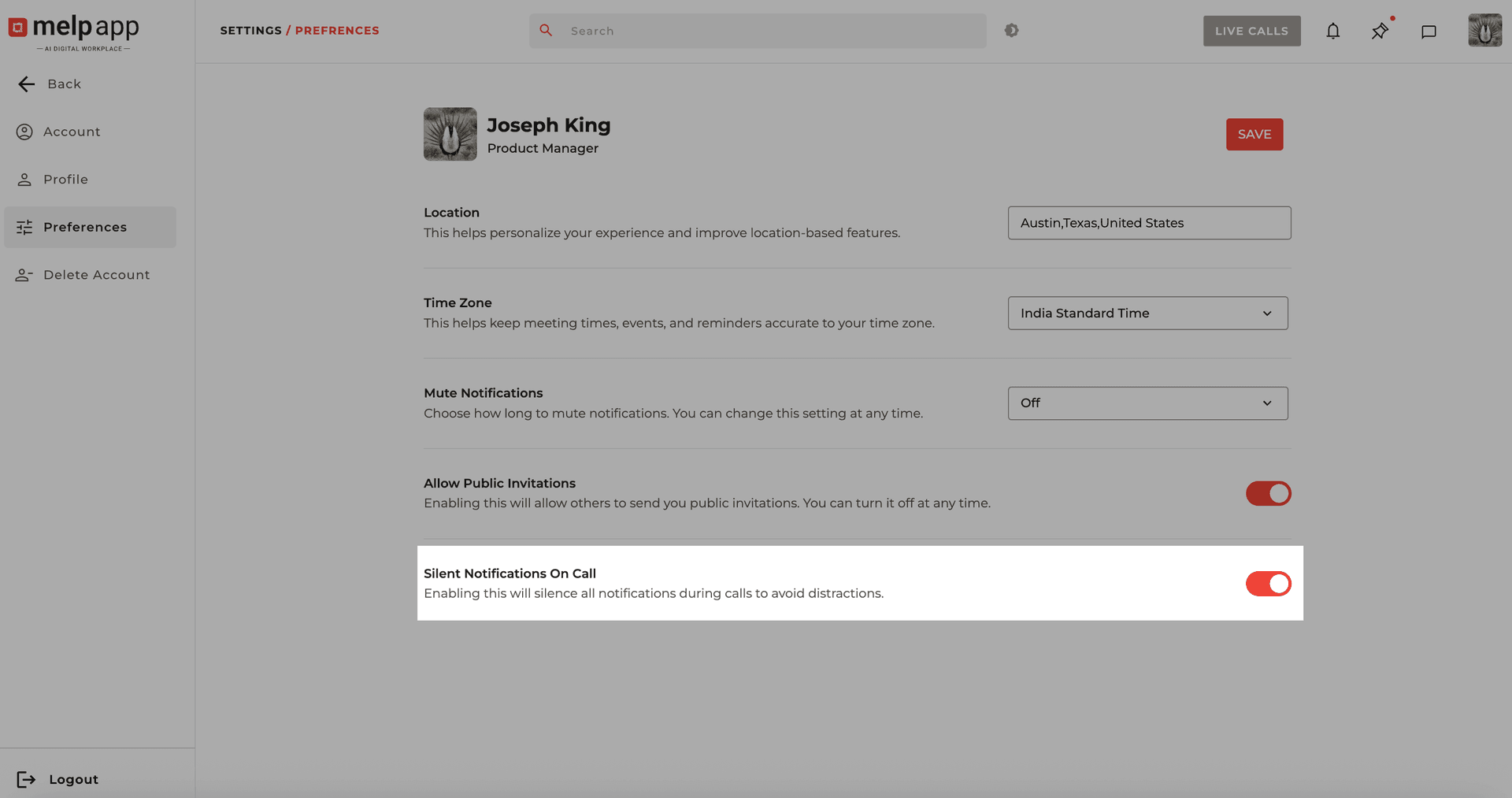
Enable Silent Mode
Toggle Silent Notifications On Call On to silence all notifications during calls.
Save Changes
Click Save to update your setting.
With these preferences set, you'll enjoy a more personalized, distraction-free, and seamless Melp experience.