

Add or Remove Group Members
Manage group membership easily.
Stay in control of your group—bring the right people in and remove them when needed. As a group admin, you're in charge of who joins the conversation.
Who Can Do This?
Only Group Admins have the ability to add or remove members from a group.
How to Add Members
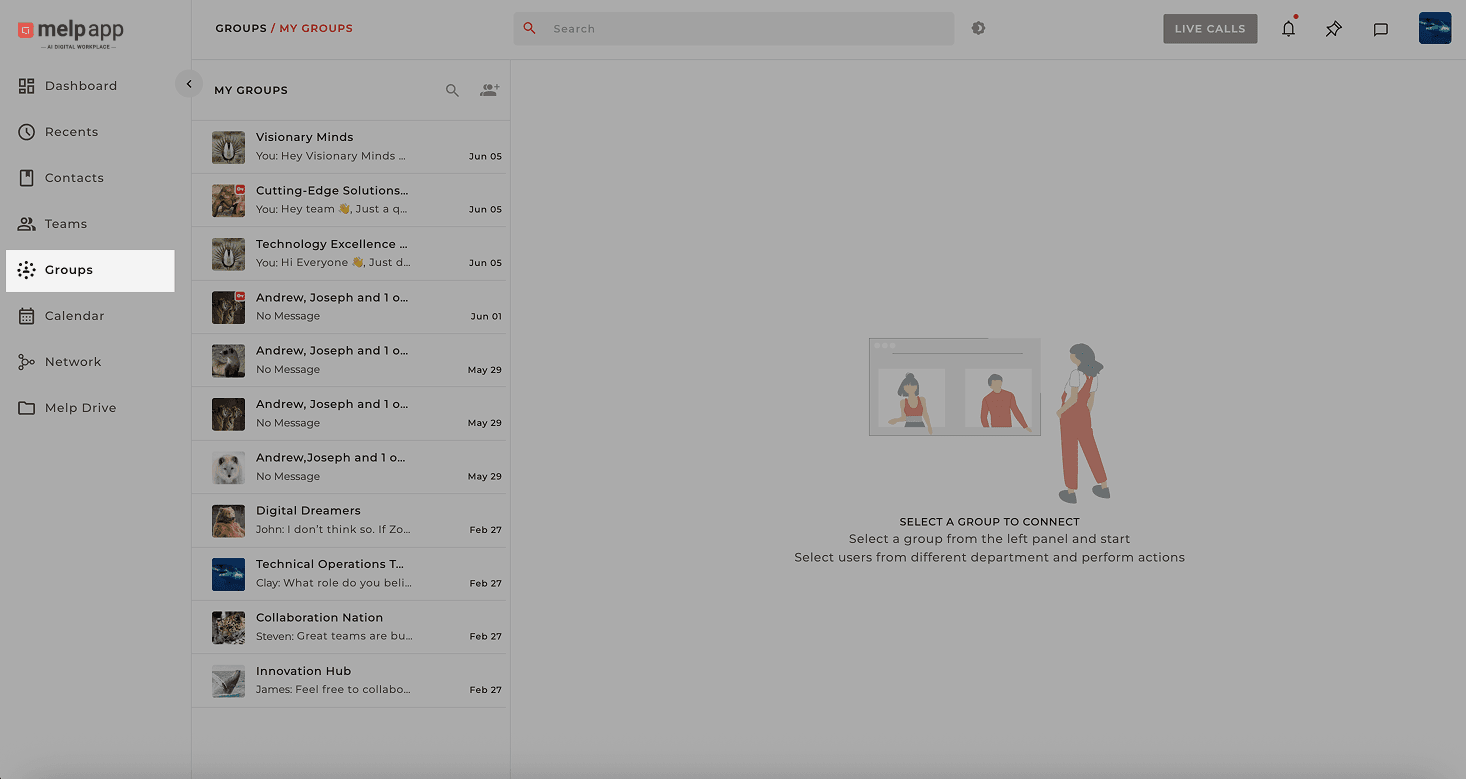
Open Group Tab
Head to the left sidebar and click on the Group tab.
Open Group Details
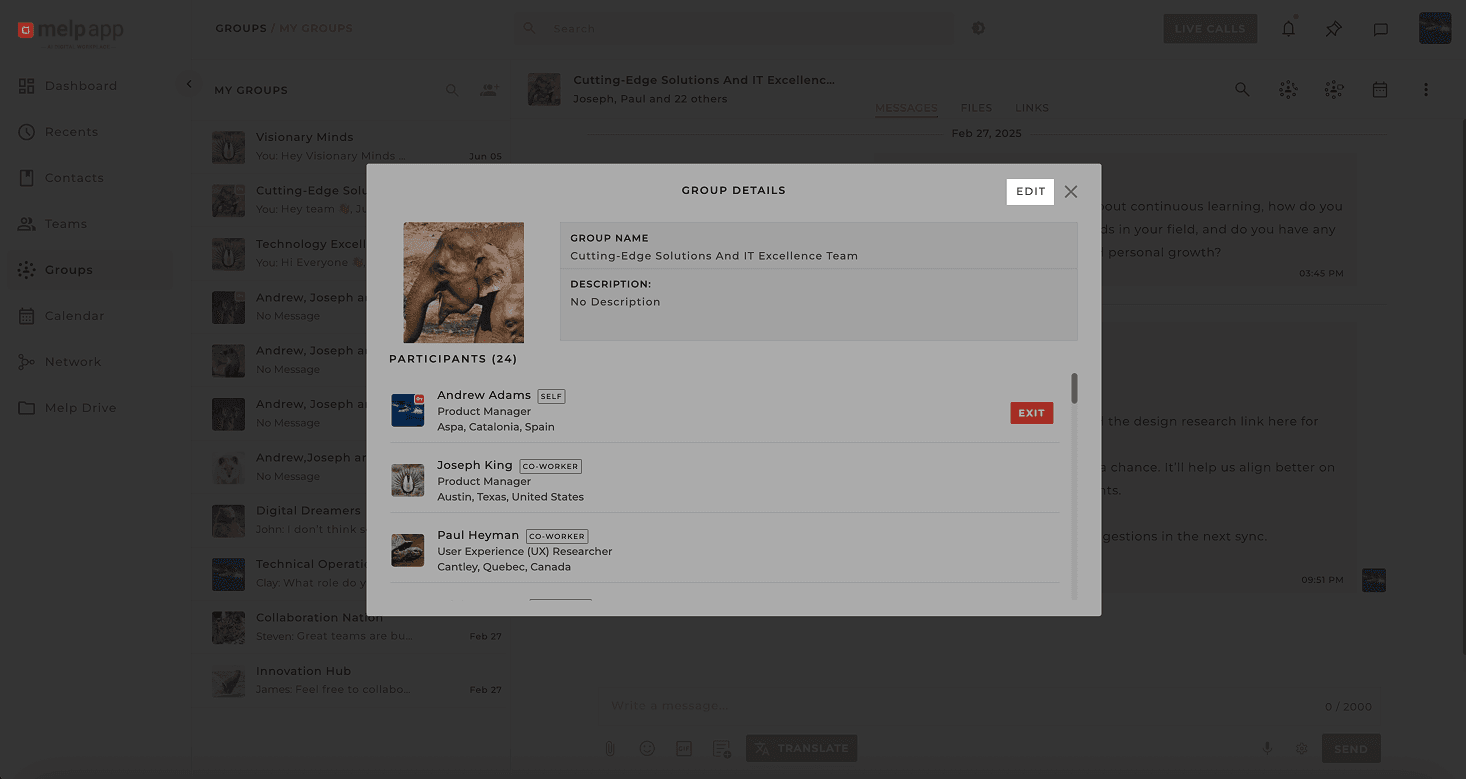
Open the group and click on the group name — the Group Details pop-up will appear. Click Edit to modify the group.
Add New Members
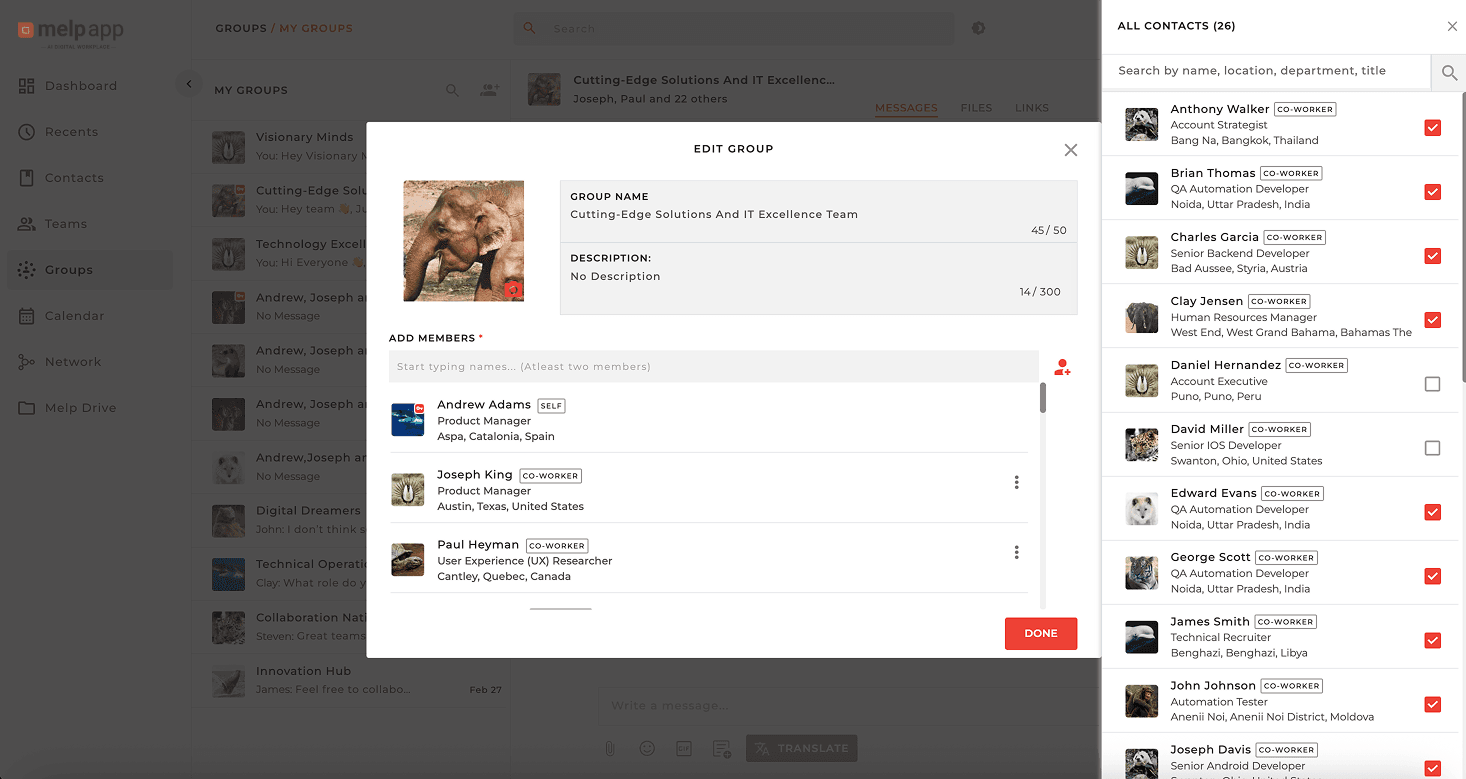
In the pop-up, type the name or email of the person you want to add, or pick them directly from your contact list.
Confirm
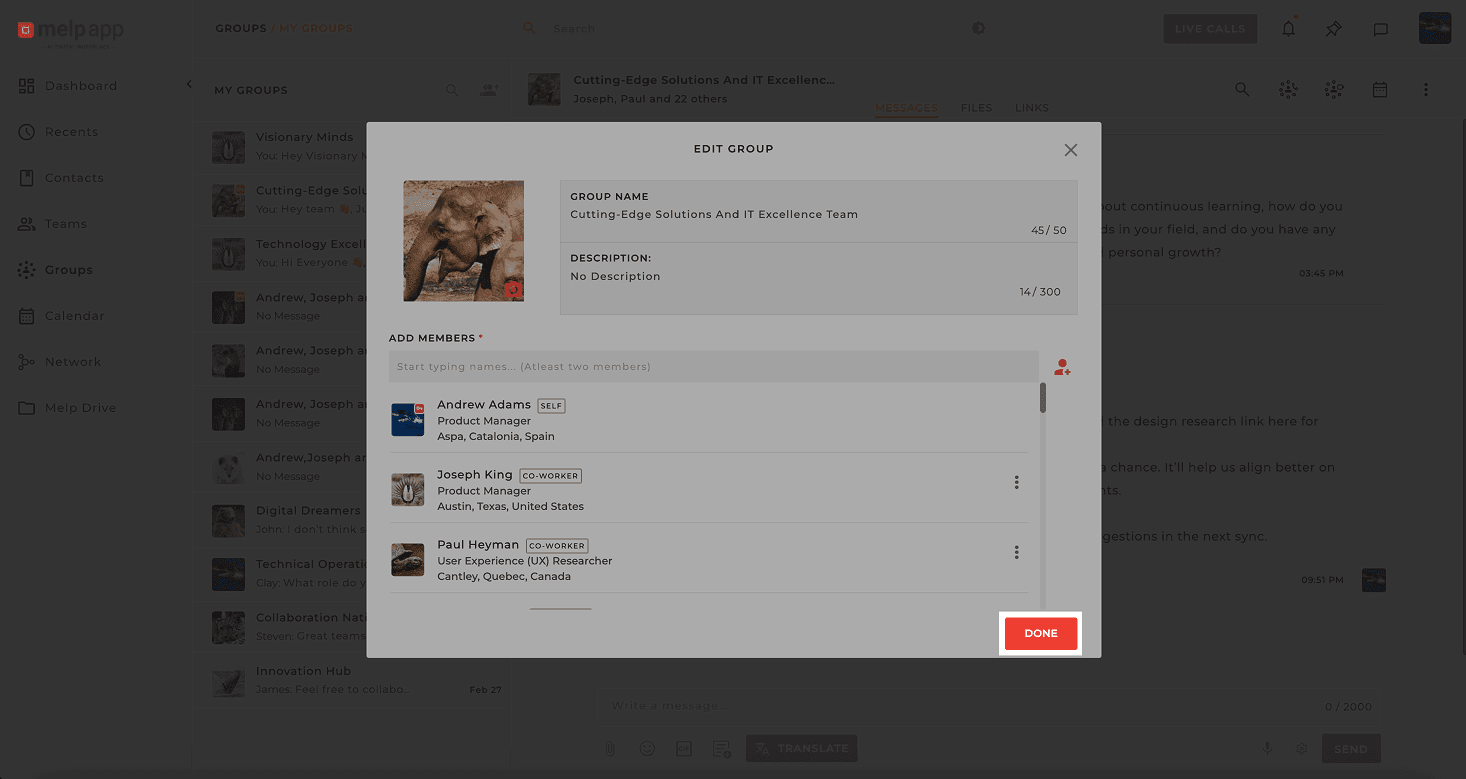
Click Done. They'll be added to the group instantly and notified!
How to Remove Members
Open Group Tab
Head to the left sidebar and click on the Group tab.
Open Group Details
Open the group and click on the group name, then click Edit.
Find & Remove Member
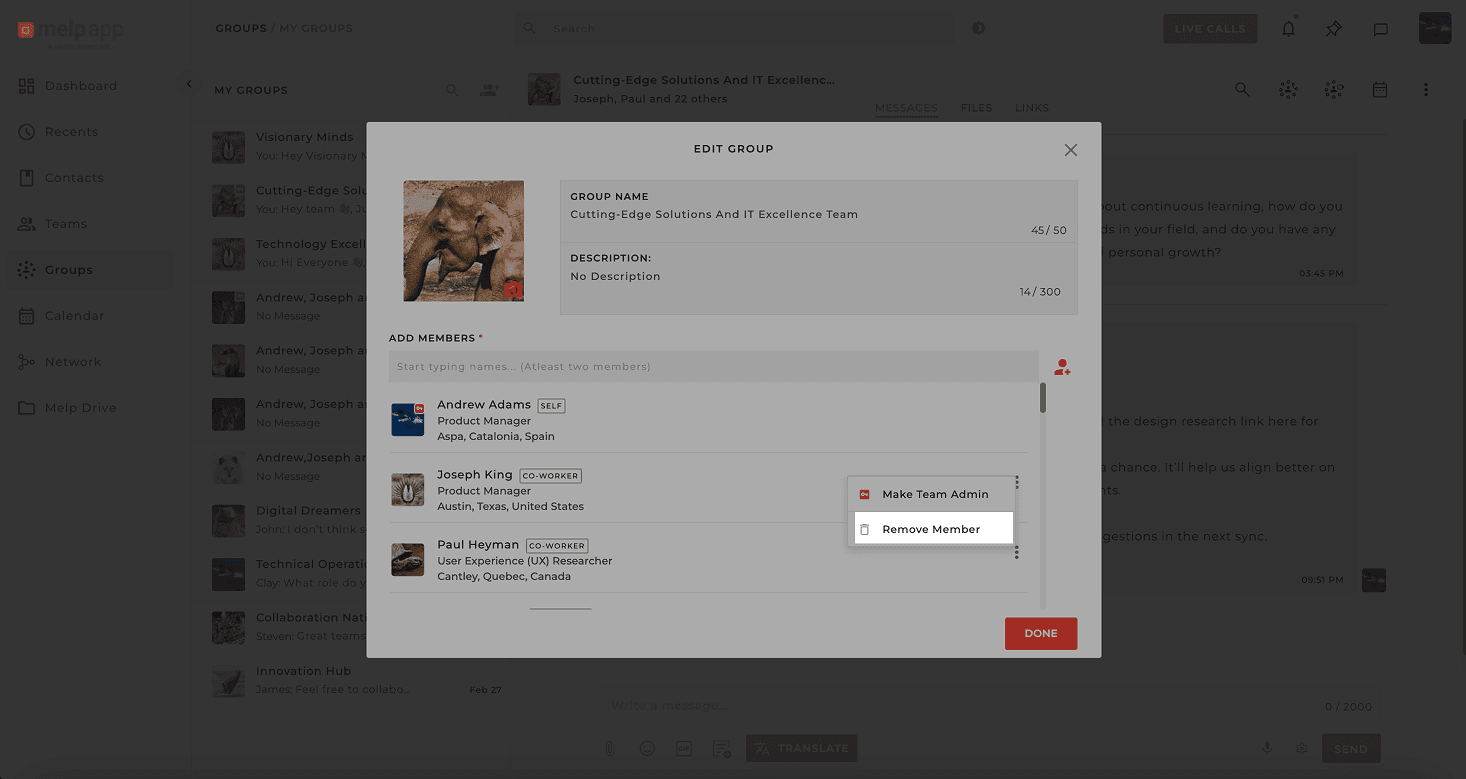
Find the member you want to remove, click the More icon next to their name, select Remove, and confirm.
Complete
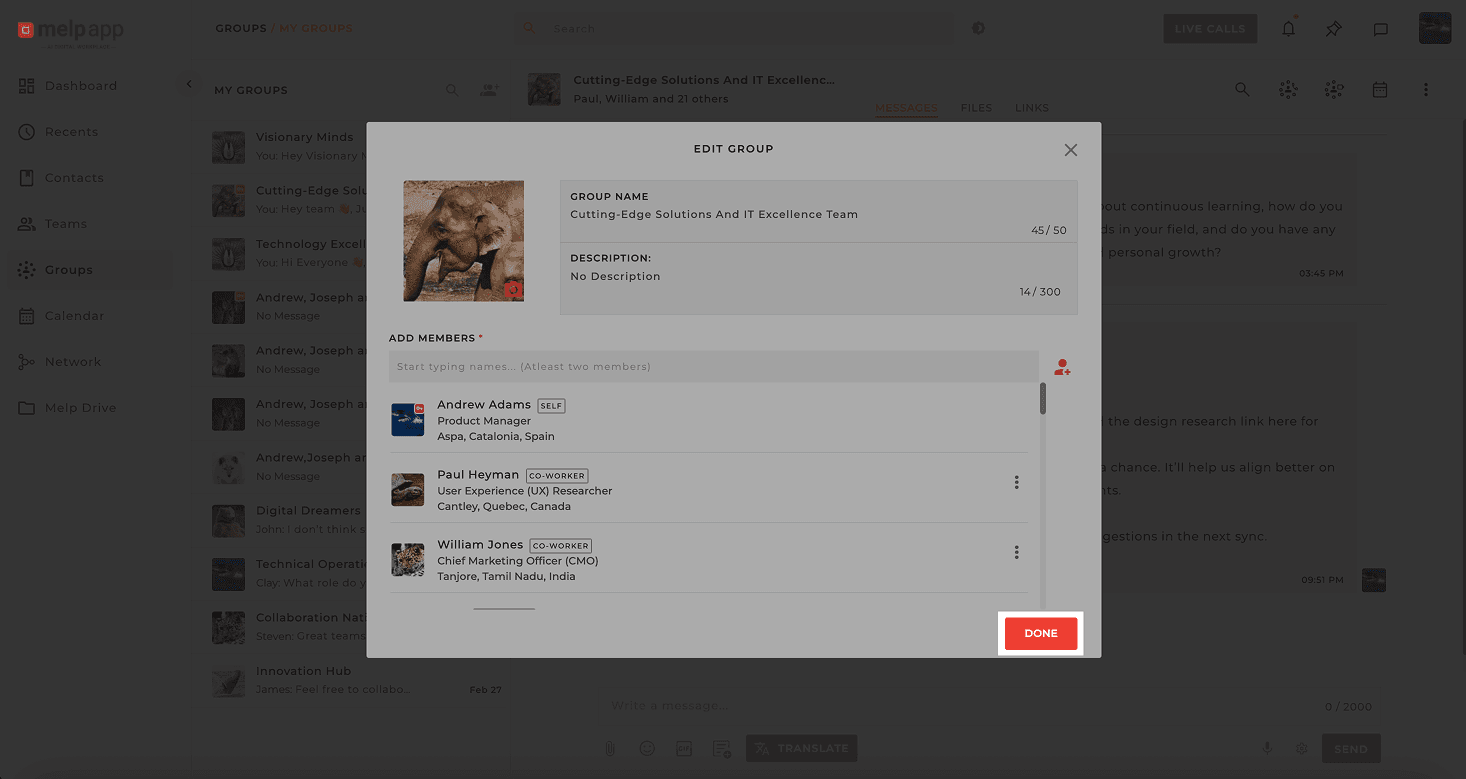
Click Doneto complete the process — just like that, they're no longer part of the group!
Pro Tip
Regularly review your group members to ensure only the right people stay in the conversation for better privacy and focus.