

How to Create a Group
Start a group in seconds for quick chats and sync-ups.
Need a quick place to chat or meet up? Start a group in seconds. Groups in Melp are perfect for fast conversations, quick sync-ups, and casual team chats.
Method 1: From the Dashboard
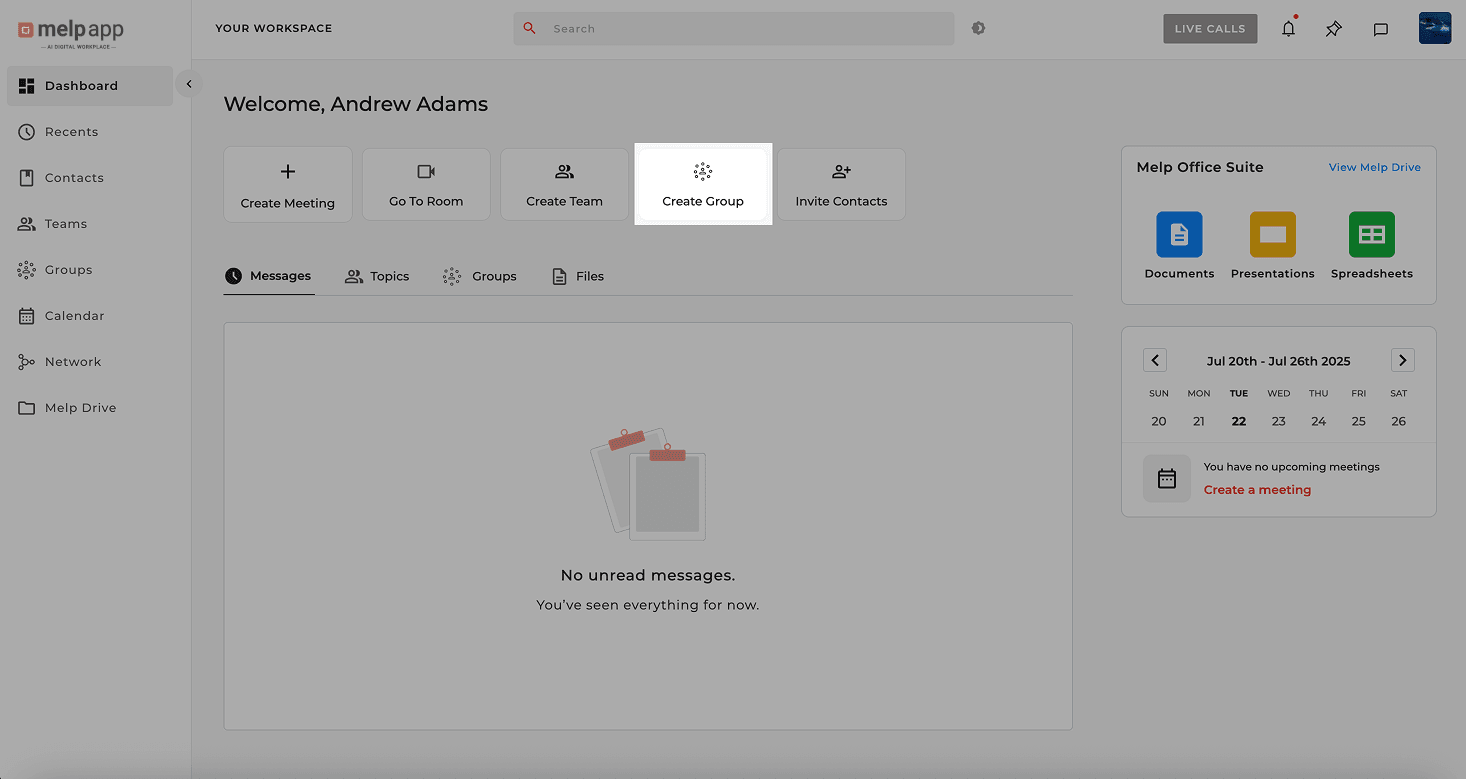
Click Create Group
From your Dashboard, click Create Group.
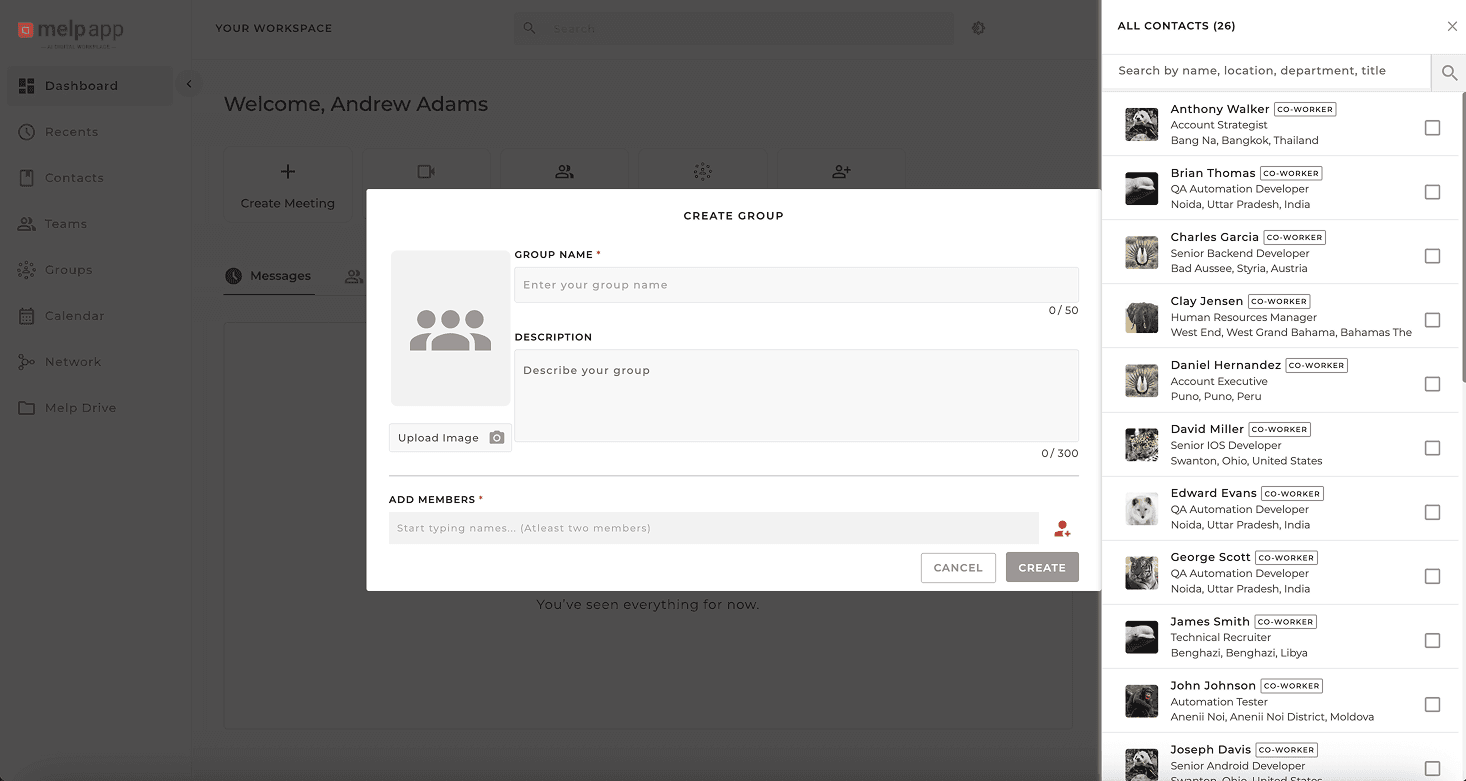
Add Name & Description
Add your group name, fill optional details you'd like.

Select Members
Select members from your contacts.
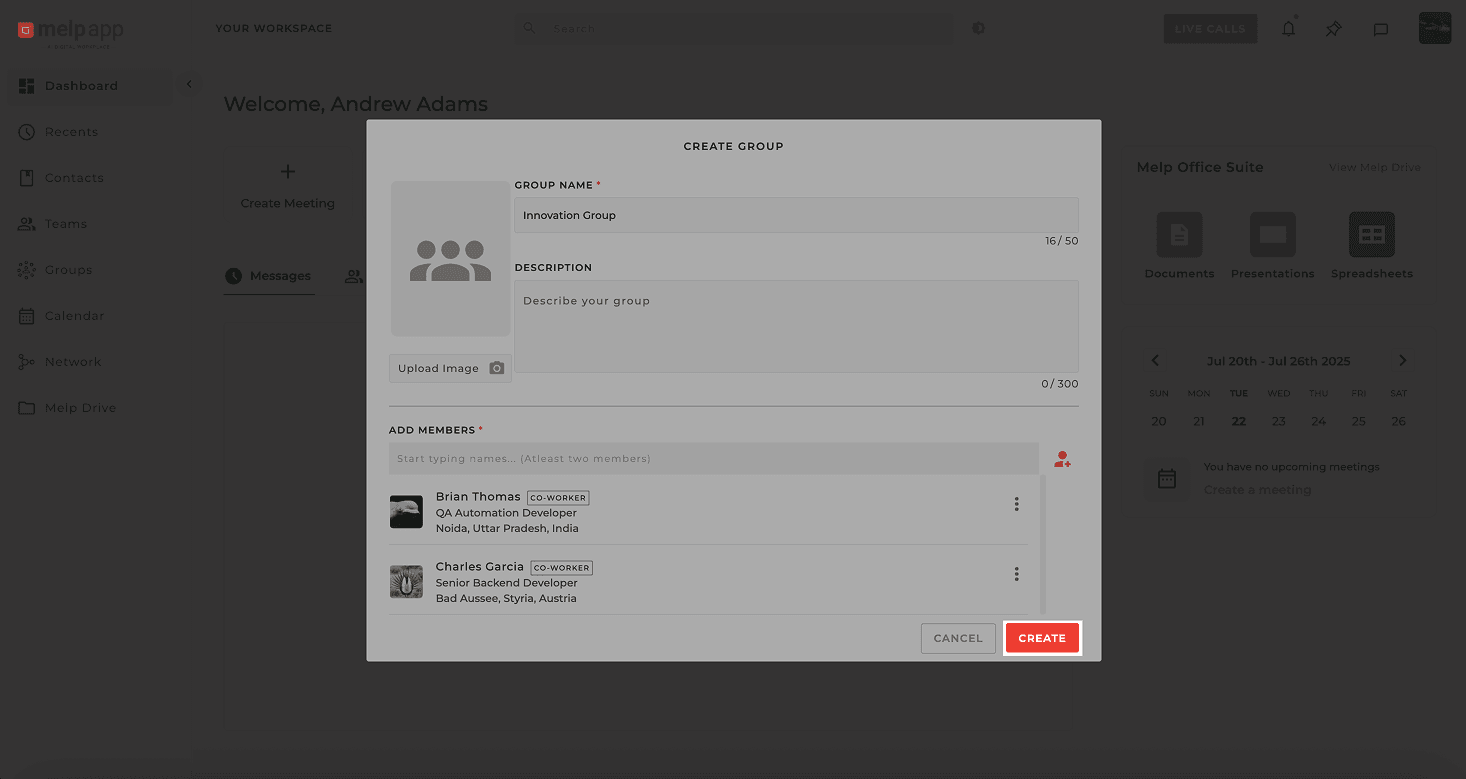
Create Your Group
Hit Create— you're all set!
Method 2: From the Group Tab
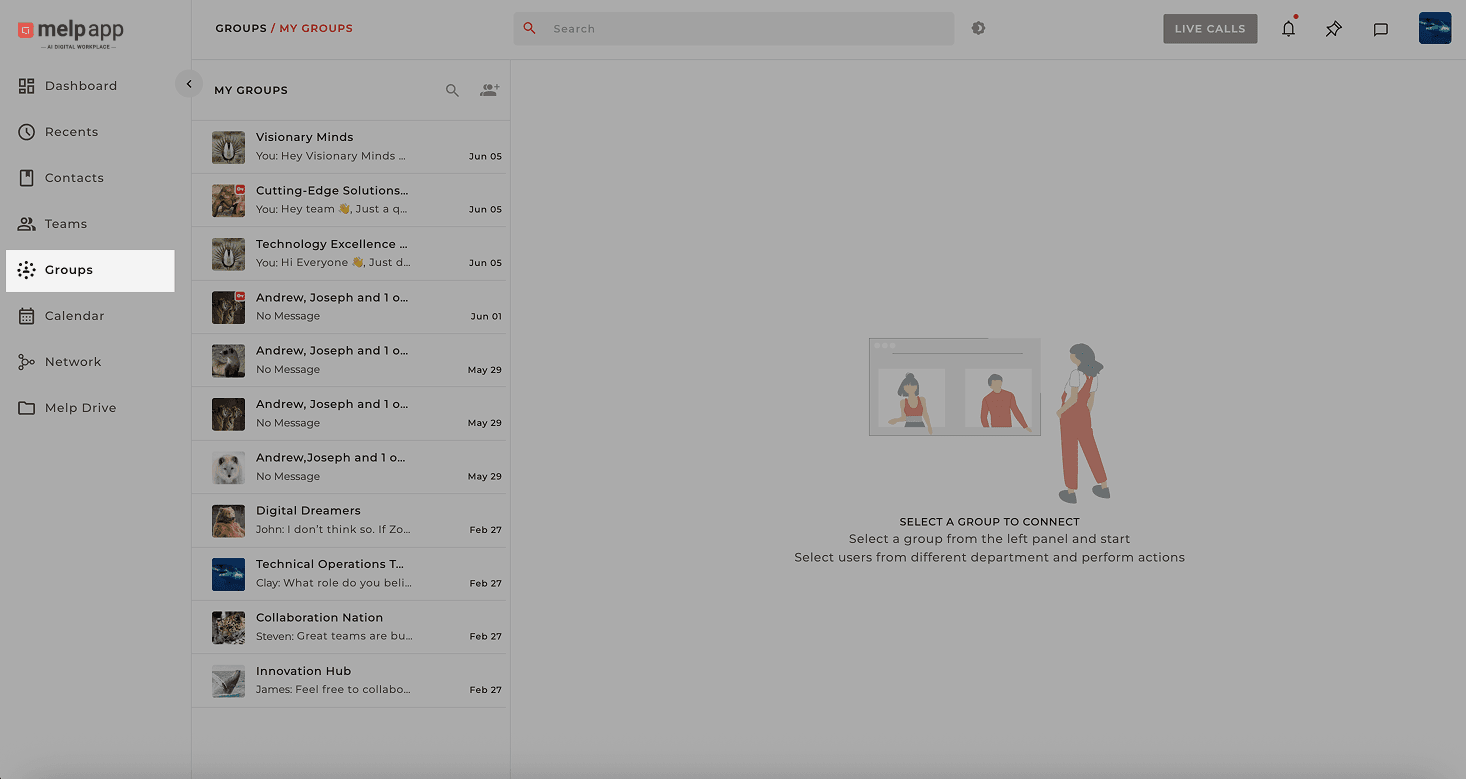
Open Group Tab
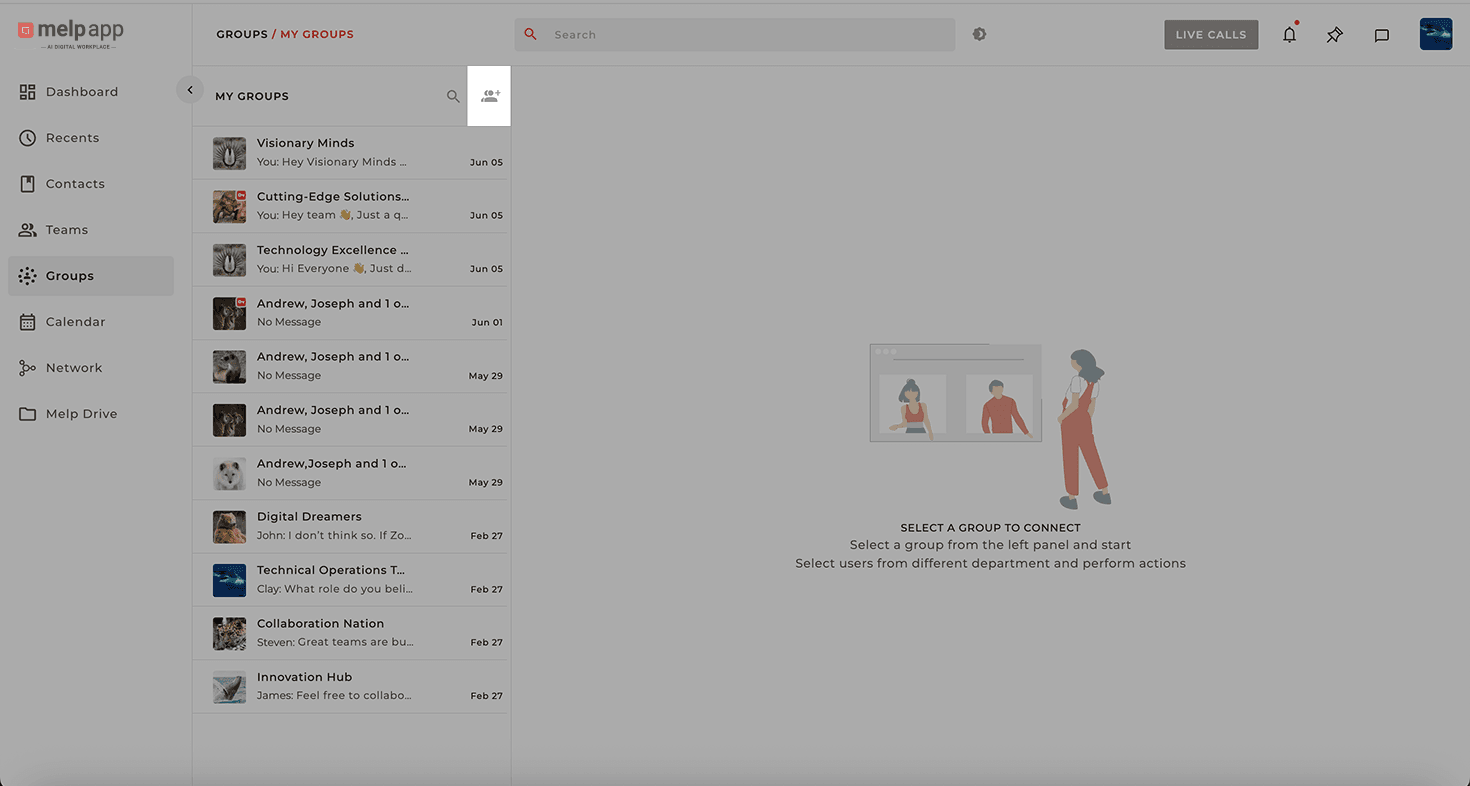
Head to the left sidebar and click on the Group tab.
Click Create Group
Click the "Create Group" icon.
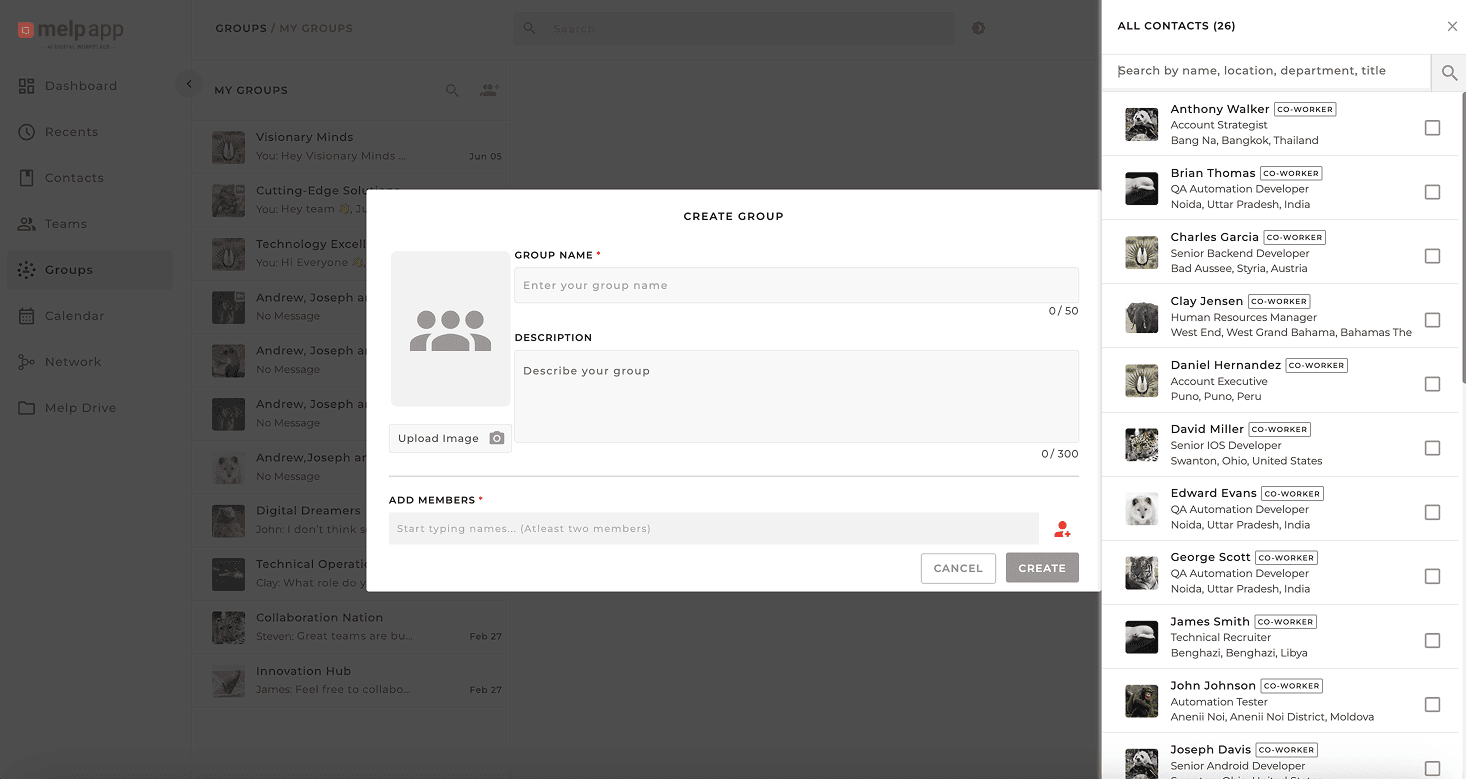
Fill in Details
Fill in the group name, (optional) description/photo, and add members.

Add Members
Click the Add Members icon, then type names or emails to invite people—or just select them from the list.
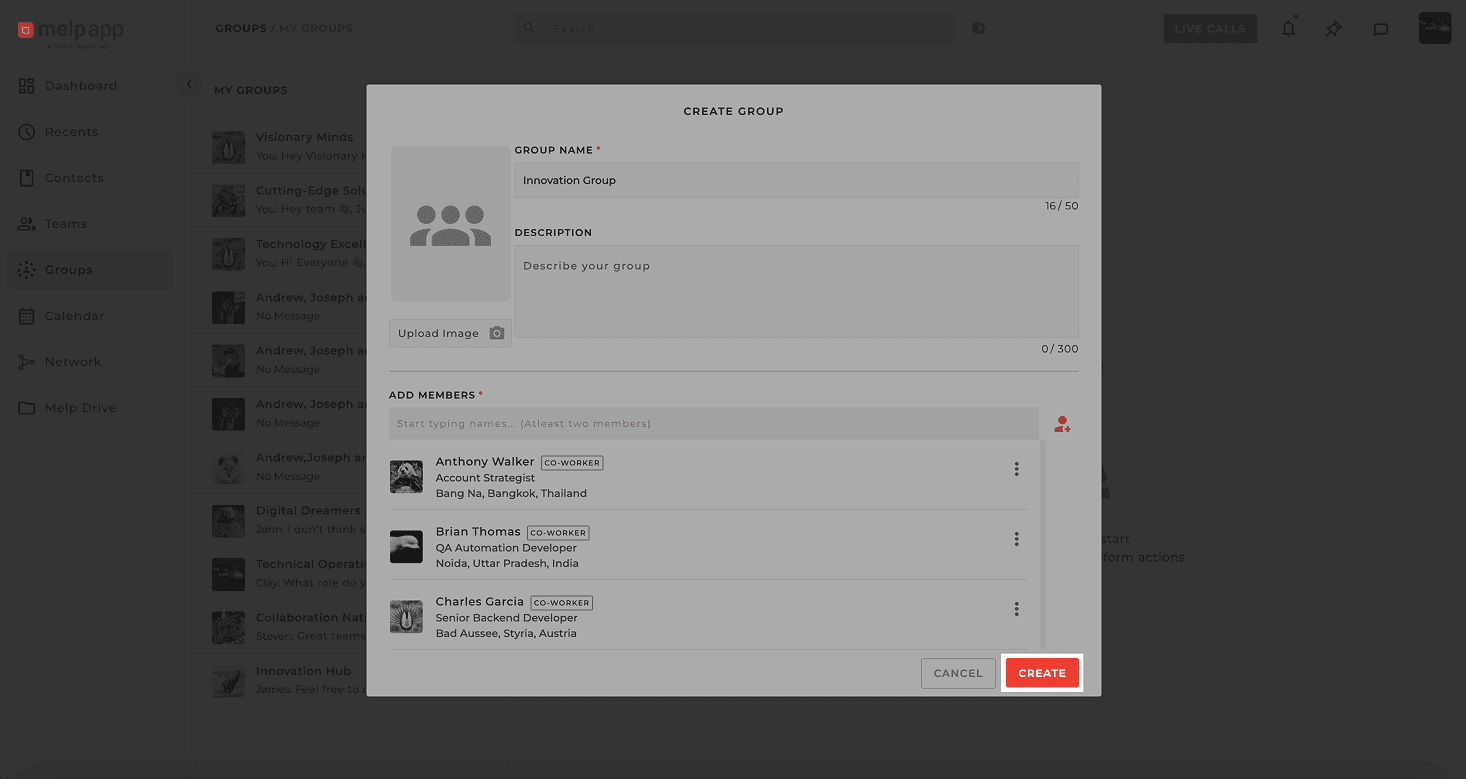
Start Chatting
Click "Create"—and you're ready to chat!
Quick Tips
- Groups are great for quick discussions and don't require Topics.
- Use them for instant calls, chats, or informal updates.
- Add or remove members anytime if you're the group creator.
Pro Tip
Keep group names short and clear (e.g., "Design Team"), and add a display picture for better recognition.