
Record a Meeting
Capture important discussions for future reference.
2 min read
MelpApp allows you to record your meetings so you can revisit the conversation and share with others. The recording captures voice, video, and any presentations shared during the meeting.
How to Record a Meeting
1
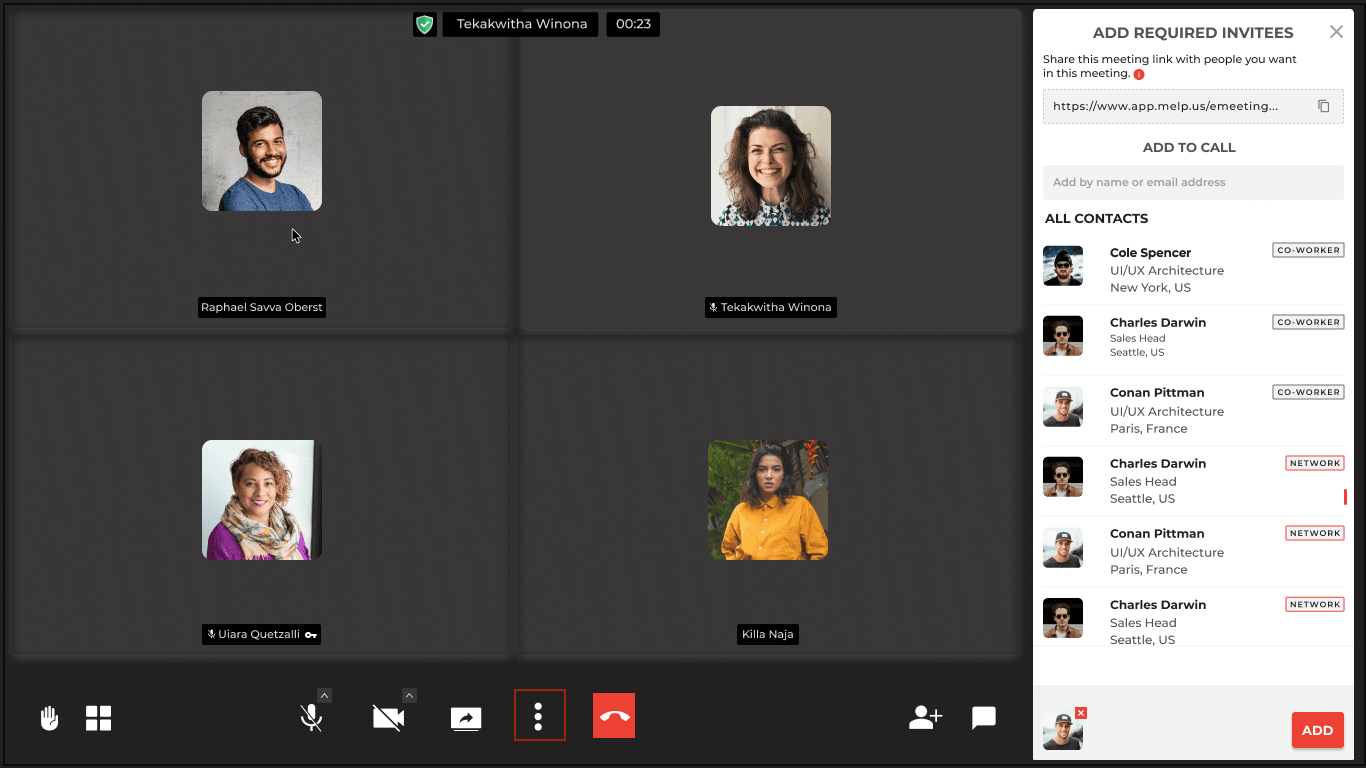
Open More Options
While in a meeting, click on the More Options (three dots) in the bottom bar.
2
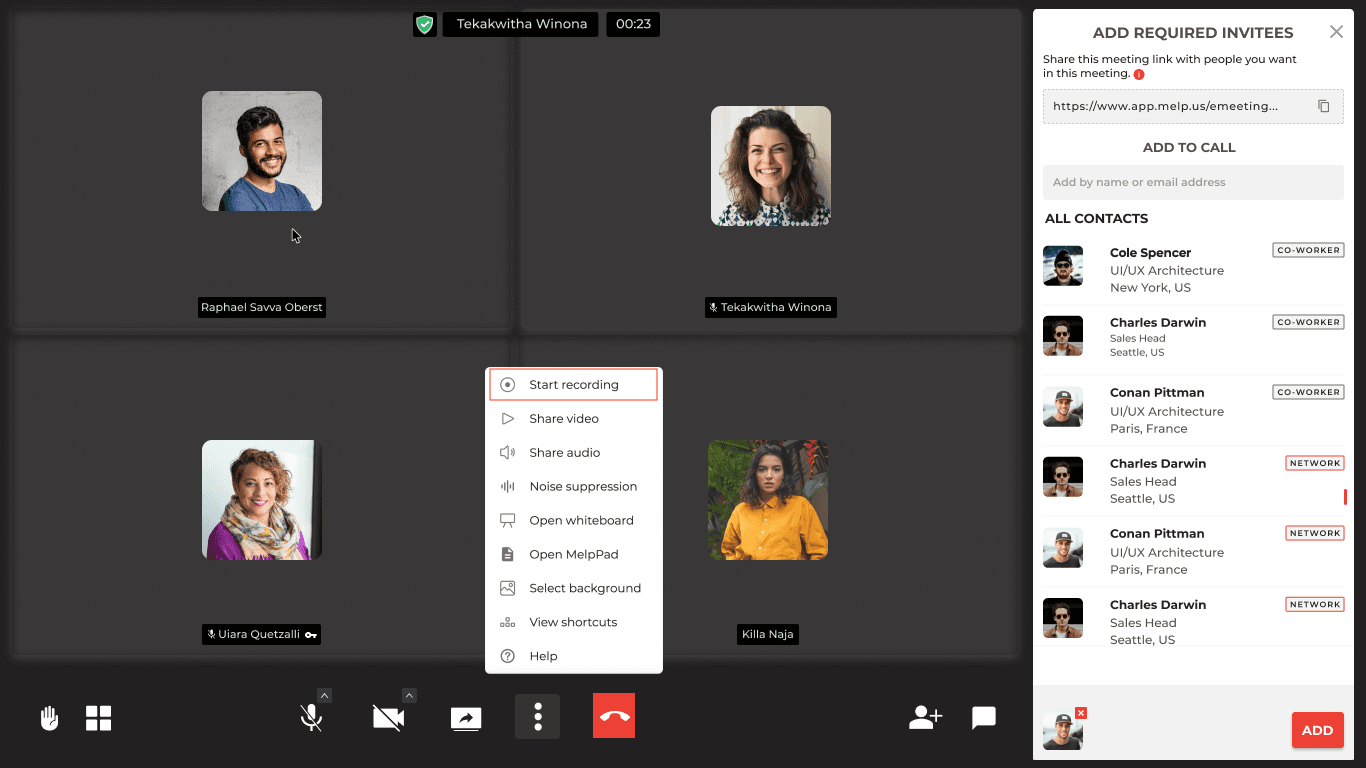
Start Recording
Select Start Recording.
3
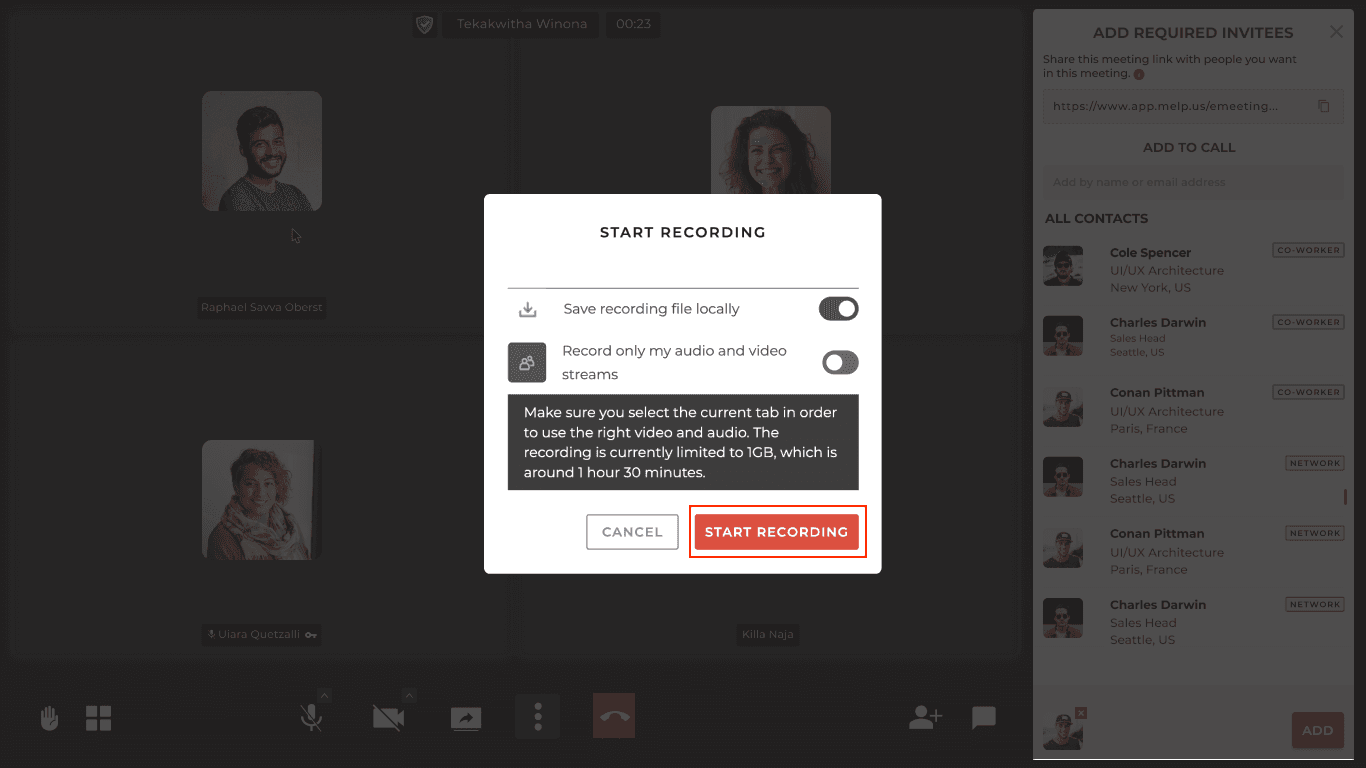
Configure & Begin
Toggle the button ON and click on START RECORDING. Select This Tab and click on Share to begin recording.
4
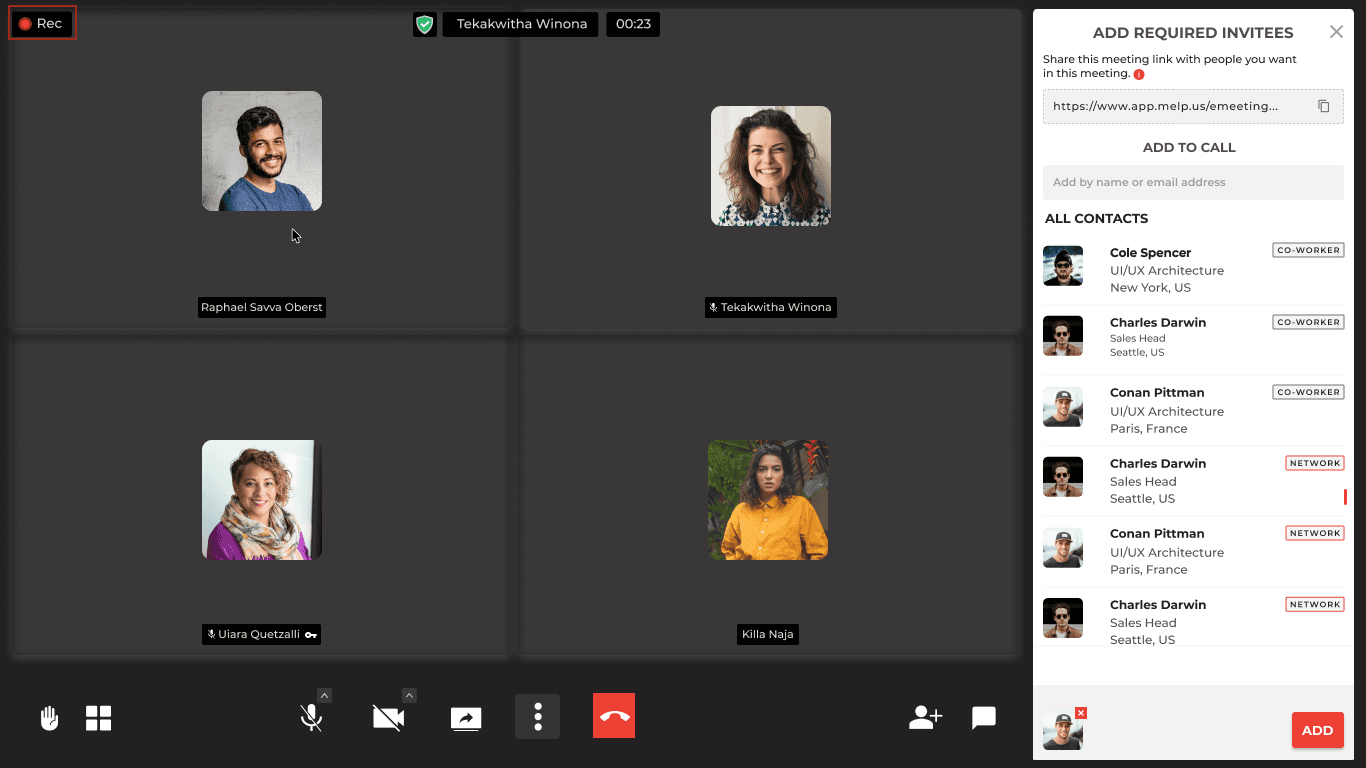
Recording in Progress
You and your participants will see a red icon at the top right when recording is in progress.
Important Note
- • Please make sure you stop the recording before exiting the conference in order to save it.
- • The recording is currently limited to 1 GB, which is around 1 hour 30 minutes.
Updated 21 Jan 2026
Did this page help you?