

Collaboration & Smart Sharing
Share files securely with your team.
Melp Drive makes it simple to collaborate with your team and securely share files or folders.
Permission Controls
Share with individual users, entire teams, or specific groups:
Viewer
Can only view the file.
Editor
Can view, comment, and edit.
Real-Time Collaboration
Multiple Users
Work together with multiple users simultaneously.
Live Changes
See changes live with user cursors, highlights, and comments.
Track suggestions, discussions, and comment resolutions to keep collaboration organized.
Sharing Options
Share via Contacts
Share directly via your Melp contacts, topics, or group lists.
Email Alerts
Automatically notify collaborators with email alerts so they never miss an update.
How to Share Files or Folders
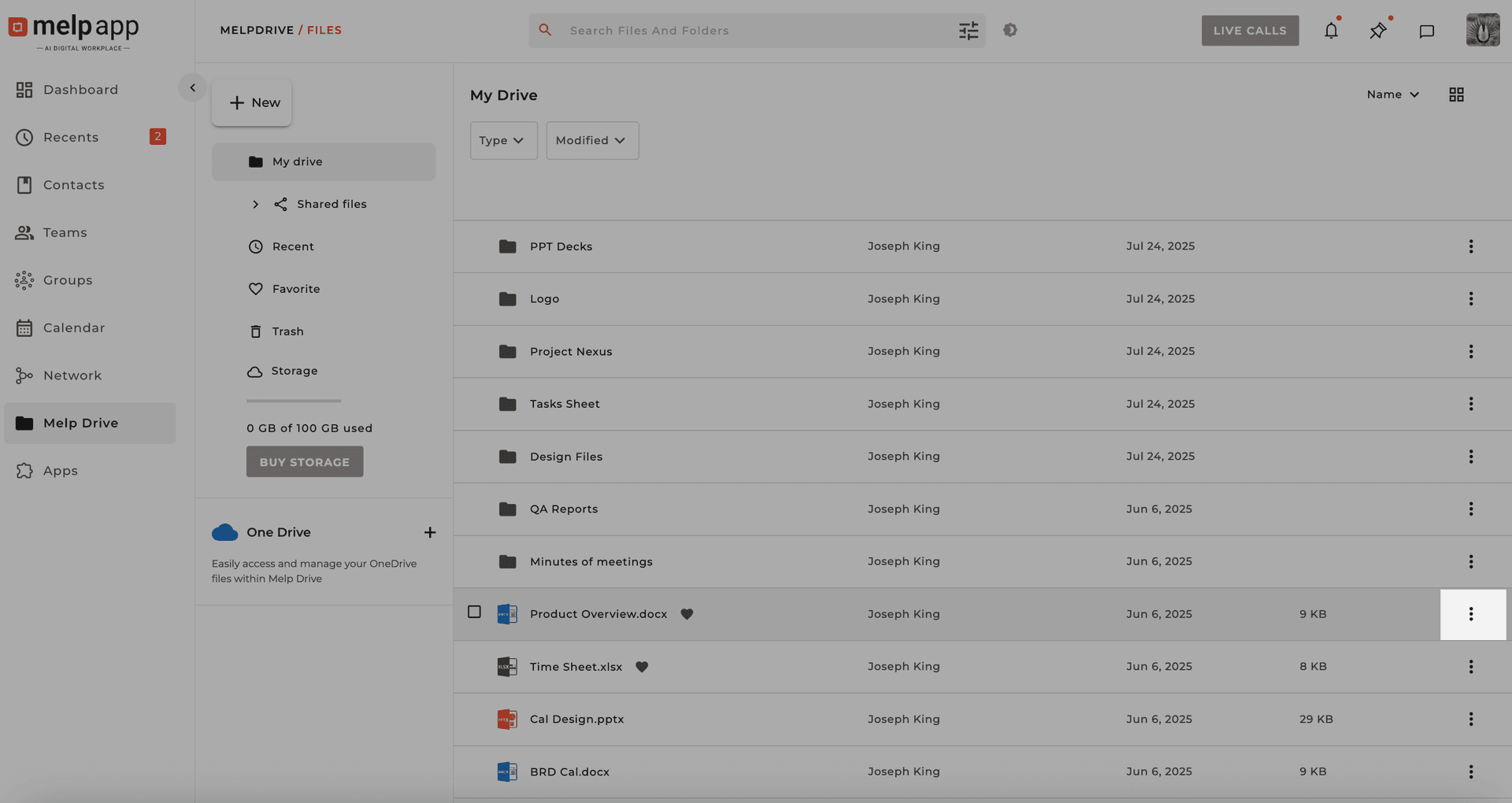
Open More Options
Click the More Options icon on any file or folder.
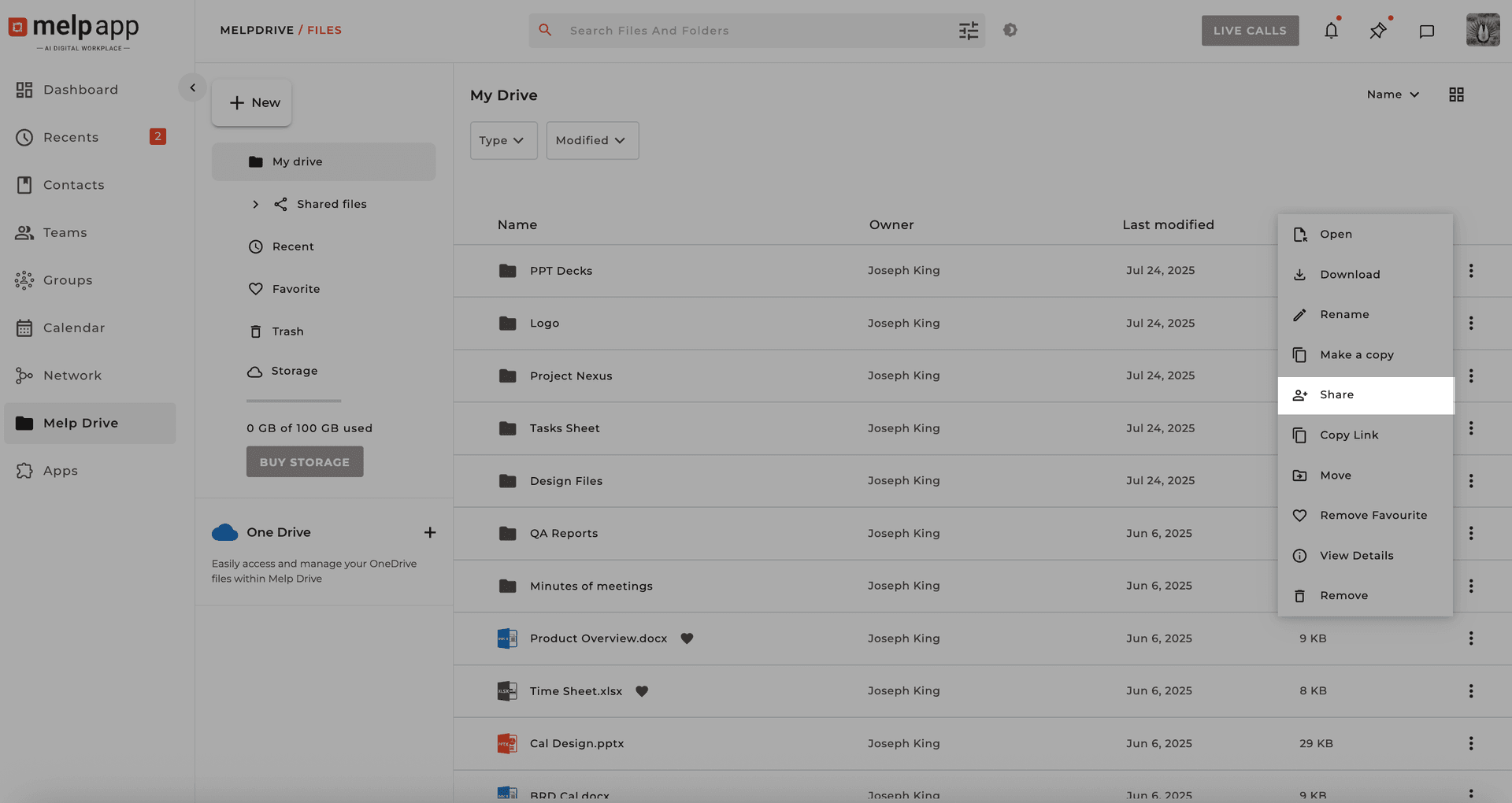
Select Share
Select Share from the menu.
Choose Recipients & Set Permissions
Pick the people, groups, or topics you want to share with. Set permissions (View or Edit) and click Send.
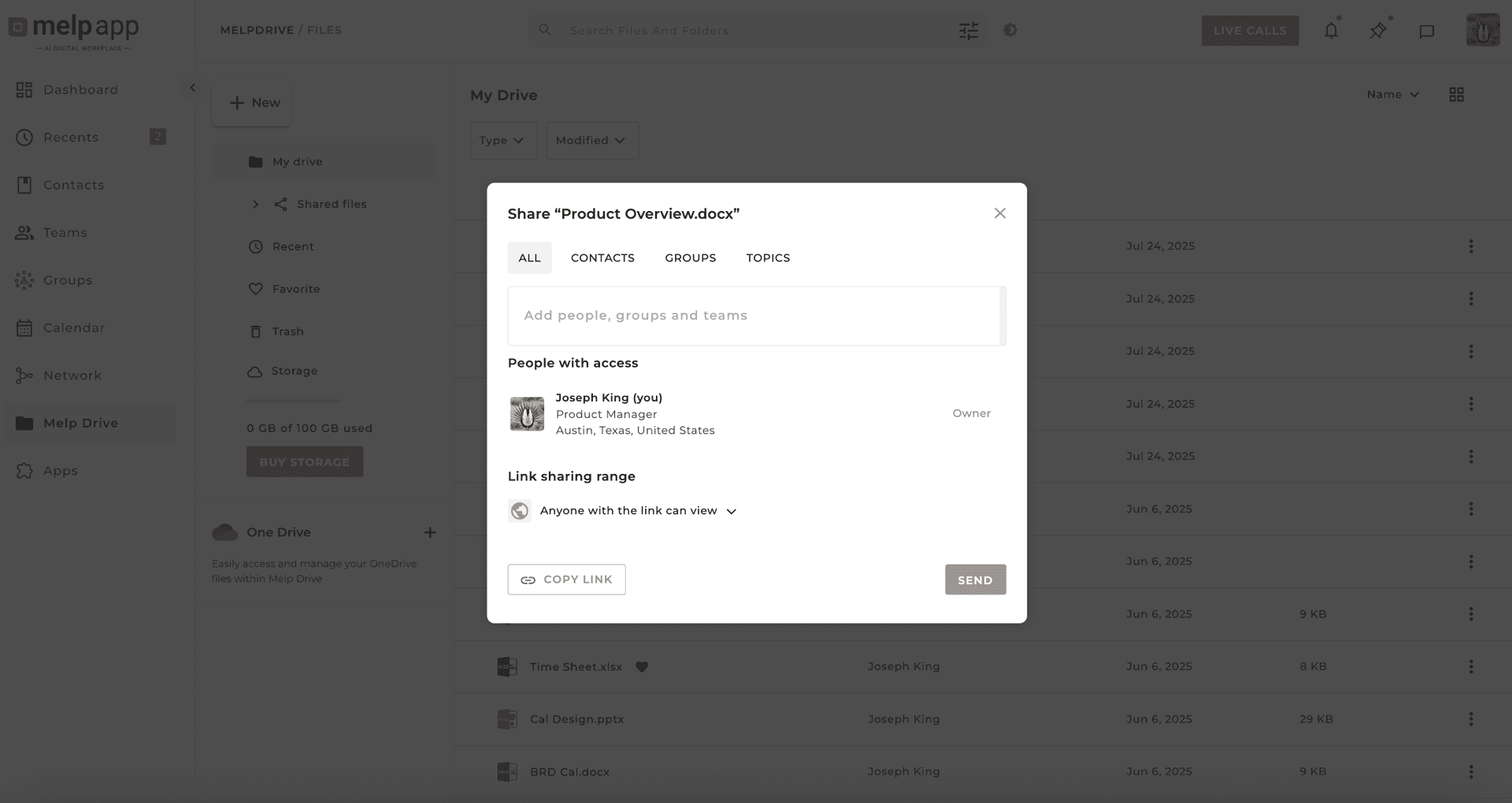
You can update or remove access anytime. Shared files and folders will appear in the recipient's "Shared With Me" section for quick access.
Security Tip
Use Editor access only when collaboration is needed. For sensitive files, stick to Viewer mode.