

Melp Suite
Docs, Sheets, and Slides.
Melp Suite is your all-in-one online workspace for creating, editing, and collaborating on documents, spreadsheets, and presentations — anytime, anywhere.
Everything runs directly in your browser, so no extra software installation is needed. All your work is saved in real-time, and collaboration with your team is seamless.
Melp Suite Features
Documents
- Format text with headings, bold, italics, underline, and bullet points
- Insert images, hyperlinks, tables, and page numbers
- Add comments, tag collaborators, and suggest edits
Spreadsheets
- Built-in functions like SUM, AVERAGE, VLOOKUP, and more
- Apply data validation, conditional formatting, and create charts
- Filter and sort data in columns
- Work with multiple sheets in a single file
Presentations
- Access templates and customizable layouts
- Insert media, animations, and transitions
- Use Presenter Mode with slide timer and notes panel
- Export to PDF or share live during meetings
How to Create Documents, Spreadsheets, or Presentations
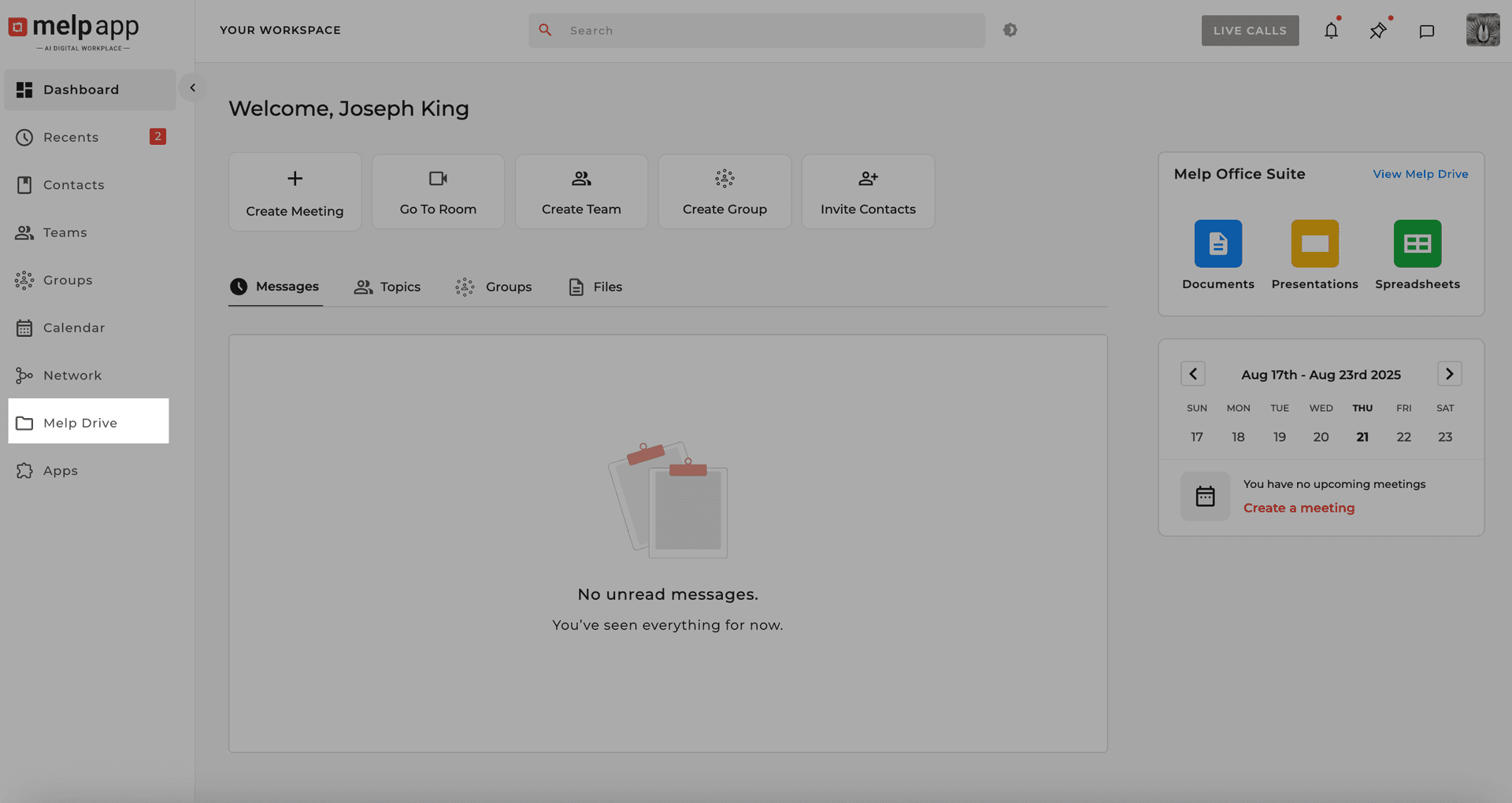
Go to Melp Drive
Open Melp Drive from the sidebar.
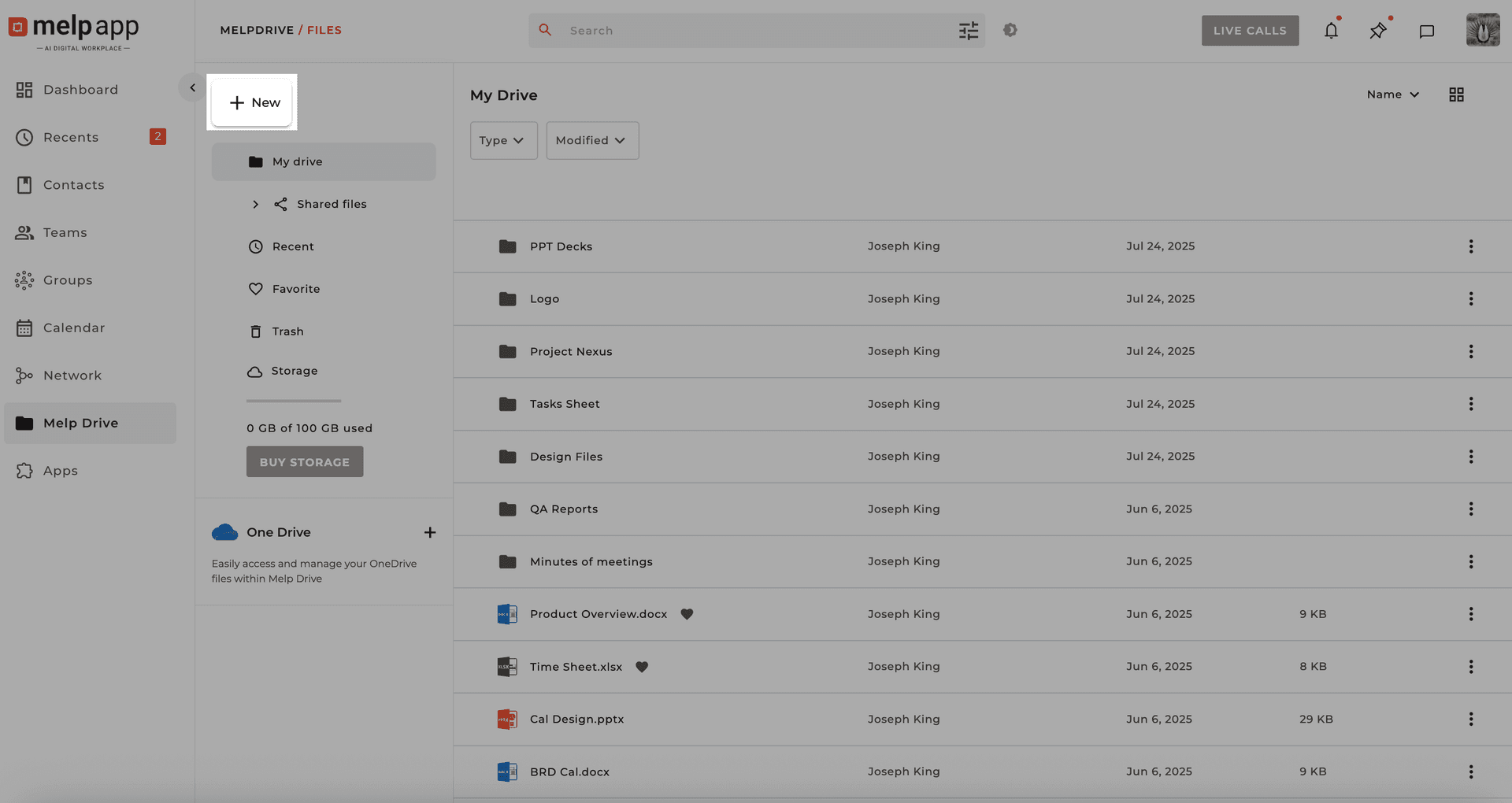
Click the New Button
Click the New button at the top.
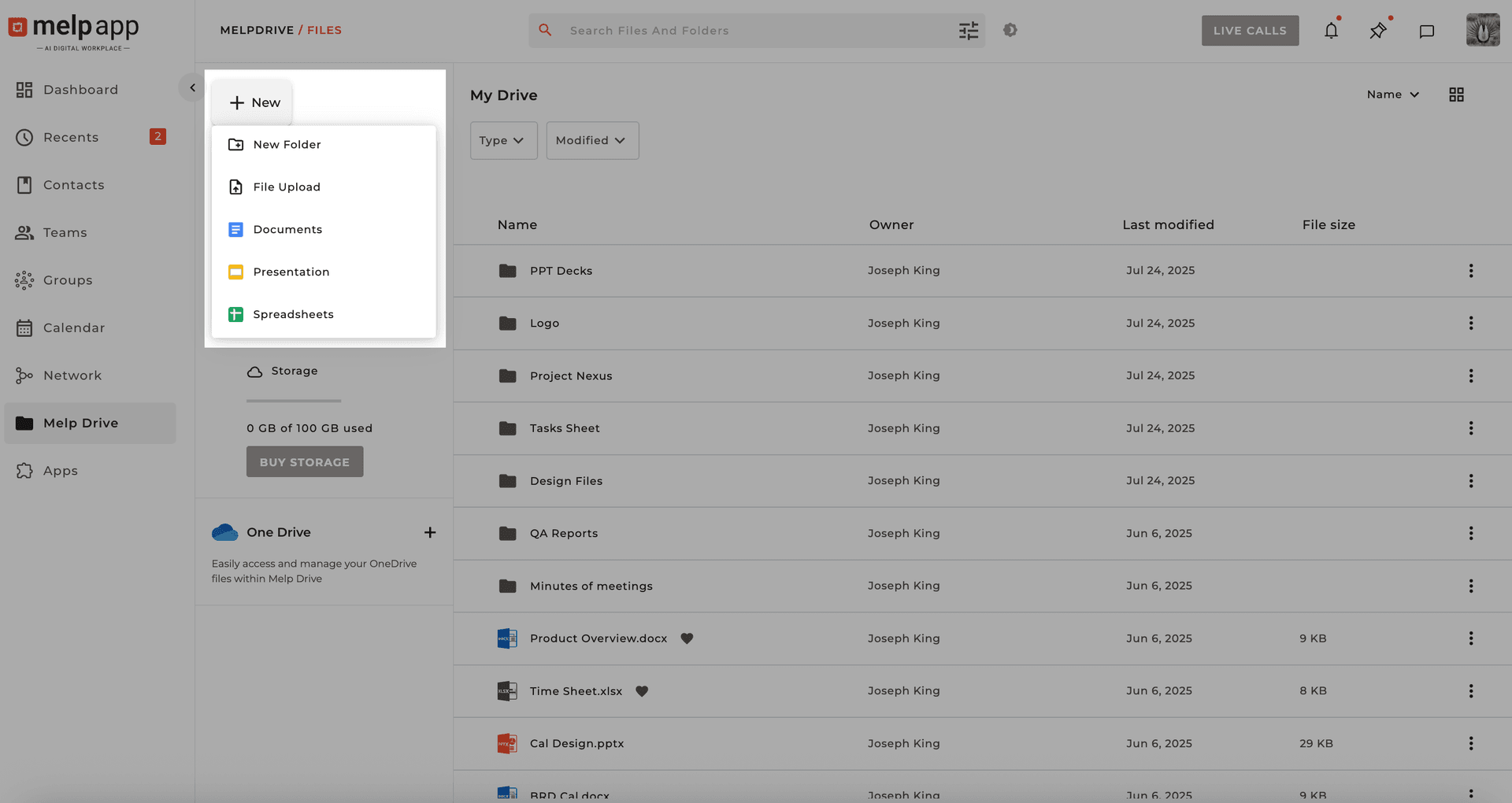
Select File Type
Select New Document, Spreadsheet, or Presentation. A blank file will open in the editor, ready for you to start working.
Pro Tip
Docs and spreadsheets save automatically. Click the title at the top to rename, and collaborate in real time with your team.
How to Collaborate on Documents
Collaboration is simple and flexible. Anyone with access can contribute, and you control permissions.
From Melp Drive
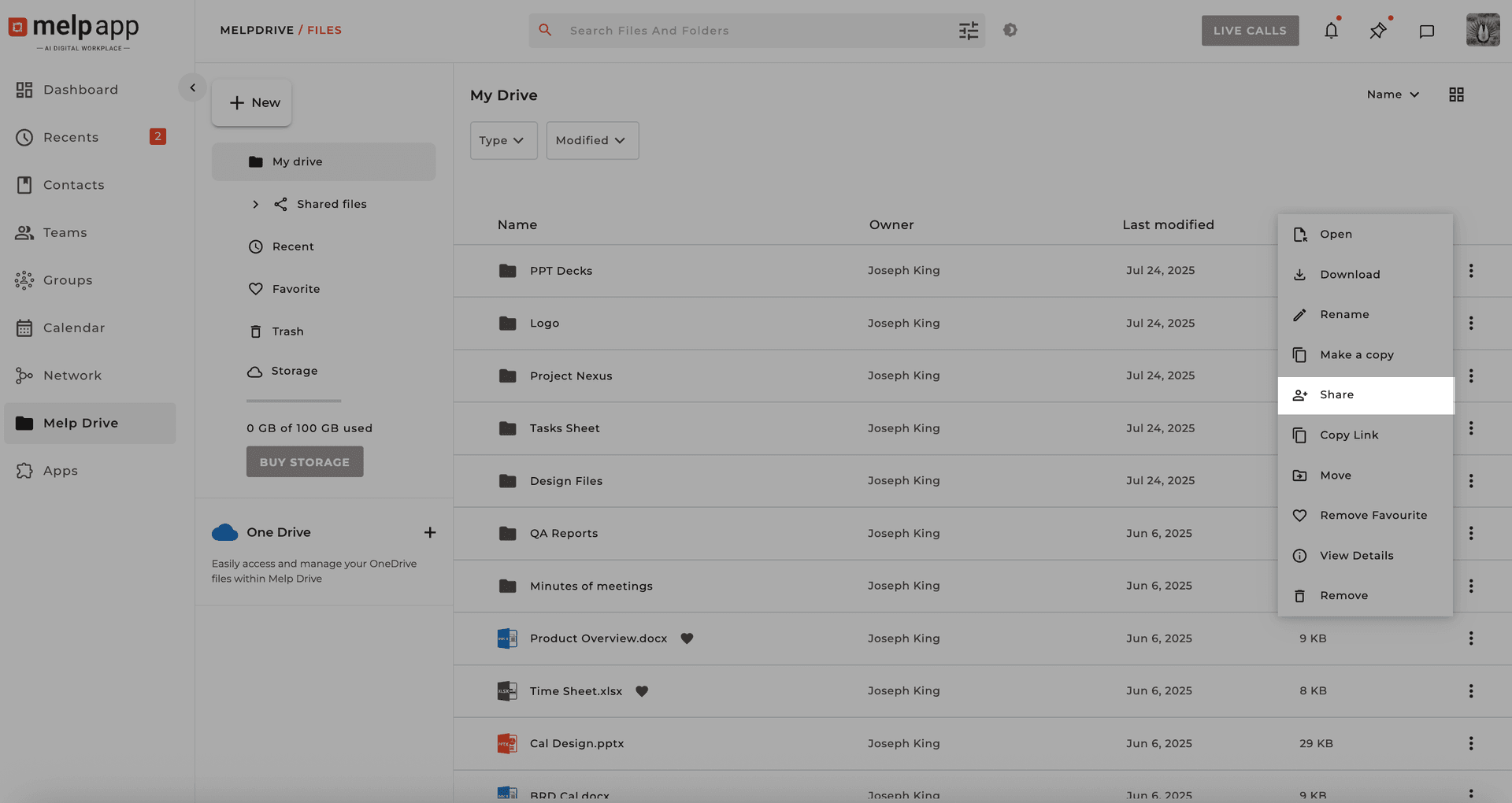
Locate and Share
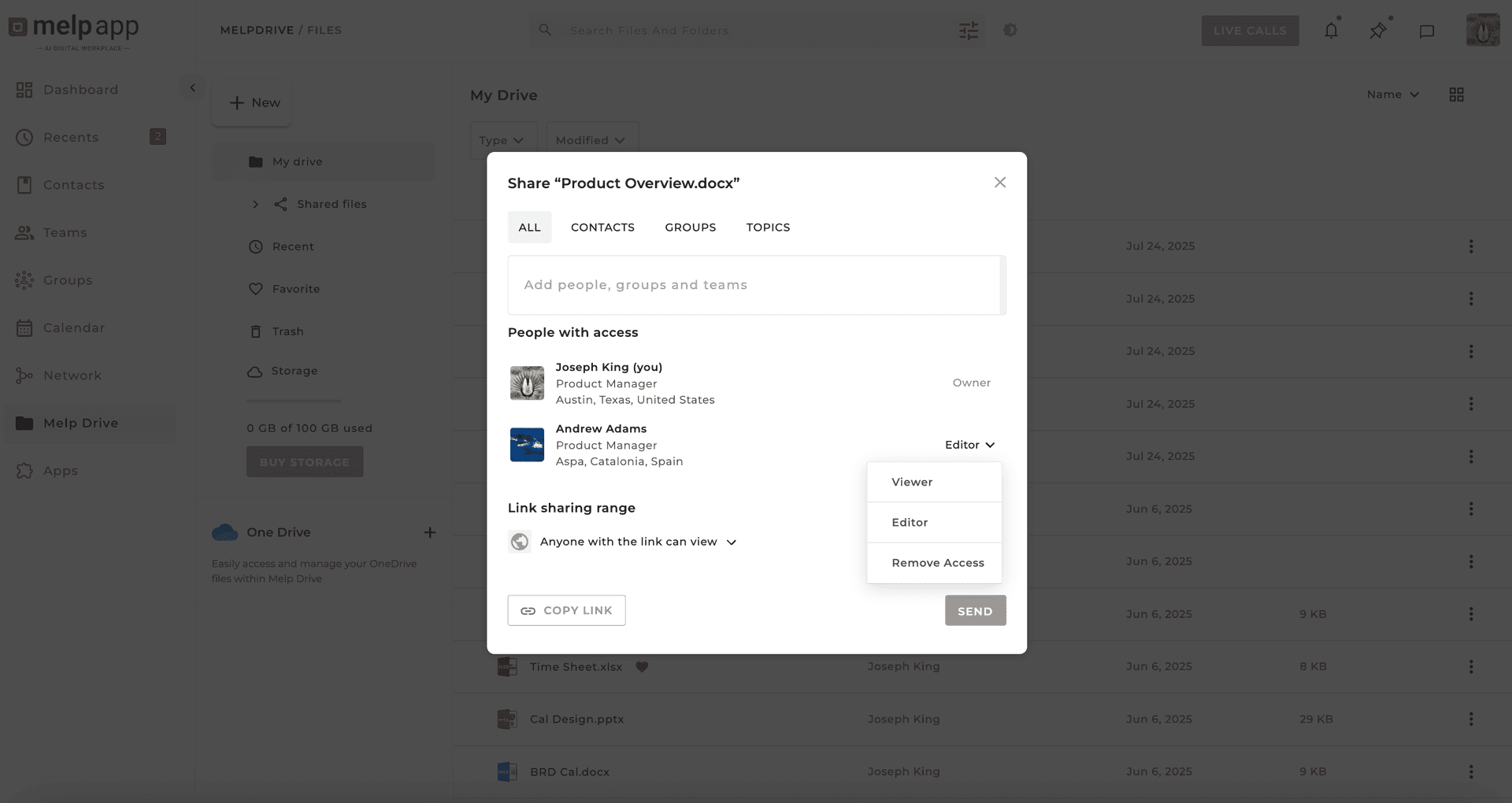
Locate the document you want to share and click Share from the More options list.
Set Permissions
Set permissions and send invites just like sharing files normally.
From Inside the Document
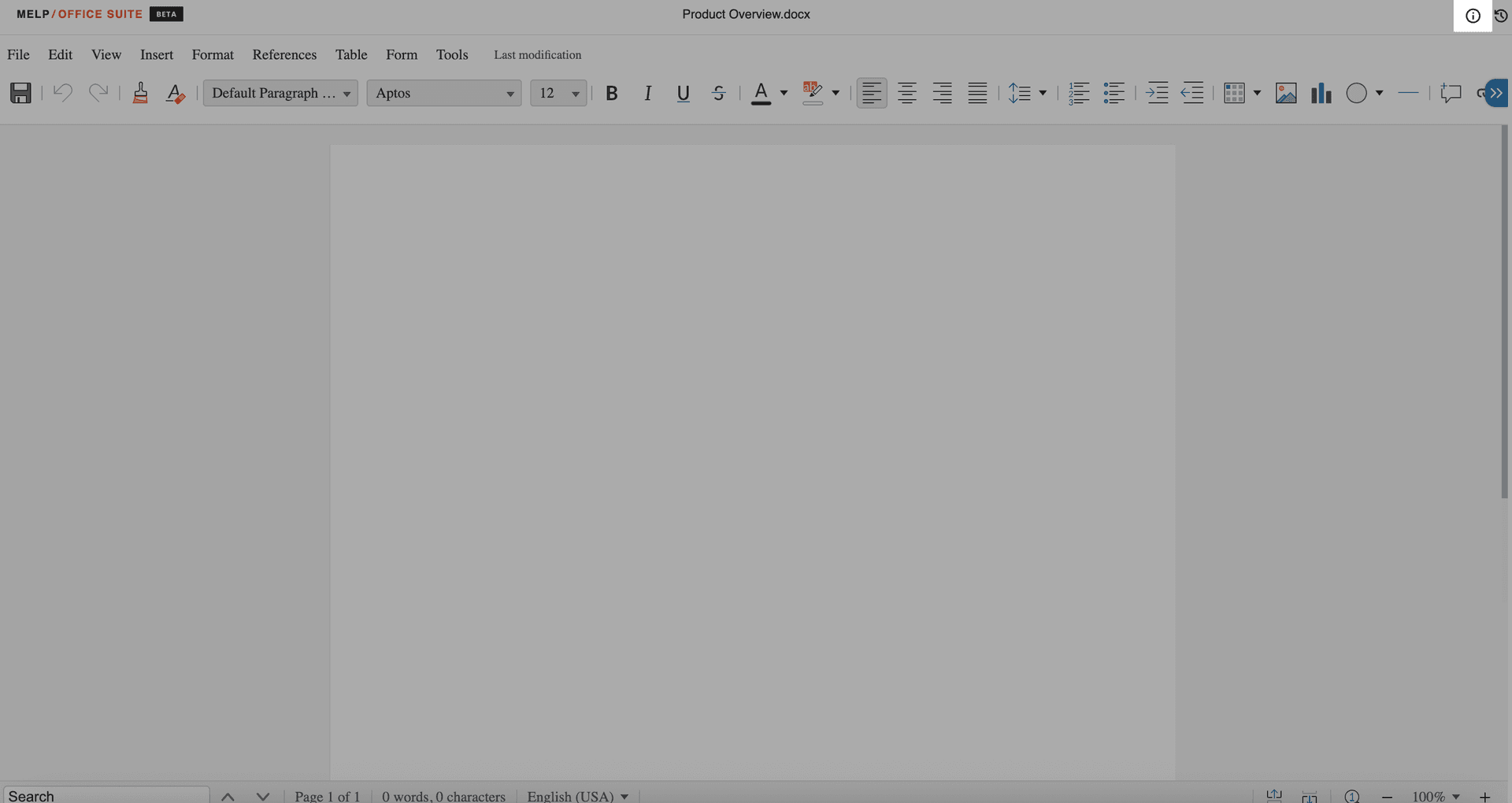
Open Document Info
Open the document and click the (i) icon at the top-right corner.
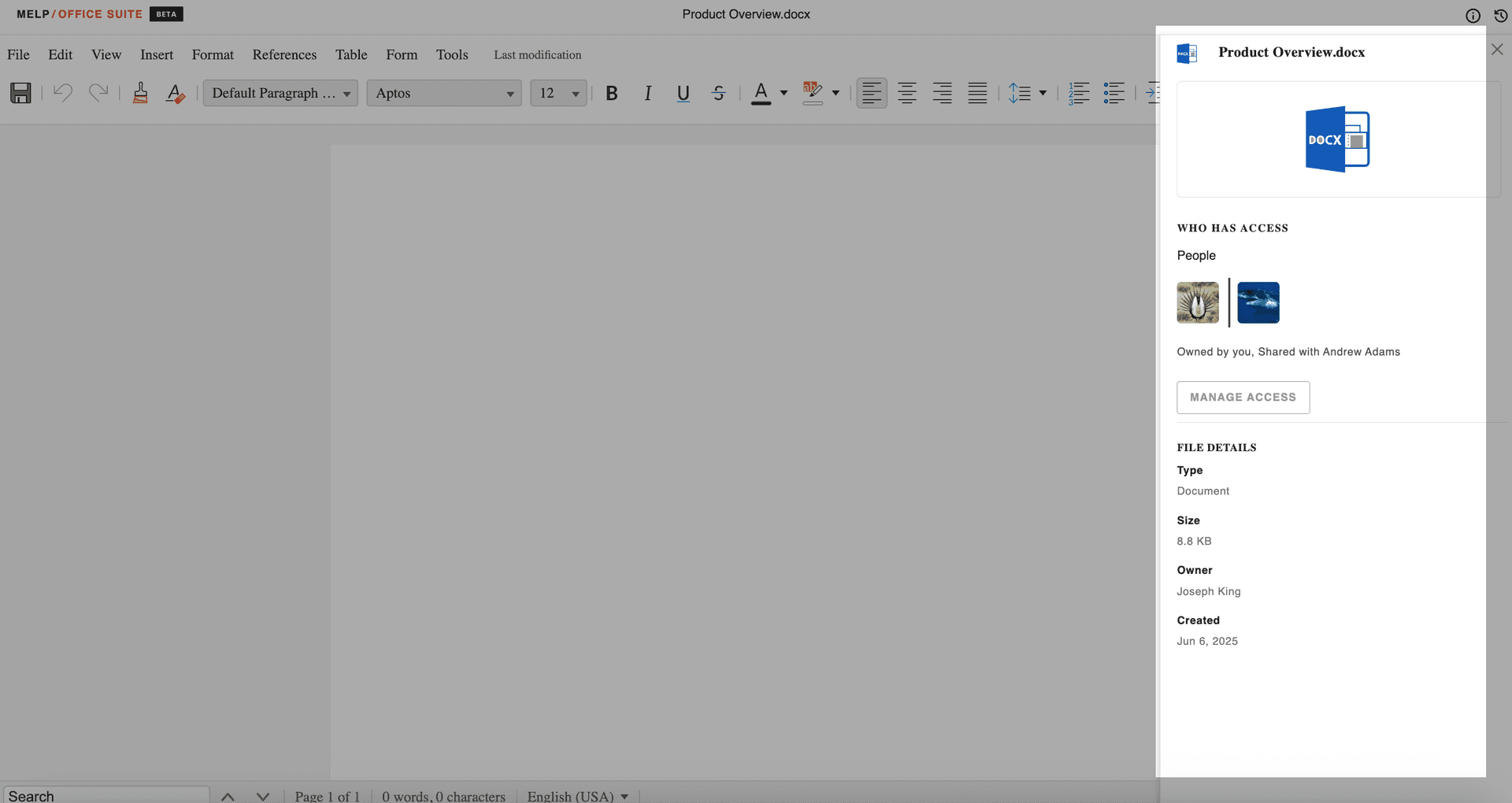
Manage Access
Select Manage Access.
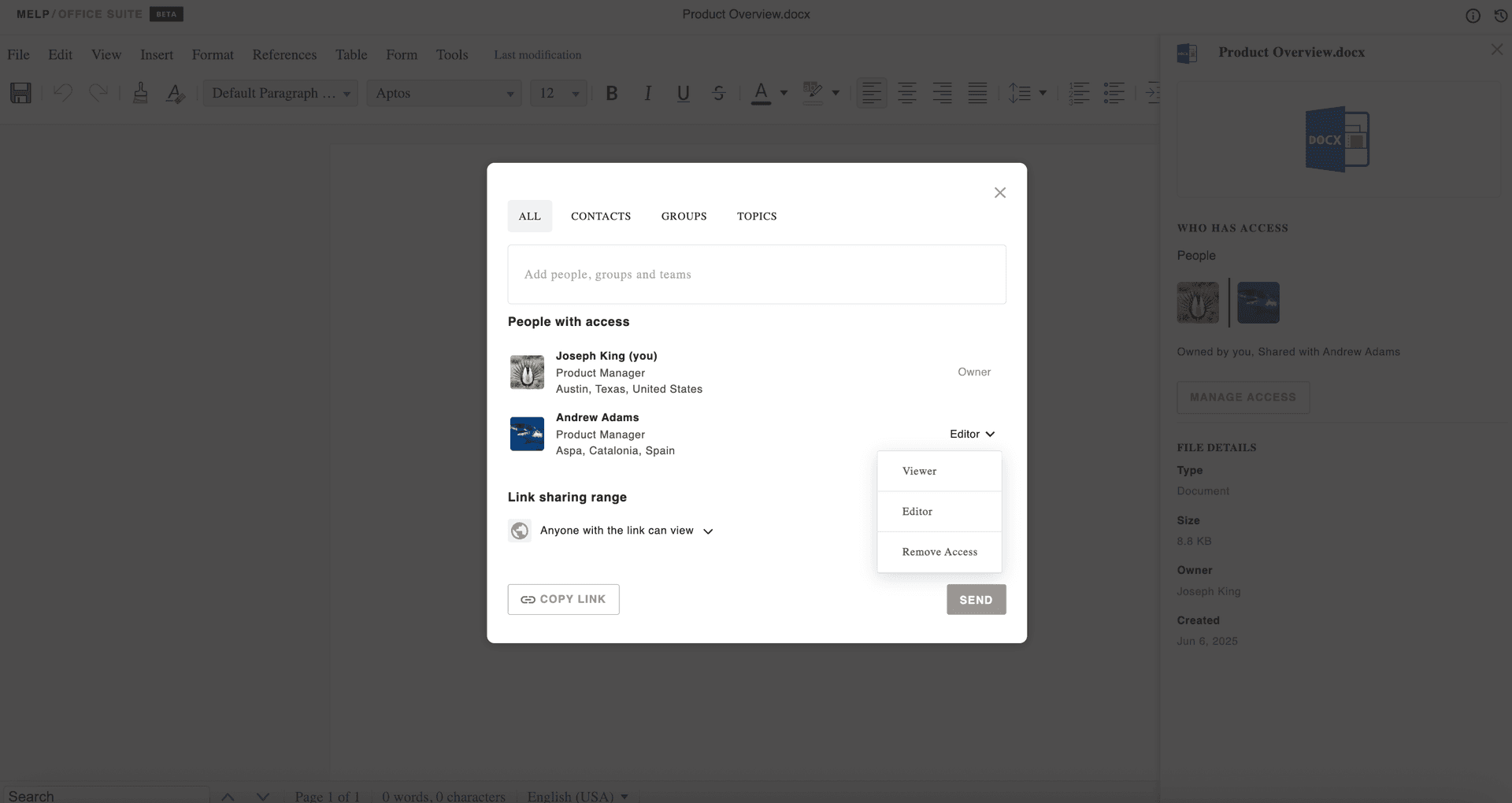
Set Permissions & Send
Choose people or groups, set View/Edit permissions, and send the invite.
Pro Tip
Collaborators with edit access can make changes in real time. You can update or revoke access anytime to maintain control over your files.