

Manage Your Account
Full control over your personal information and security.
Your Melpapp account is the heart of your experience. From updating your personal information to securing your password, these settings give you full control and let you personalize how you use Melp.
Update Your Profile Picture
Your profile picture helps your team recognize you instantly. Keeping it up-to-date adds a personal touch to your workspace.
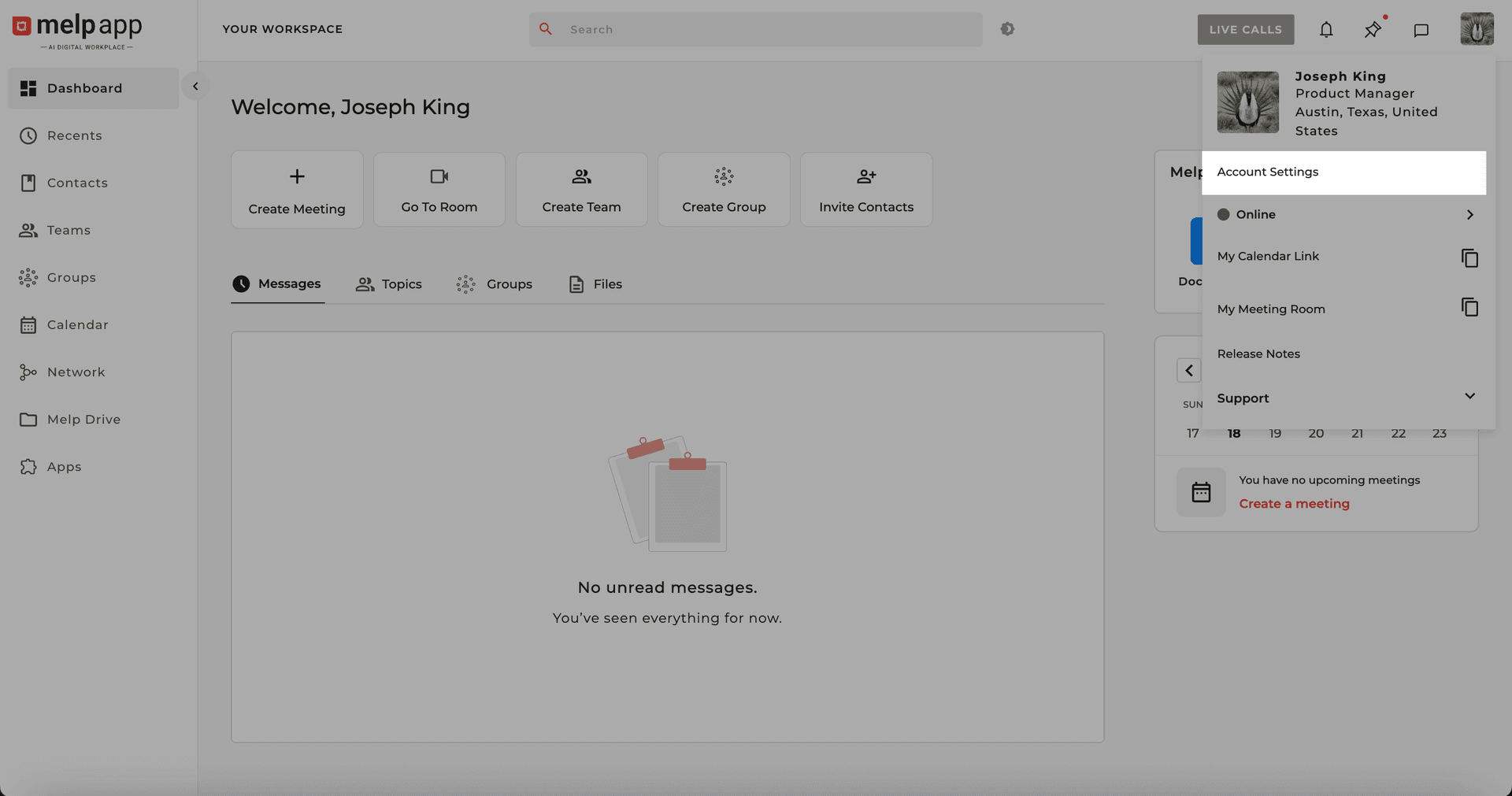
Go to Account Settings
Navigate to your Account Settings from the menu.
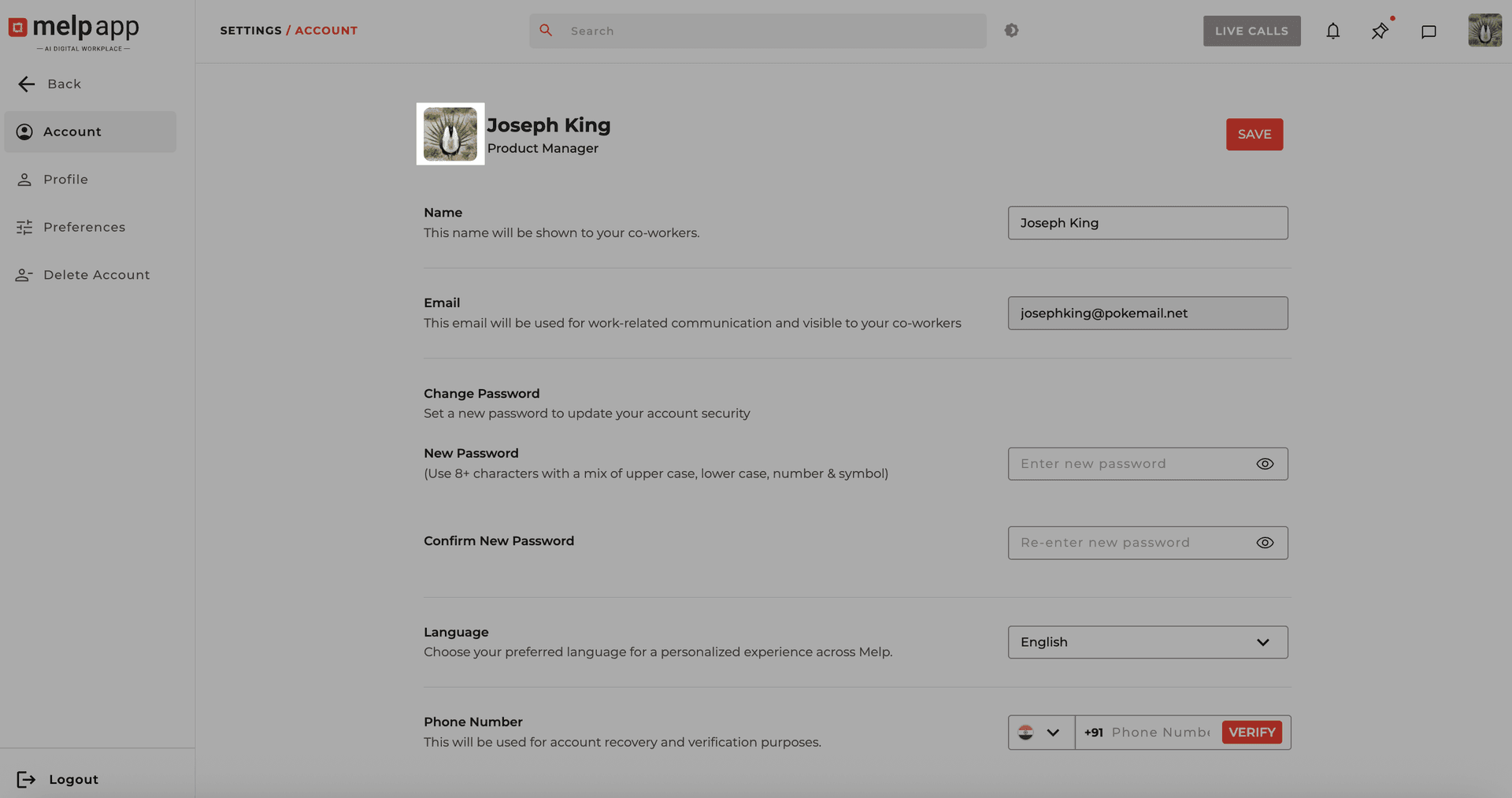
Select New Image
Click on your current profile picture and select a new image from your device. Melp supports: .jpg, .png, .gif, .bmp.
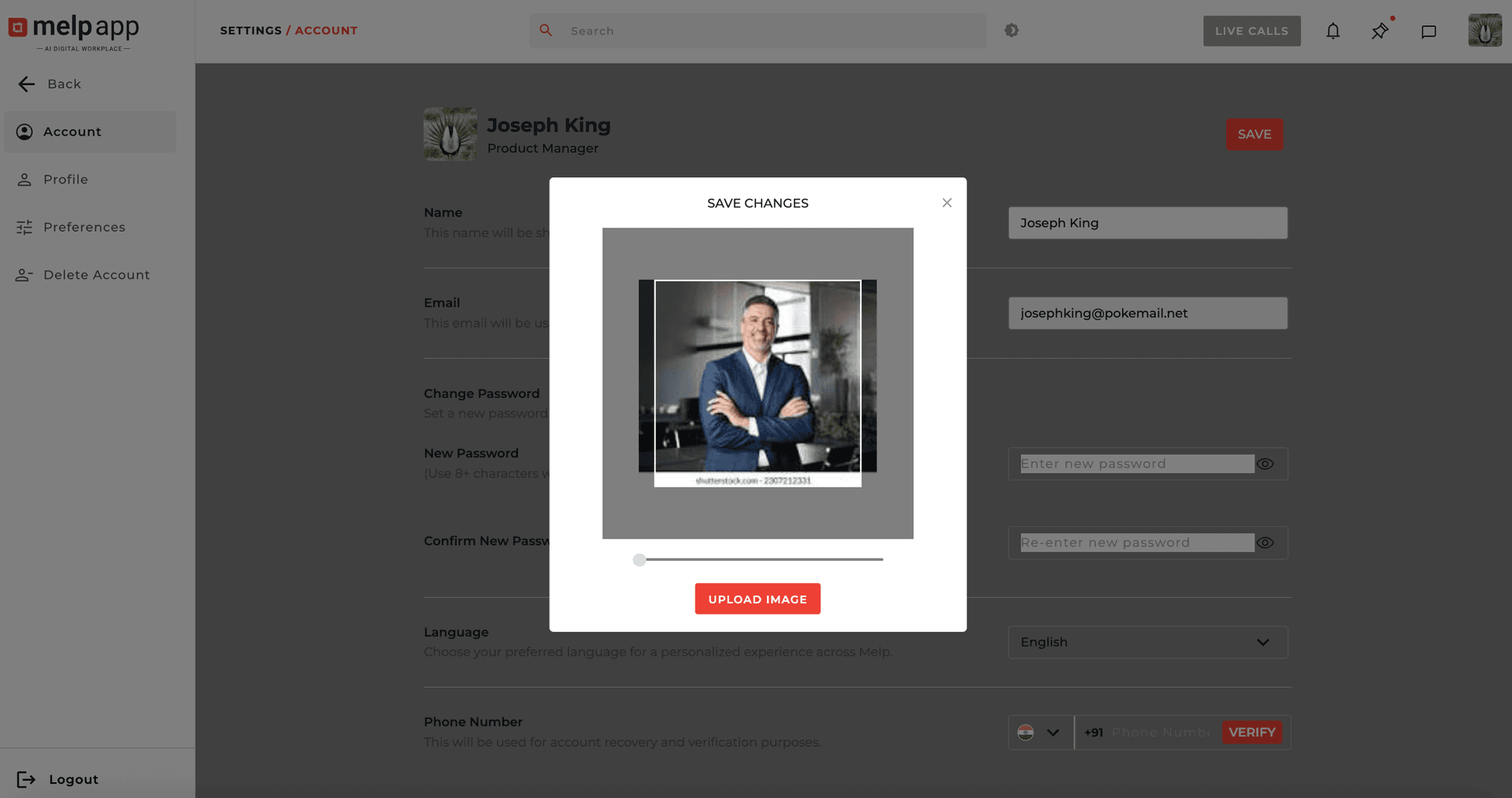
Upload Image
Click Upload Image to save your new profile picture.
Pro Tip: Choose a clear, professional image so your team can easily identify you across Melp.
Update Your Display Name
Keep your profile fresh and easy to recognizeby updating your display name on Melp. It's quick, simple, and ensures your team can find you easily.
Open Account Settings
Go to Account Settings. The Account tab will open.
Edit Your Name
Locate your current display name and click on it to edit.
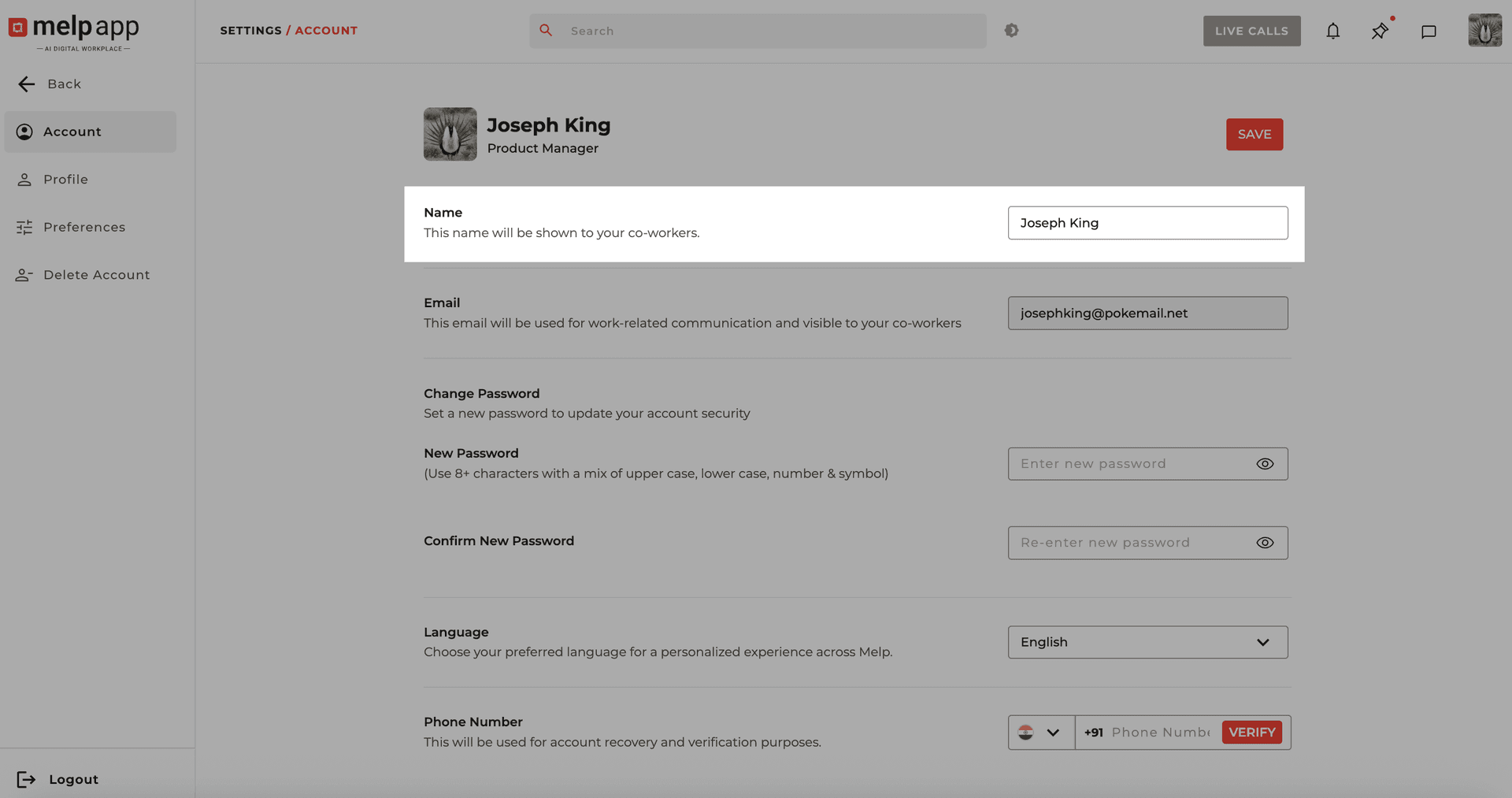
Save Changes
Type in your new name and click Save Changes.
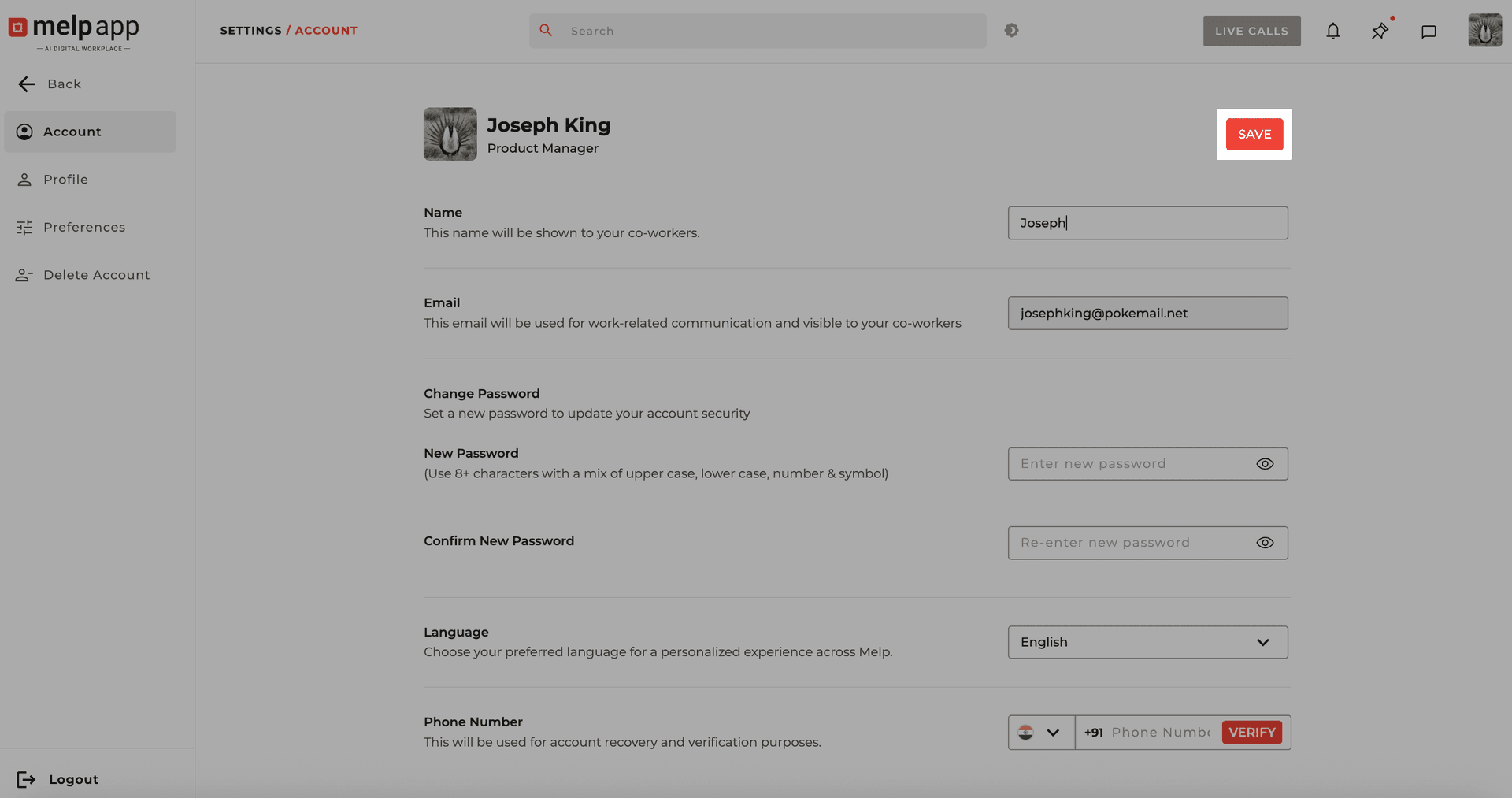
That's it! Your updated name will now appear across chats, meetings, and contacts, making it easier for others to recognize and reach you.
Change Your Password
For enhanced security, we recommend updating your Melp password regularly. Changing your password is simple and can be done directly from the Account Settings tab.
Open Account Settings
Go to Account Settings. The Account tab will open.
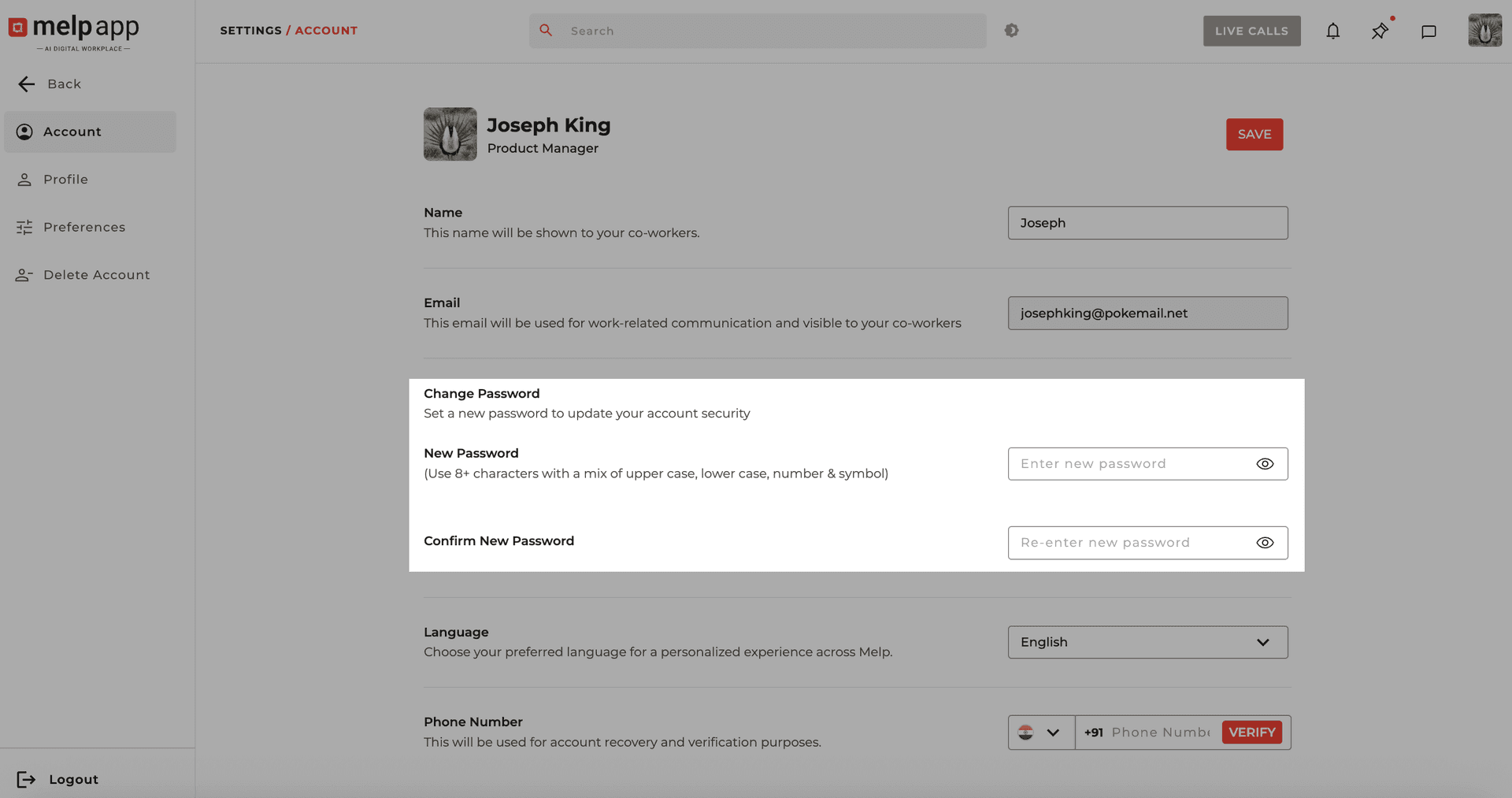
Enter New Password
Locate the Change Password section, then enter a new password (at least 8 characters, including uppercase, lowercase, numbers, and symbols), then re-enter it in Confirm New Password to ensure accuracy.
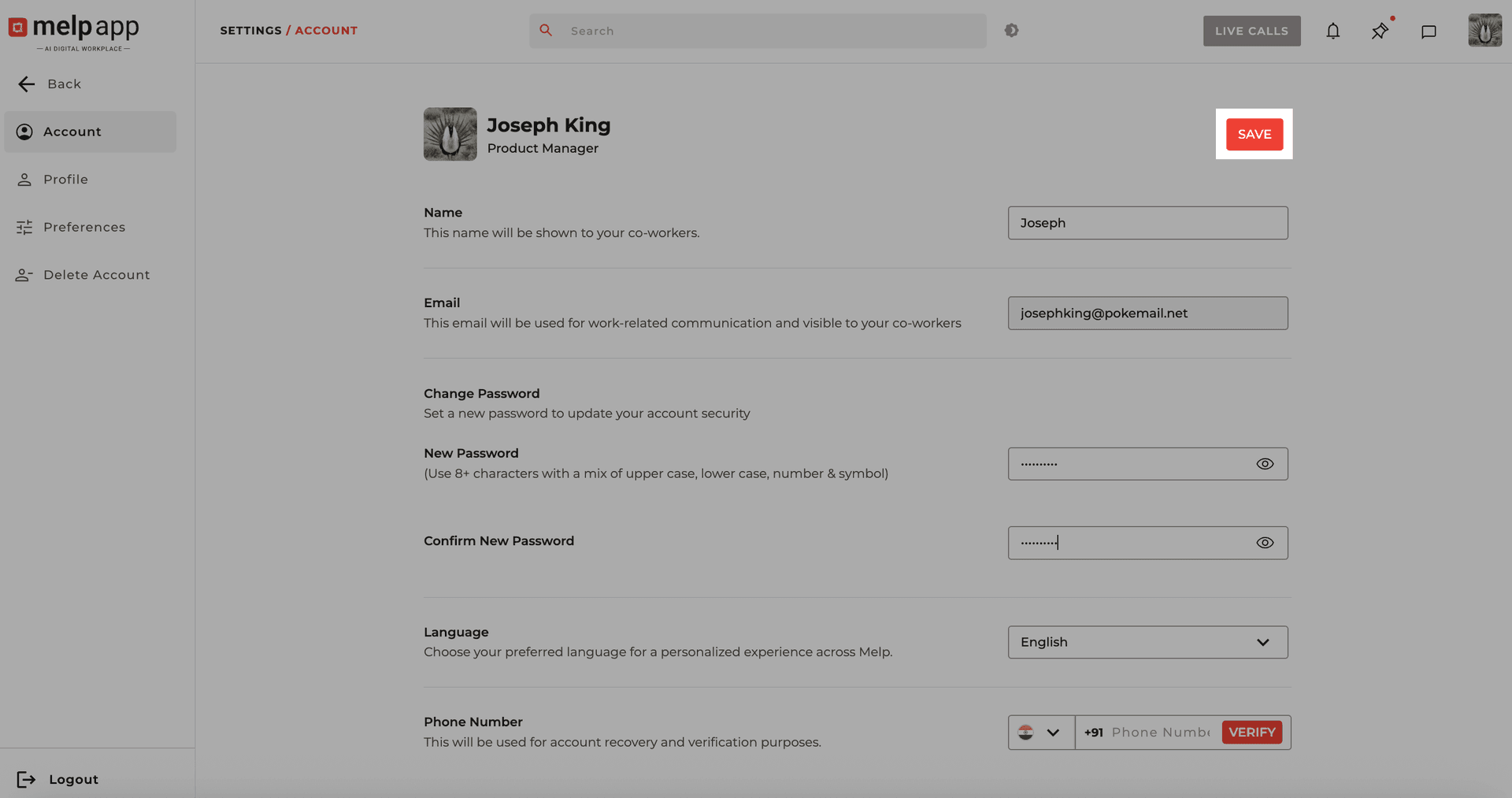
Save and Verify
Click Save and check your registered email for a verification code.
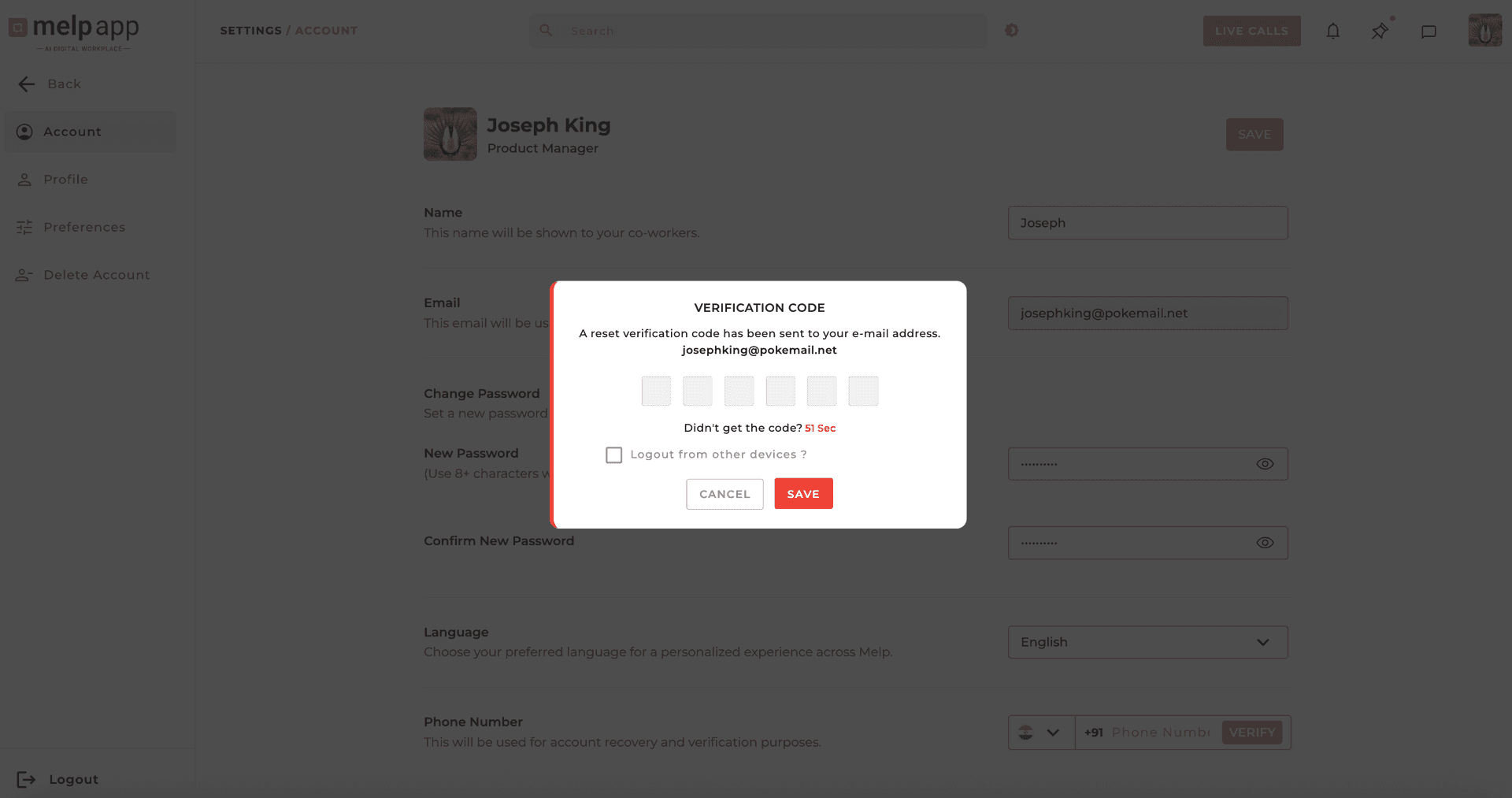
Enter Verification Code
Enter the code in Melp when prompted. Once verified, your password is updated and ready to use.
Pro Tip: Make your password strong and unique to protect your account. The verification email is sent only after you click Save, so keep an eye on your inbox.
Change Your Language
Melp supports multiple global languages to make your experience personalized and comfortable. Whether you prefer English, Spanish, or another supported language, you can easily switch the app interface to match your preference.
Supported Languages
By default, Melp automatically detects and applies your device or browser language, but you can manually change it anytime.
Open Account Settings
Go to Account Settings. The Account tab will open.
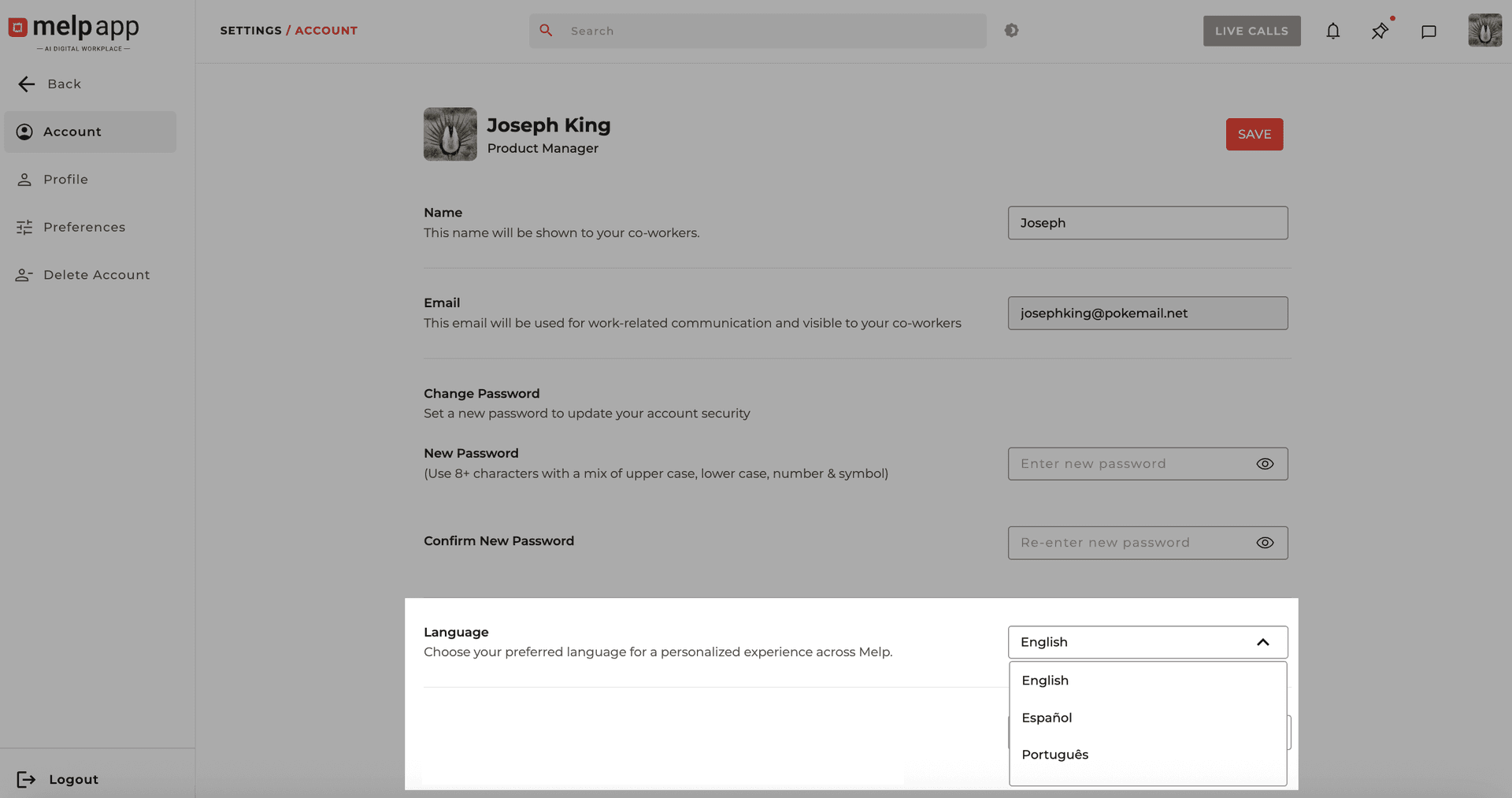
Select Language
Locate the Language setting and click the dropdown menu and select your preferred language.
Save Changes
Click Save Changes to apply the new setting.
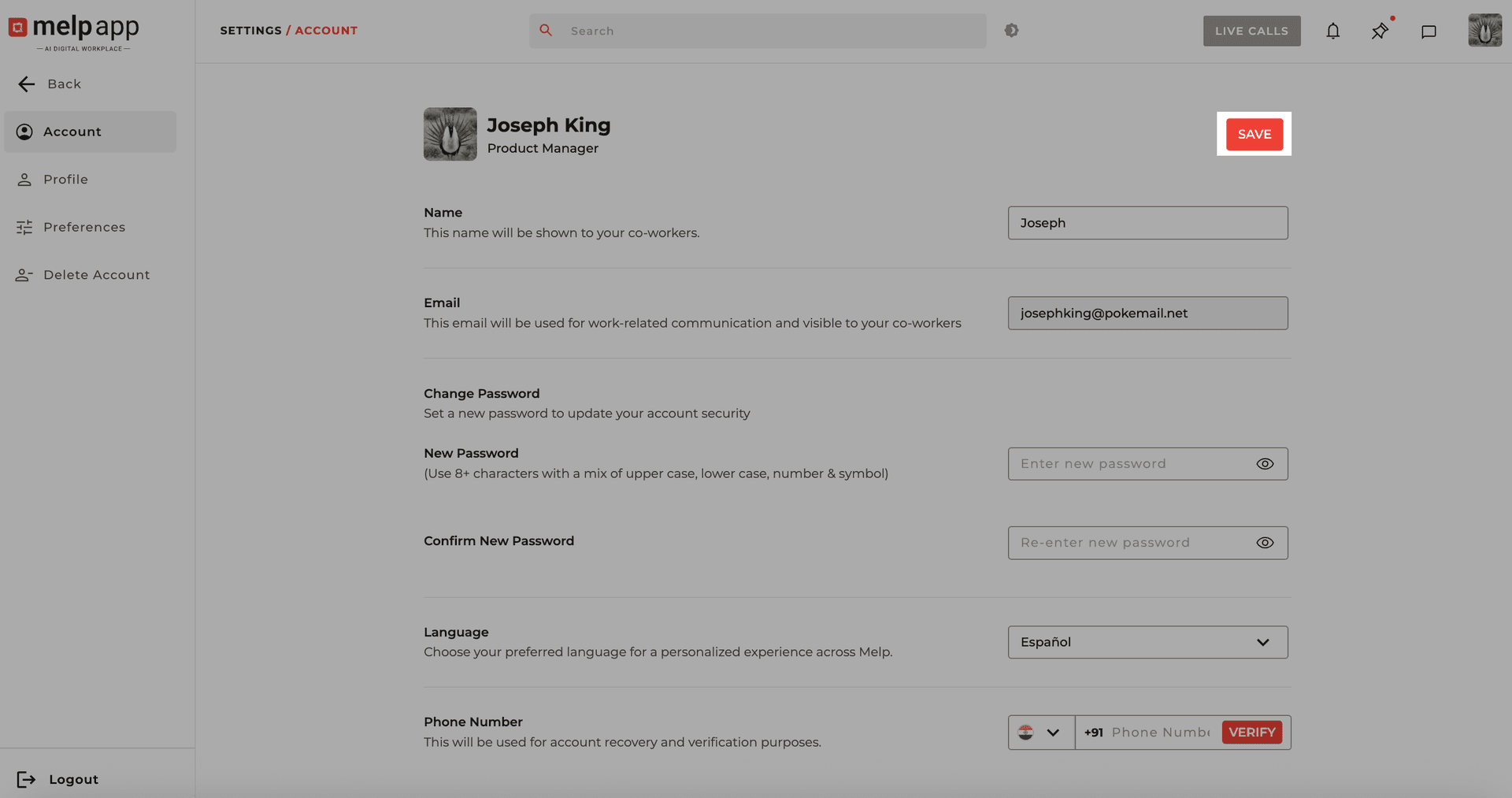
That's it! Melp's interface will now appear in your selected language—making your experience smoother, familiar, and more personalized.
Verify Your Phone Number
Verifying your phone number is a simple but powerful way to keep your network consistent and accessible—no matter which email you use. Whether you sign in with a personal or business account, your phone number acts as a permanent link to your network, helping you reconnect with your contacts even if your original account is deactivated or deleted.
Open Account Settings
Go to Account Settings. The Account tab will open.
Enter Phone Number
Enter your mobile number in the phone number field.
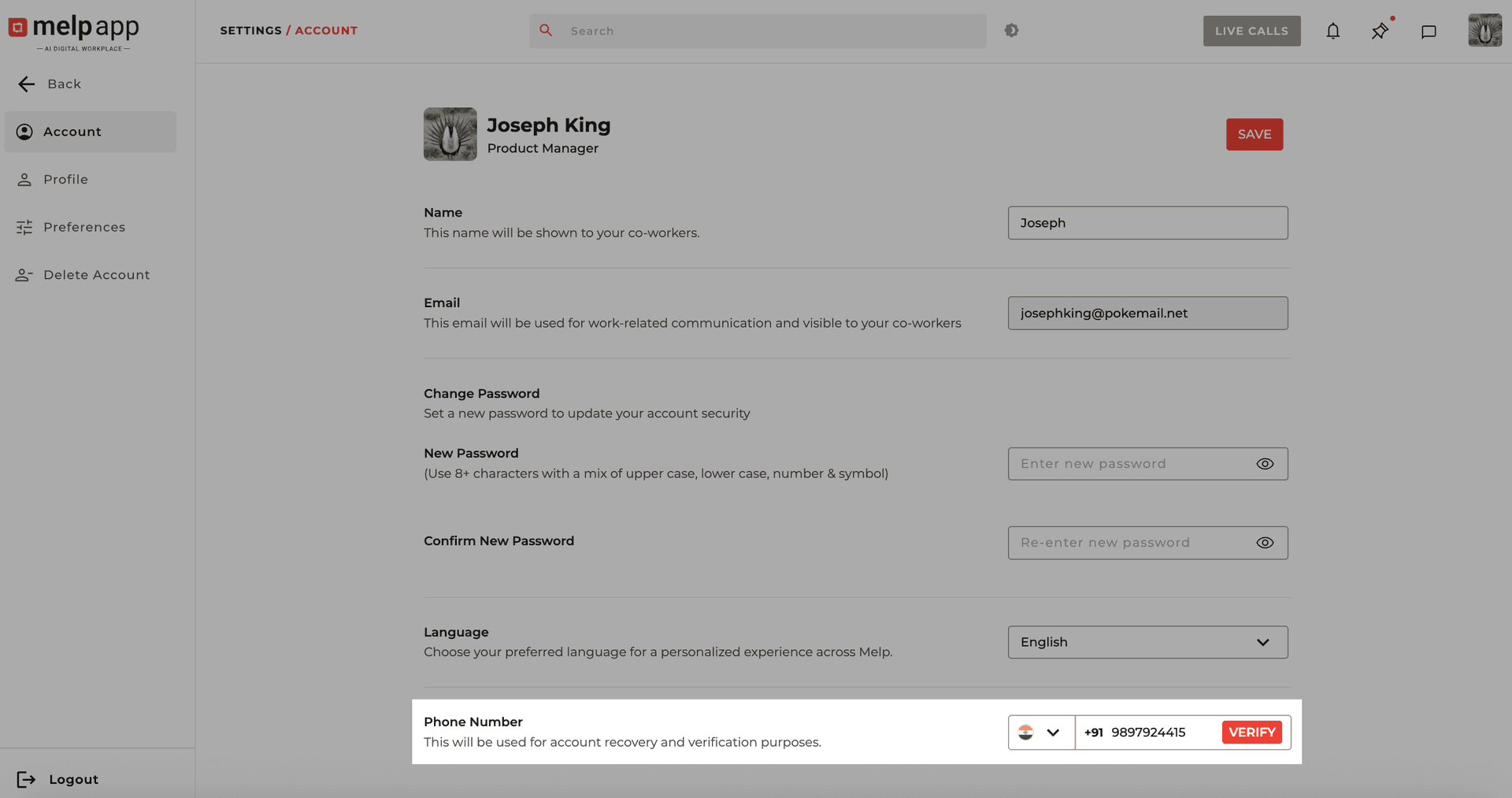
Verify with OTP
Click Verify, then enter the OTP (One-Time Password)sent via SMS. If you don't receive it, click Resend Code to request another. Once entered, click Submit to complete verification.
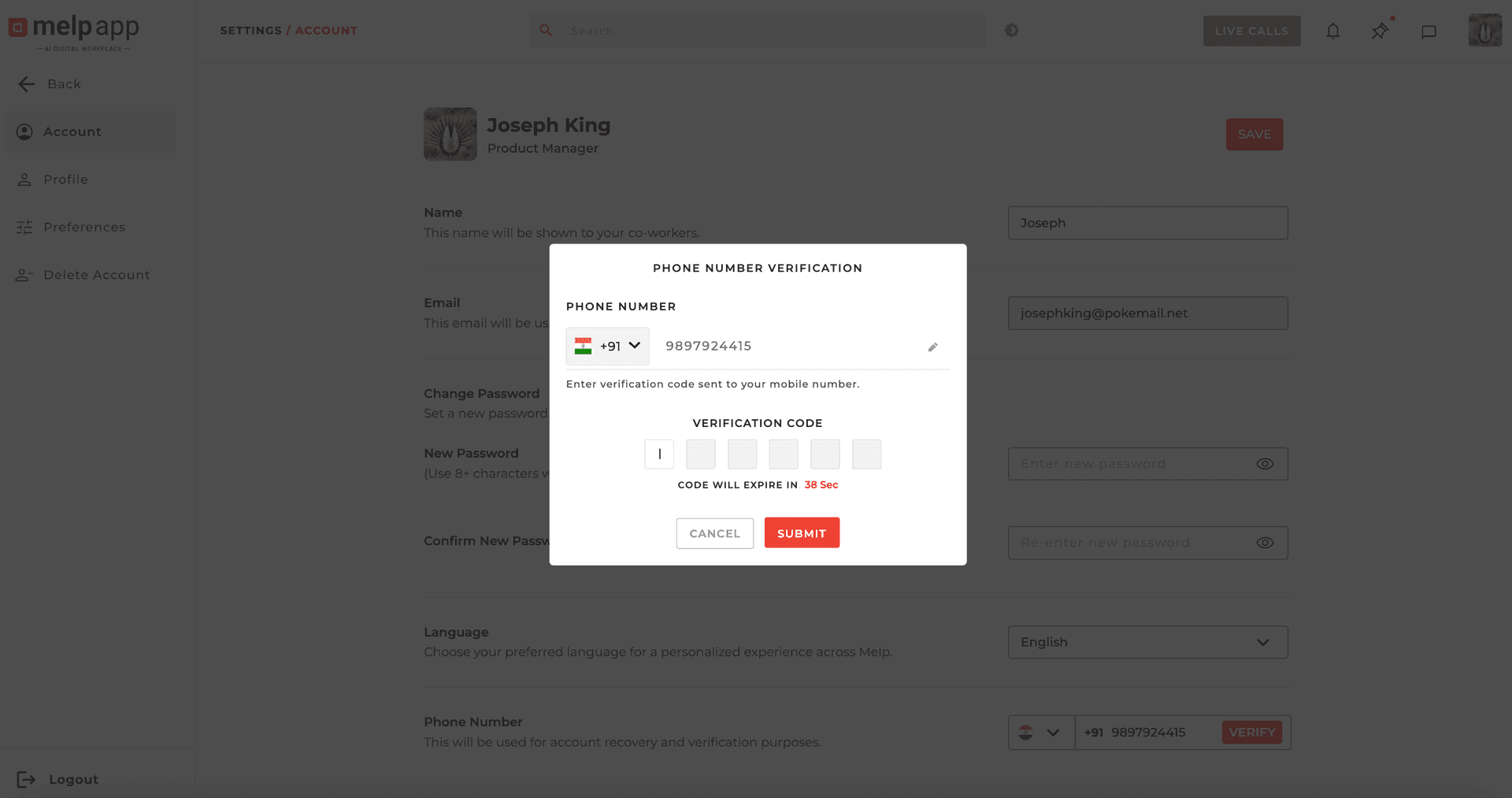
Once verified, your phone number will be securely linked to your account—enhancing security and ensuring a seamless connection to your network, even if you switch emails or face account changes in the future.