

Add or Remove Team Members
Manage your team like a pro.
Invite collaborators, update roles, and keep the right people in the loop.
Who Can Do This?
Only Team Adminshave the ability to add or remove members from a team. If you're the one who created the team, congrats—you're the admin by default!
How to Add Members
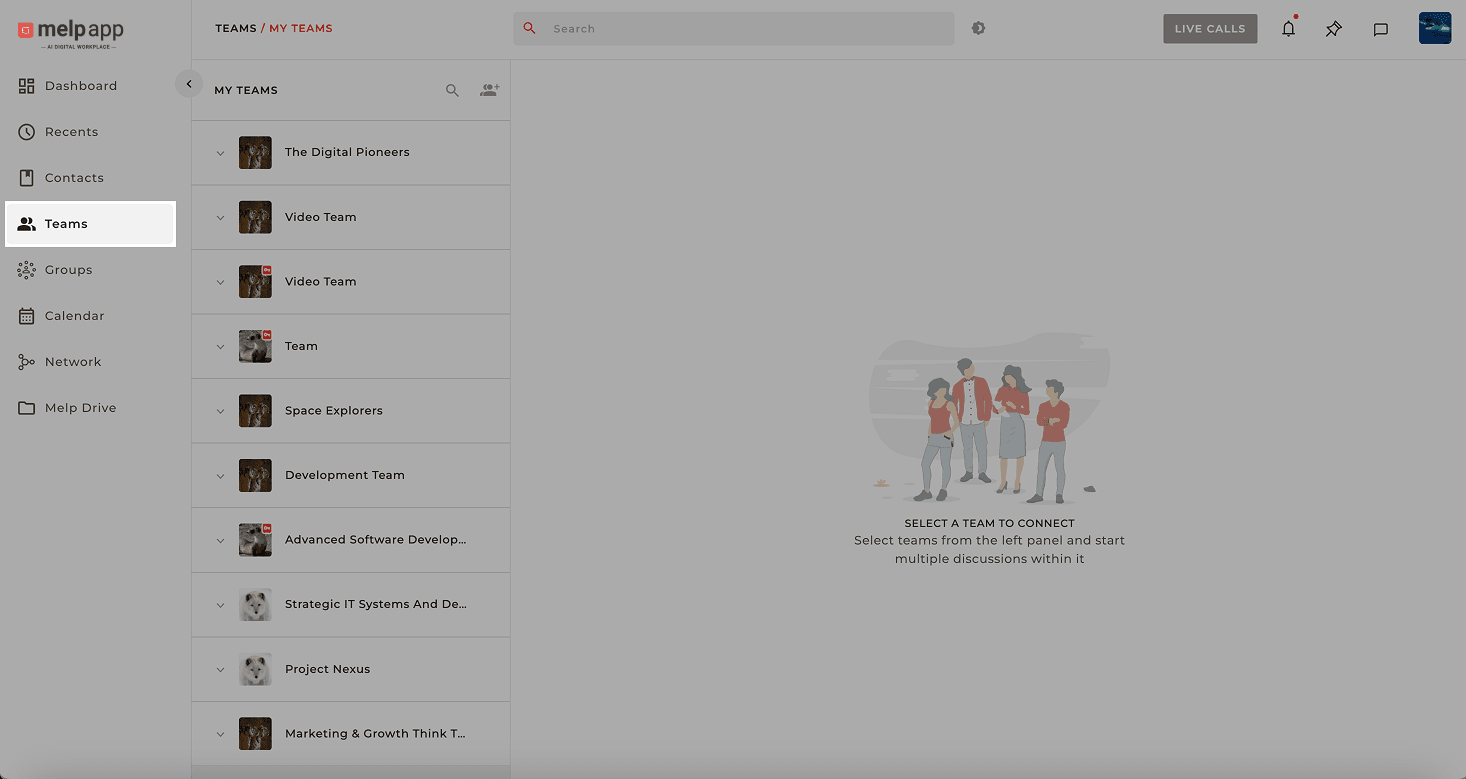
Navigate to Teams
Head over to the Teams section from your dashboard.
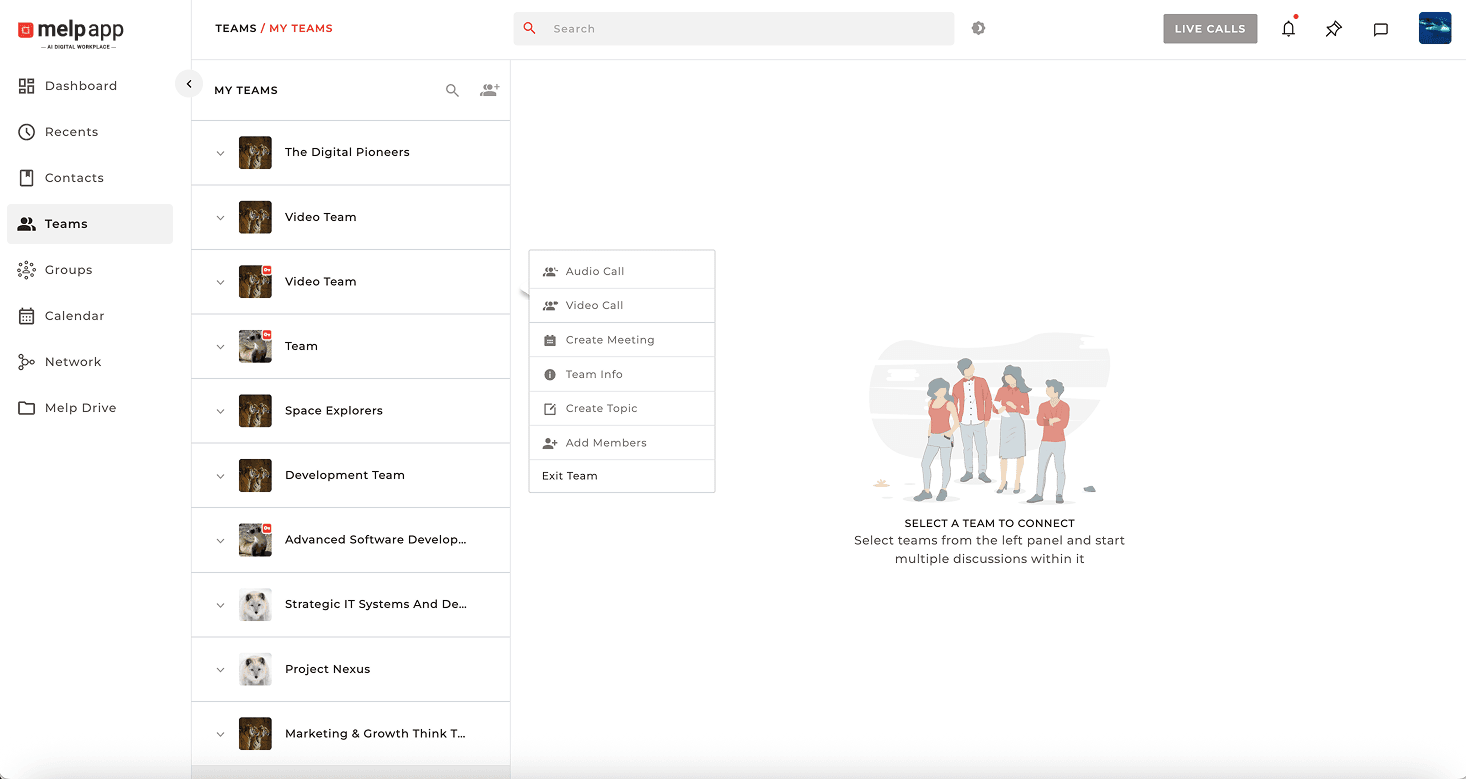
Open More Options
Find the team you want to manage and click the More Options icon.
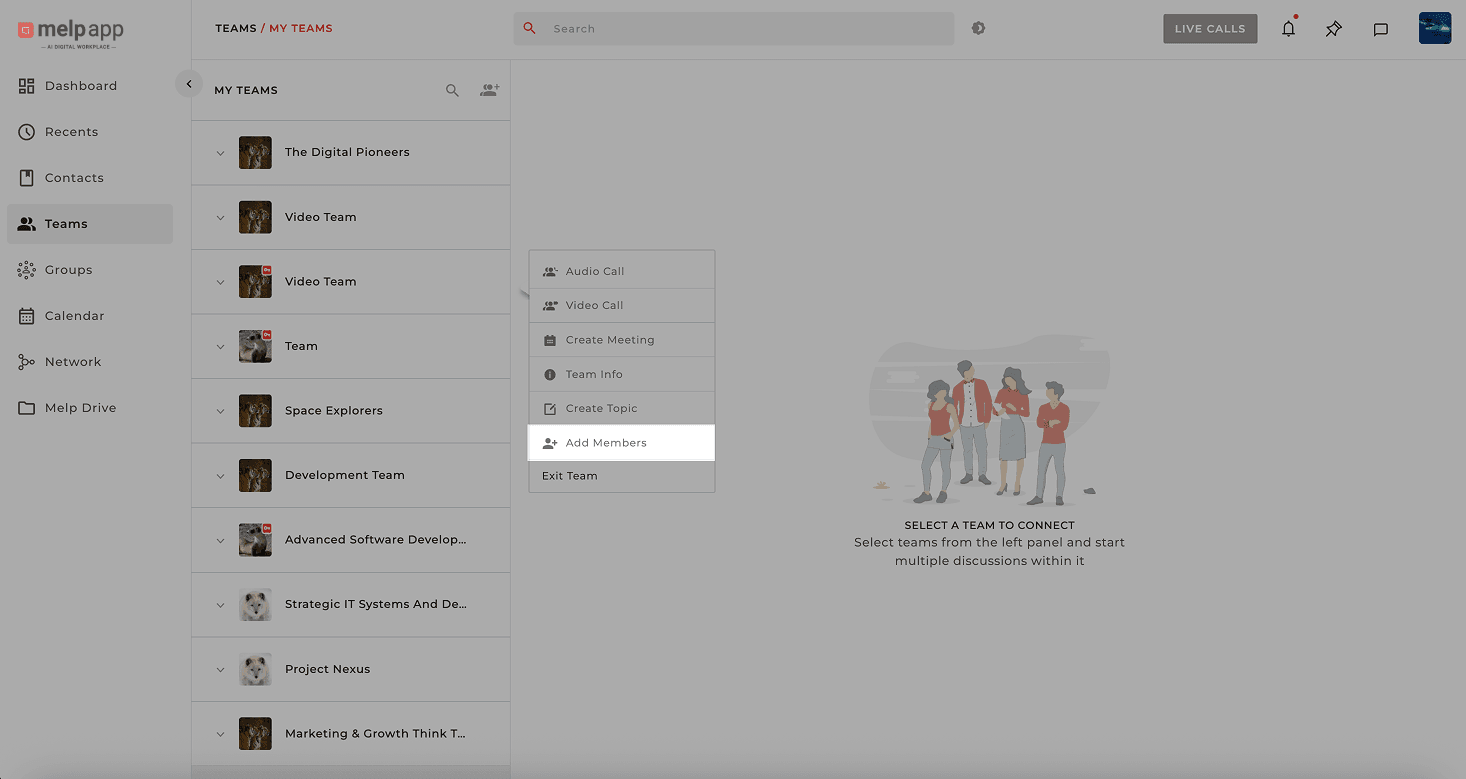
Select Add Members
Select "Add Members" from the list.
Choose People to Add
In the pop-up window, type in the name or email of the people you want to add. You can also select users directly from your Contact List.
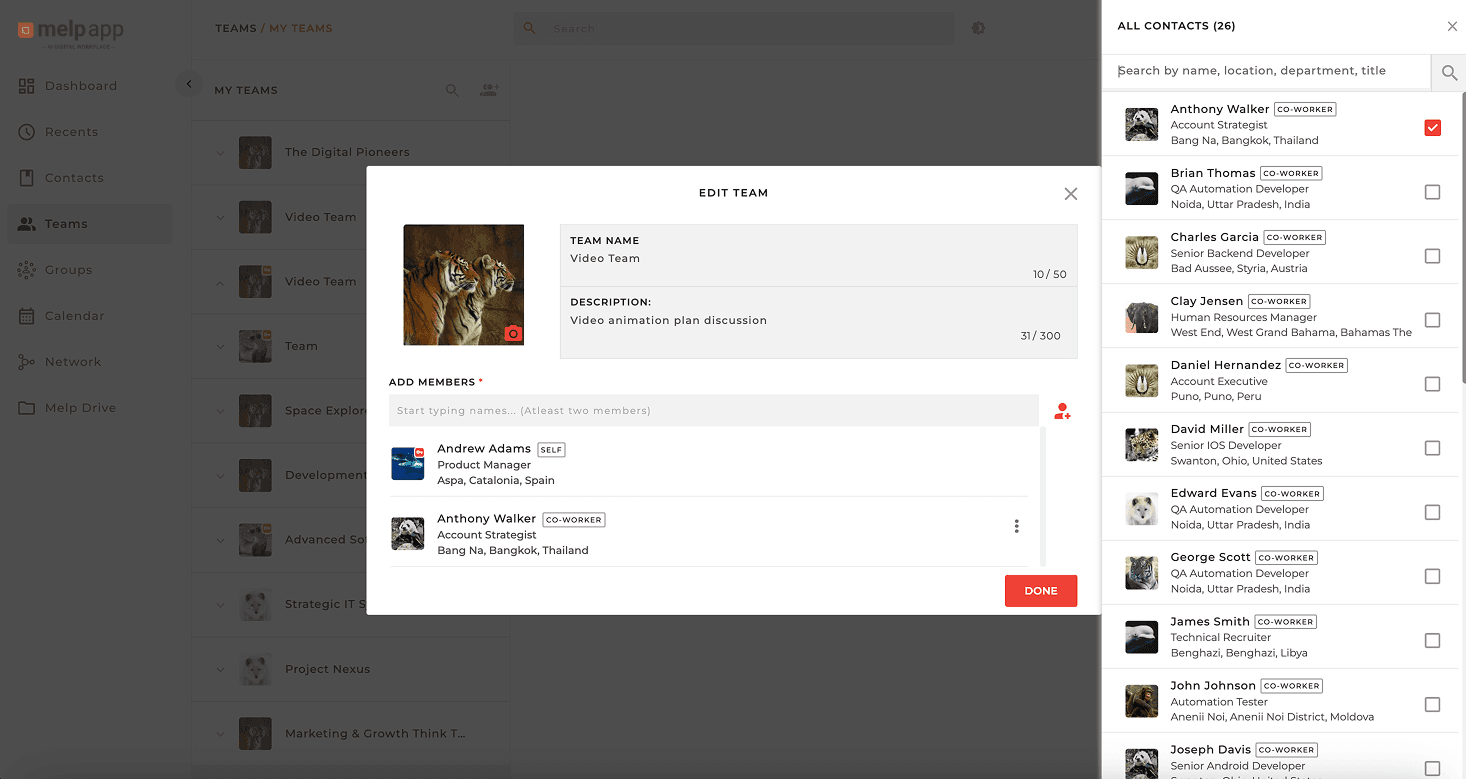
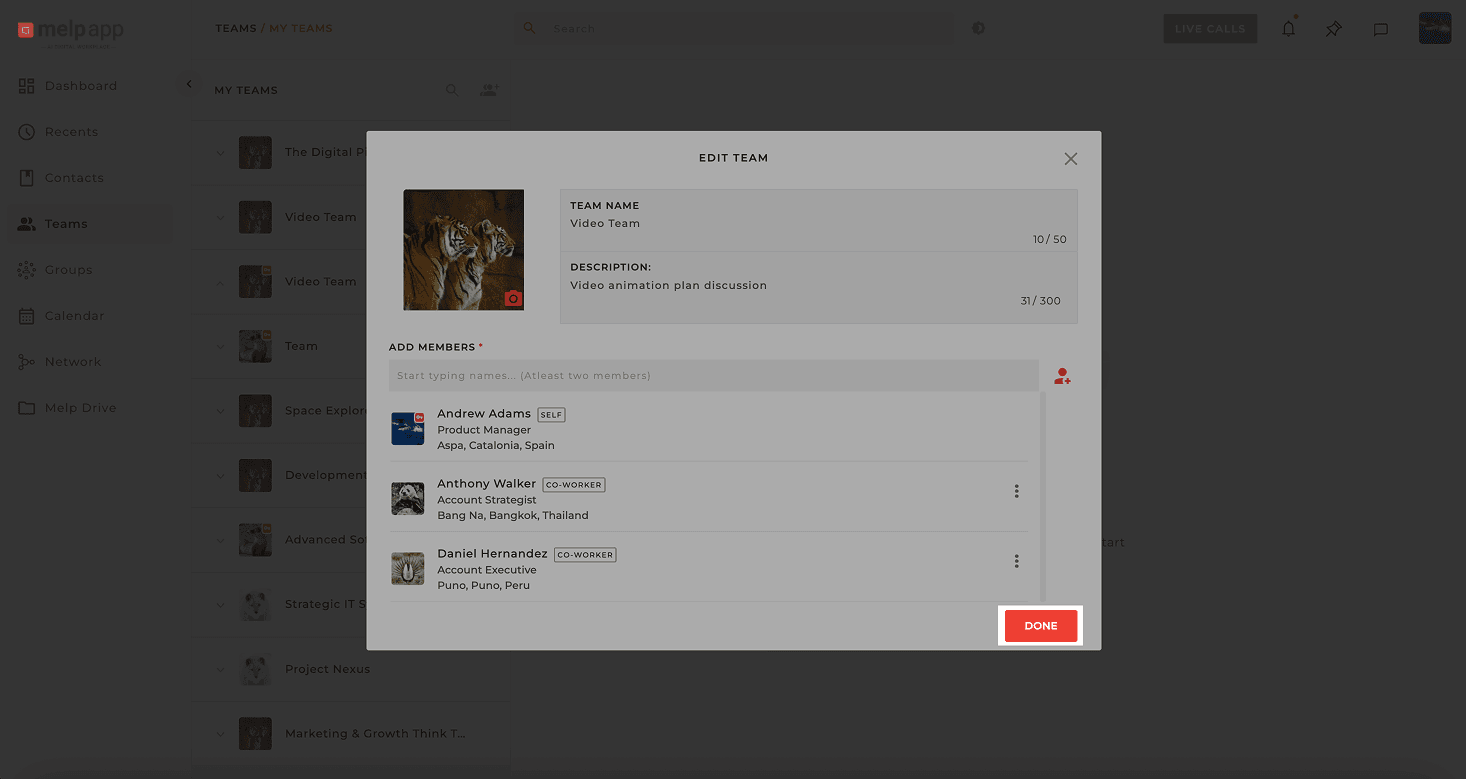
Confirm
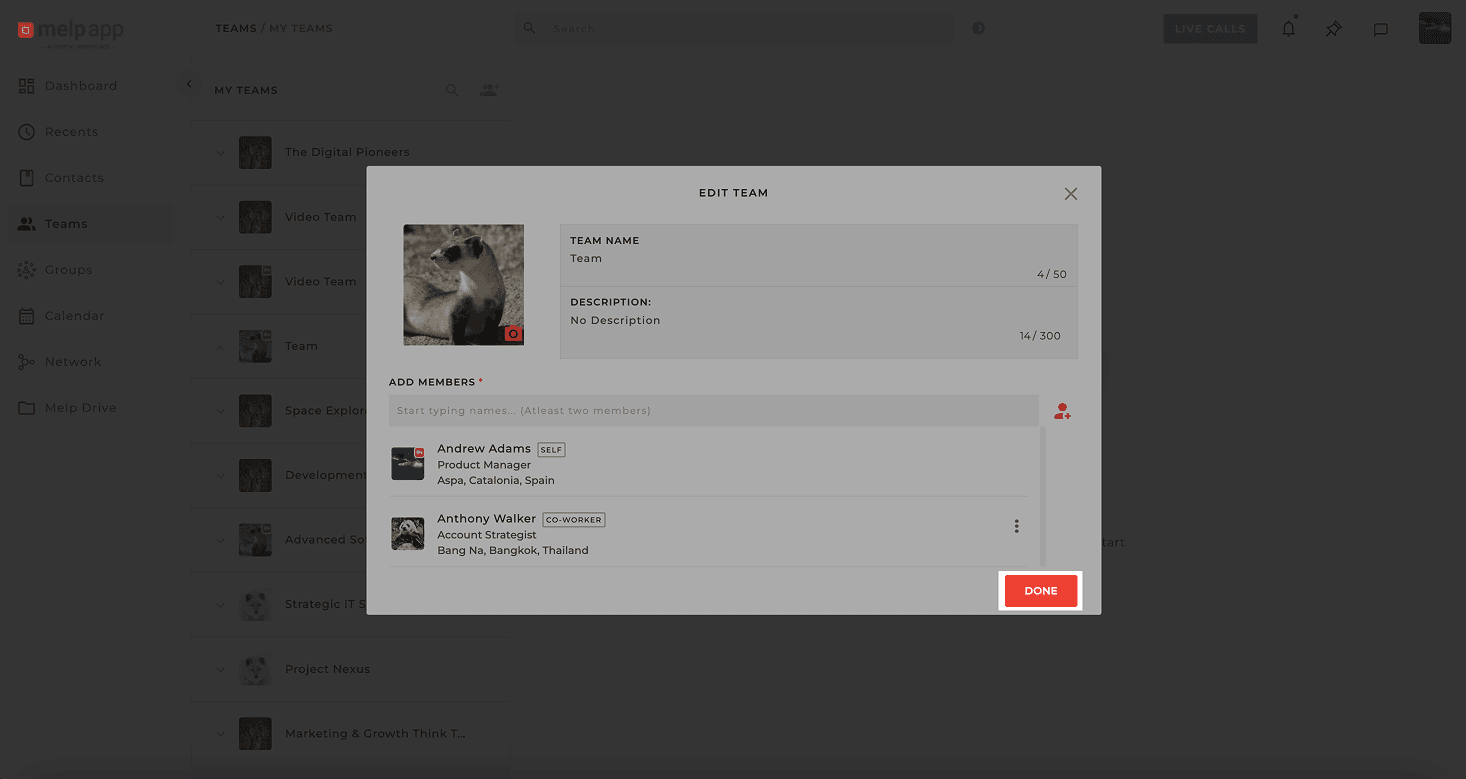
Once you're ready, hit DONE—and they'll be added instantly!
How to Remove Members
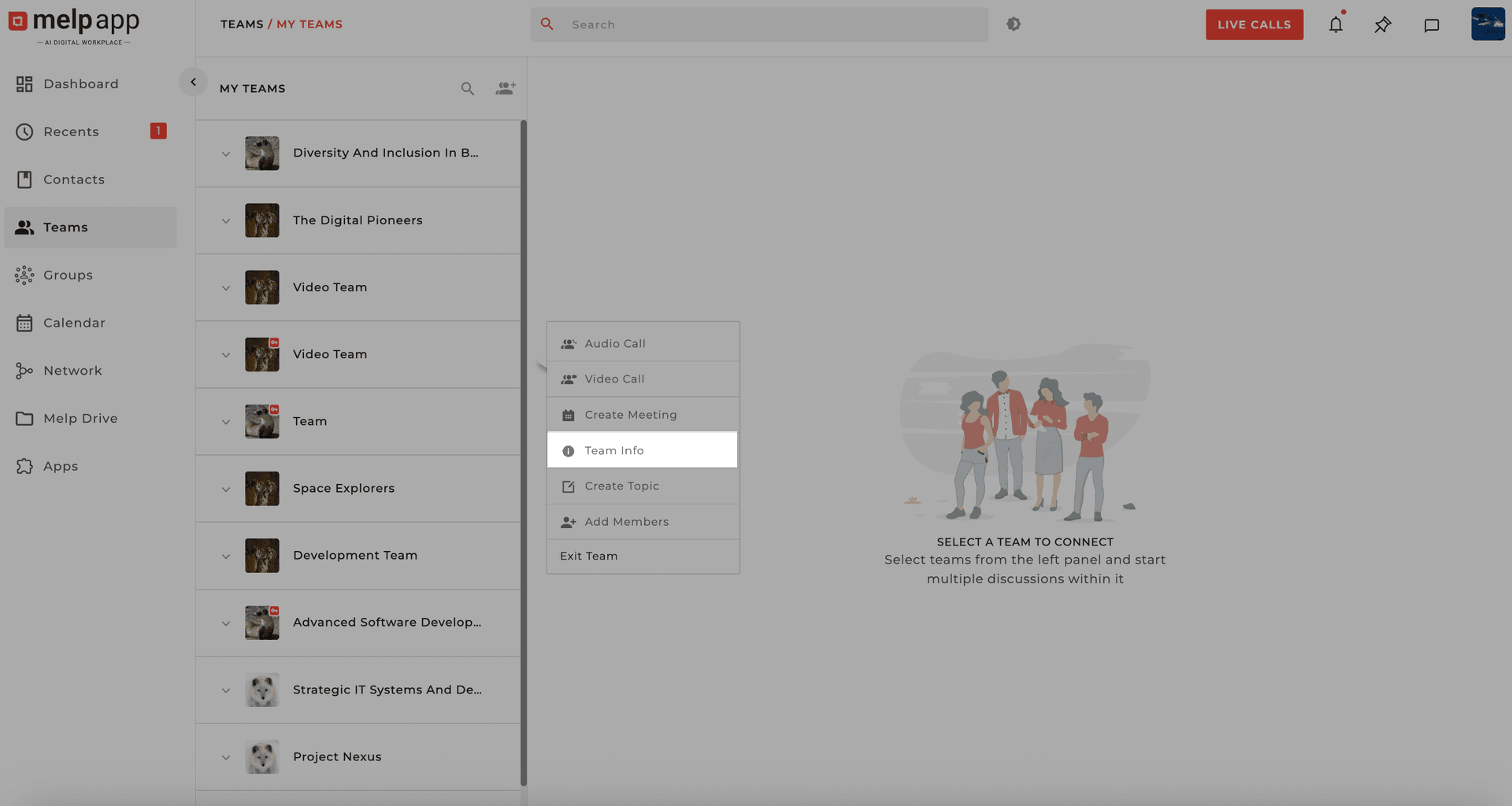
Open Team Info
Go to the Team Info page of the team you want to manage.
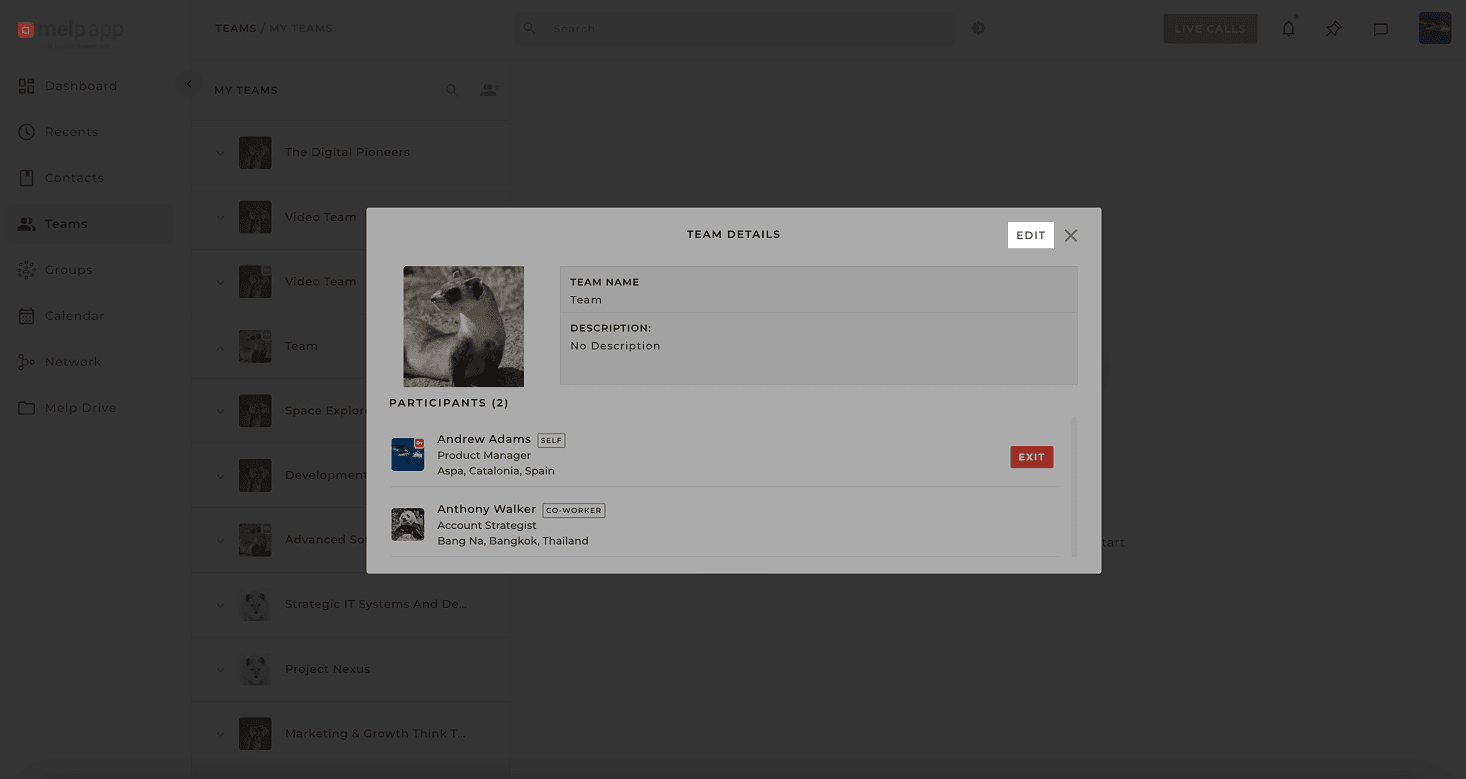
Click Edit Team
Click Edit Team to see the list of current members.
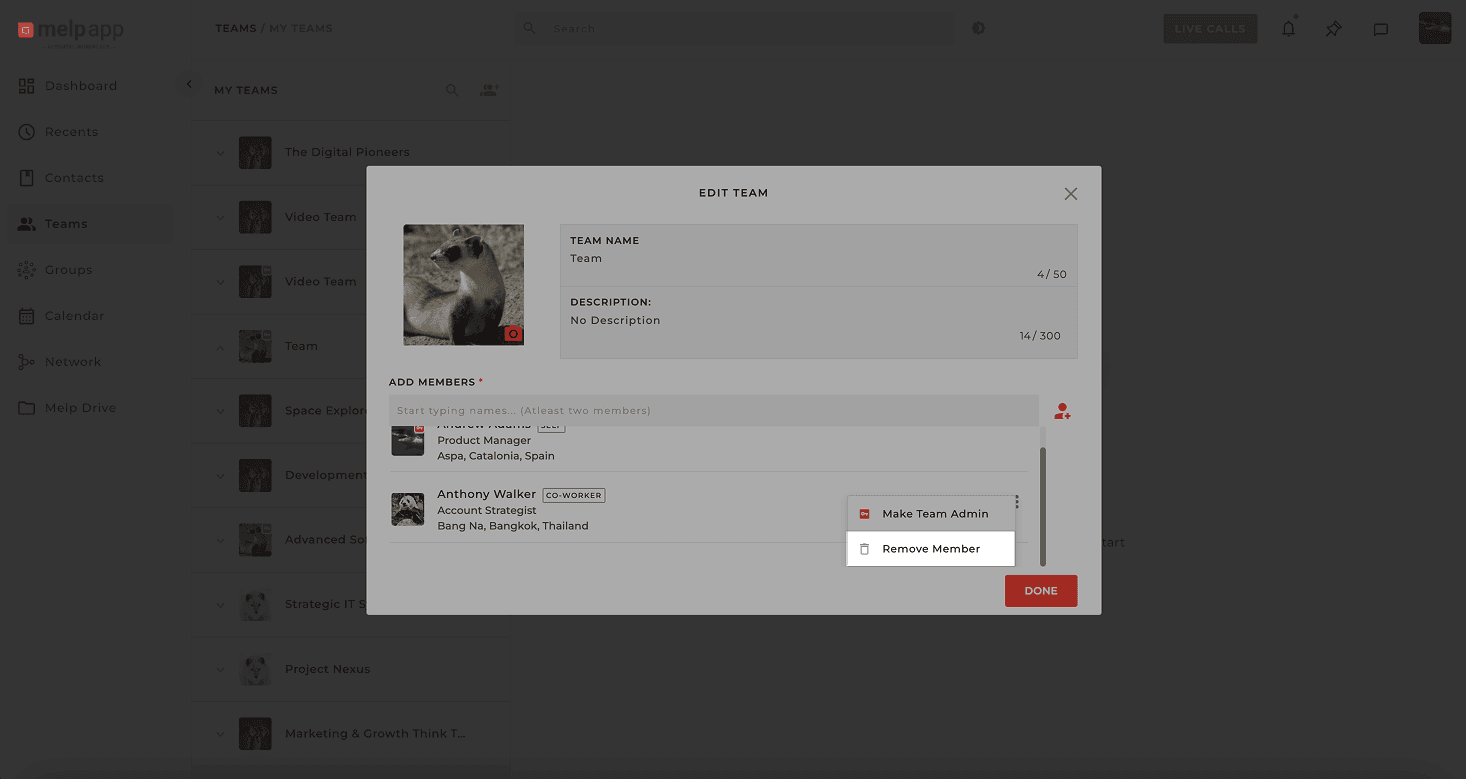
Remove the Member
Find the member you want to remove, click the More icon next to their name, select Remove, and confirm in the popup.
Complete
Click Doneto complete the process — just like that, they're no longer part of the team!
Good to Know
Removed members will lose access to all team content, including topics, files, and conversations. Make sure to back up any important shared data first!